

Connecting your phone or tablet to a TV often feels frustrating when content doesn’t show up on your larger screen properly. Many people in the US search for how to connect your phone to your TV using reliable methods across different devices. Research shows that both wireless connection options and physical links can influence playback success and overall compatibility significantly. Wireless screen mirroring and casting via apps, Chromecast, or AirPlay can display your phone’s screen on smart TVs easily. This complete guide explains how to connect your phone to your TV step by step using proven methods.
How to Connect Your Phone to Your TV (Wireless Methods)
Connecting an Android phone to your TV wirelessly enhances viewing experience on a bigger screen easily. Wireless options rely on Wi-Fi network connectivity, smart TVs, and built-in app features for flexibility.
Screen Mirroring:
Screen mirroring allows an Android device to display the phone screen on a smart TV wirelessly. It supports streaming videos, browsing apps, and showing photos directly on a big screen. This method works well for quick sharing, although performance depends on Wi-Fi strength and device compatibility.

- Swipe down from the top to open quick settings on your Android phone.
- Tap the screen mirroring option, then select your TV from the available TVs list.
- Confirm connection, and view the phone screen instantly on TV using a wireless link.
- Disconnect afterward from the control center when sharing finishes or the connection weakens.
Chromecast:
Chromecast enables Android phone content to play on TVs through supported apps smoothly. It works especially well for streaming videos because casting sends content directly to the TV via a Wi-Fi network. This method keeps the phone usable while playback continues.
- Connect the Android phone and Chromecast-enabled TV to the same Wi-Fi network.
- Open a compatible app, then tap the cast icon on the phone screen interface.
- Select your TV, and start streaming videos on a bigger screen immediately.
- Stop casting afterward from app controls to disconnect the phone and TV connection.
Smart Apps:
Smart apps provided by smart TVs allow wireless connection without extra hardware. These apps help control your TV, mirror your phone screen, and manage settings easily. Performance varies by brand, but setup remains straightforward for most smartphones.
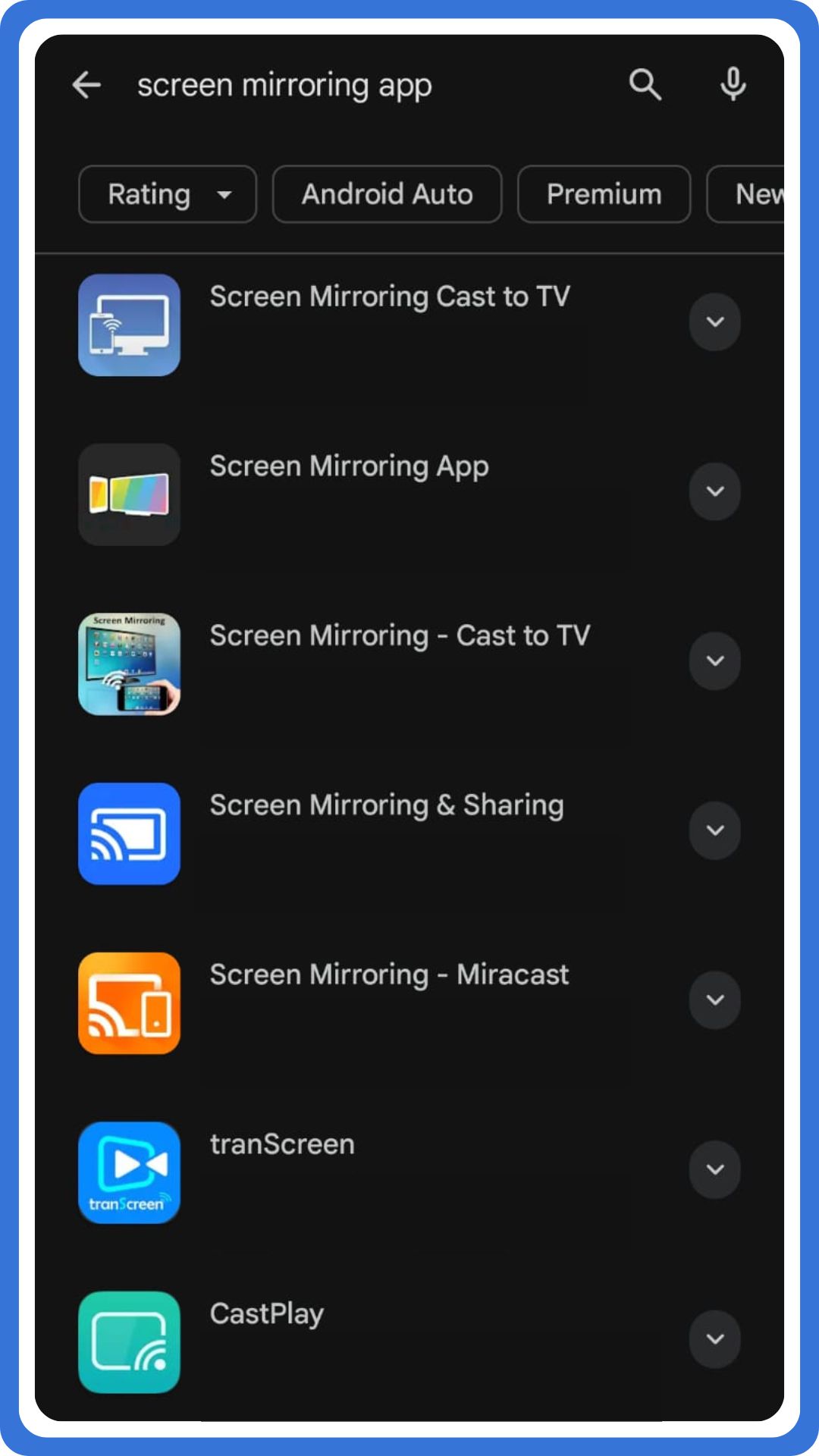
- Install the official smart TV app on your Android phone from the app store.
- Ensure the phone and TV use the same Wi-Fi network connection.
- Open the app, pair devices, and control your TV interface remotely.
- Disconnect anytime through app settings when usage ends.
How to Connect Your Phone to Your TV (Wired Methods)
Wired connections connect an Android phone to your TV for stable, high-quality viewing.
These options use HDMI cables or USB-C adapters, ensuring minimal lag and consistent output.
HDMI:
HDMI creates a direct wired connection between the phone and TV, offering reliable performance. This method suits gaming, presentations, and streaming videos because it avoids wireless interference entirely.
- Connect the HDMI adapter to the Android phone port securely.
- Attach the HDMI cable from the adapter to the TV HDMI port firmly.
- Select the correct HDMI port on the TV using the input menu.
- View the phone screen instantly on TV, and then disconnect the wire afterward.
USB-C:
USB-C supports video output on many Android smartphones using a USB-C to HDMI adapter. It delivers stable screen mirroring and works well for professional tasks and extended viewing sessions.
- Plug the USB-C to HDMI adapter into the phone’s USB-C port.
- Connect the HDMI cable from the adapter to the TV HDMI port carefully.
- Choose the corresponding HDMI port on the TV via the settings menu.
- The phone screen appears on the big screen, although device support may vary.
Troubleshooting Common Smart TV and Android Phone Issues
Firstly, reboot devices when connecting an Android phone to your TV wirelessly fails unexpectedly. This step refreshes the wireless connection and often restores seamless playback on the larger screen.
Secondly, ensure devices are updated before you connect your Android phone to your TV.
Updates improve compatibility with TVs or streaming devices like Roku, Apple TV, or Amazon Fire TV.
Thirdly, use official cables and adapters, especially when using a USB-C port connection.
Official accessories help display your phone’s screen properly and support casting without interruptions.
Lastly, check for wireless interference when phone-to-TV connections drop during playback. Nearby Wi-Fi congestion can disrupt Miracast, screen mirroring, and other built-in casting features.
FAQs
1. Can I use my phone as a TV remote control?
Yes, many smart TV apps let you control your TV using an app on your smartphone.
2. What if my TV isn’t smart?
Use an external device like Chromecast, Roku, or Amazon Fire TV Stick to enable wireless casting.
3. How do I cast YouTube to my TV?
Open YouTube, tap the cast icon, and select your compatible TV or streaming device.
4. Does Chromecast work with both Android and iPhone?
Yes, Chromecast works with both Android and iPhone using supported apps and Wi-Fi.
5. What is the easiest way to mirror my phone to the TV?
Using built-in casting or AirPlay features on a smart TV is the easiest method.