Author: Muhammad Bilal

  • HyperX QuadCast Software: Setup, Features, Updates & Fixes

    HyperX QuadCast Software: Setup, Features, Updates & Fixes

    A streamer unboxes a new QuadCast S, plugs it in, and watches a rainbow glow fill the grille. Within minutes, the same streamer wants calmer colors, a quieter monitor level, and a firmware check. That moment sends most owners searching for HyperX QuadCast software and the right download source.

    HyperX ships one free app for its microphones, and the app name confuses many first time buyers. Readers who track app releases may also enjoy our guide on new software versions lcftechmods for update habits.

    This guide explains what the software does, which QuadCast models it supports, and how to install it. It also covers firmware updates, common errors, Mac limits, and the mistakes that waste a setup session.

    Quick Answer: What Is HyperX QuadCast Software?

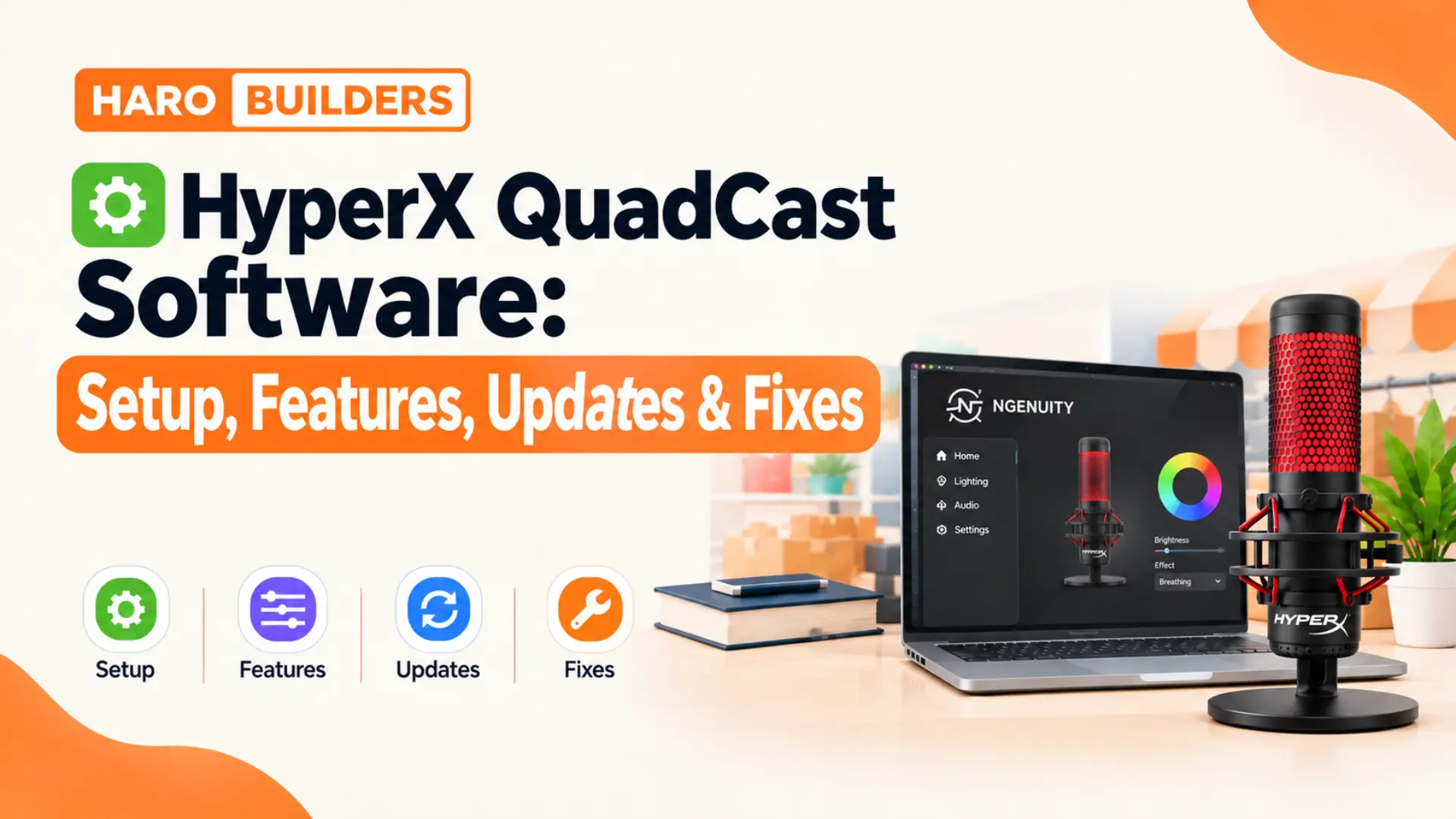
    HyperX QuadCast software is HyperX NGENUITY, a free Windows app that controls supported QuadCast microphones. It handles RGB lighting, mic monitoring, and firmware updates on newer QuadCast models. The original QuadCast works as a plug and play mic and usually needs no software at all. Features vary by model, so check the official compatibility list before installing anything.

    HyperX QuadCast Software at a Glance

    HyperX NGENUITY is the official control app that HyperX, now part of HP, offers for its peripherals. The Microsoft Store listing names the QuadCast S, DuoCast, and SoloCast among its supported microphones. Newer retail listings for the QuadCast 2 and QuadCast 2 S also point buyers toward NGENUITY.

    ItemDetail
    Official nameHyperX NGENUITY
    CostFree
    PlatformWindows 10 and Windows 11
    Download sourcesHyperX website, Microsoft Store
    Main jobsLighting, mic tuning, monitoring, firmware
    Original QuadCastWorks without software

    The table shows that one free app covers every software task across the supported QuadCast lineup.

    What Does HyperX QuadCast Software Do?

    NGENUITY acts as a control panel that sits between Windows and the microphone’s onboard settings. Each supported QuadCast shows its own menu, so the visible options change from model to model.

    Lighting Control

    The QuadCast S introduced RGB lighting with 16.7 million colors, and NGENUITY controls every visible effect. Owners pick solid colors, breathing patterns, cycles, or waves, and the grille updates in real time. HyperX also lists two lighting zones on the QuadCast S, which allows two separate color areas.

    Several reviewers noted that turning the lights off on the QuadCast S requires the software. Without NGENUITY, the mic usually keeps its default rainbow effect every time it connects to a computer. The QuadCast 2 uses red lighting by default, and NGENUITY changes effects for both live and mute states.

    Microphone Tuning and Monitoring

    On the QuadCast S, gain stays on a physical dial at the base of the microphone. The QuadCast 2 moved more controls into a multifunction dial and added software tuning through NGENUITY. HyperX describes the QuadCast 2 app controls as mic tuning, monitoring adjustment, and lighting personalization.

    The QuadCast 2 S goes further, with retail listings naming a 10 band EQ and a limiter. Those listings also mention individual LED control and an AI noise reduction feature inside NGENUITY. Exact options depend on firmware and app version, so the menu may differ slightly between machines.

    Firmware Updates

    NGENUITY checks connected HyperX devices for new firmware and walks users through each install. Firmware changes fix bugs, add features, and sometimes improve audio quality on older models. HyperX used a firmware update to unlock 24 bit, 96 kHz recording on the SoloCast, for example.

    Profiles and Sync

    The current NGENUITY build supports saved profiles and cloud sync for signed in users. Streamers who switch between a desktop and a laptop can carry the same lighting setup across both. Profile support varies by device, so microphone menus may show fewer profile options than keyboards.

    Key Characteristics of HyperX QuadCast Software

    These traits define how the app behaves on a typical Windows setup:

    • NGENUITY costs nothing and installs from the HyperX website or the Microsoft Store on Windows.
    • The app detects connected HyperX devices automatically and lists each one in a sidebar menu.
    • Lighting changes apply in real time, so users see each color adjustment before saving it.
    • Firmware updates arrive through the same app, which removes the need for separate download pages.
    • Audio options grow with each QuadCast generation, with the QuadCast 2 S offering the deepest controls.
    • The software supports Windows 10 and Windows 11 only, which leaves Mac owners without native access.

    Does the Original HyperX QuadCast Need Software?

    The first QuadCast launched with fixed red lighting and no NGENUITY support listed by HyperX. Gain, mute, and polar pattern all live on physical controls on the microphone body. So owners of the original model can skip NGENUITY entirely and still record clean audio.

    A search for HyperX QuadCast software from an original owner usually comes from a driver concern. Windows and macOS recognize the QuadCast as a standard USB audio device without extra drivers. If the mic fails to appear, the cable, port, or system sound settings deserve the first check.

    Which QuadCast Models Work With NGENUITY?

    Four QuadCast models sit in the lineup, and each one treats the app differently. The table below compares lighting, software support, and the main controls inside NGENUITY.

    ModelLightingNGENUITY supportMain app features
    QuadCastRed onlyNot listedNone needed
    QuadCast SRGB, two zonesYesLighting, firmware
    QuadCast 2Red with effectsYesTuning, monitoring, lighting
    QuadCast 2 SPer LED RGBYesEQ, limiter, noise reduction

    Each newer generation adds more software controls, so the app matters more on later models. HyperX can add or remove features through updates, so the official product page holds the final word.

    QuadCast S vs QuadCast 2: Software Differences

    Buyers often compare these two models, and software features form a large part of the gap. The QuadCast S focuses on lighting, while the QuadCast 2 leans toward audio control inside NGENUITY.

    FeatureQuadCast SQuadCast 2
    LightingFull RGBRed with effects
    Gain controlPhysical dialMultifunction dial
    App audio tuningLimitedMic tuning, monitoring
    Recording quality16 bit, 48 kHz24 bit, 96 kHz

    Streamers who want color choice favor the S, while audio focused buyers lean toward the QuadCast 2. The QuadCast 2 S combines both directions with full RGB and the richest audio menu. That model suits creators who want one microphone and one app to handle every adjustment.

    NGENUITY vs NGENUITY Legacy: Which Version Fits?

    HyperX offers two builds of its software, and picking the wrong one causes detection failures. HP describes the current NGENUITY as a rebuilt app with a modern interface and newer device support. NGENUITY Legacy stays available for older peripherals that the new build has not absorbed yet.

    FeatureNGENUITYNGENUITY Legacy
    ReleaseRebuilt in 2024Original version
    Device focusNewer devicesOlder devices
    InterfaceModern layoutClassic layout
    CostFreeFree

    Readers should match the build to their exact QuadCast model using the HyperX compatibility page. Both versions can sit on one computer, but running two control apps sometimes creates conflicts. Uninstall the Legacy build if every connected device already appears inside the current NGENUITY app.

    HyperX QuadCast Software vs Windows Sound Settings

    Many users confuse NGENUITY controls with the volume and level sliders inside Windows sound settings. The two tools overlap a little, but each handles a separate layer of the audio chain.

    TaskNGENUITYWindows sound settings
    Lighting effectsYesNo
    Firmware updatesYesNo
    Input levelSome modelsYes
    Default device choiceNoYes

    Windows decides which mic apps hear, while NGENUITY decides how supported QuadCast hardware behaves. Set the QuadCast as the default recording device in Windows before testing any NGENUITY change. Otherwise, Discord, OBS, or Zoom may listen to a webcam mic and hide the real result.

    How Do Polar Patterns Work With the Software?

    Every QuadCast model offers four polar patterns: cardioid, omnidirectional, bidirectional, and stereo recording. On the QuadCast S and QuadCast 2, a physical knob selects the pattern directly. The QuadCast 2 S adds onboard indicators that display the active pattern, mute status, and levels.

    PatternPickup areaBest use
    CardioidFrontSolo streaming
    BidirectionalFront and backTwo person interviews
    OmnidirectionalAll sidesGroup calls
    StereoLeft and rightMusic, ambience

    Choosing the right pattern matters more for sound than any lighting or app setting. Cardioid suits solo streaming because it picks up sound mainly from the front of the grille. Bidirectional works for two person interviews across a desk, and omnidirectional suits group conversations. Stereo adds width for ambient or musical recordings, though it rarely helps spoken commentary.

    In simple words: NGENUITY controls how a QuadCast looks and behaves, while Windows controls which apps hear it.

    Is HyperX QuadCast Software Worth Installing?

    The answer depends on the exact model on the desk and the role it plays in a setup. Original QuadCast owners gain nothing from the app, so they can skip the download entirely. QuadCast S owners should install NGENUITY at least once, because lighting and firmware control live there.

    QuadCast 2 owners get more value, since mic tuning and monitoring sit inside the app. QuadCast 2 S owners gain the most, with EQ, a limiter, and noise reduction all waiting in NGENUITY. Podcasters who record weekly episodes benefit from those audio tools far more than casual Discord users.

    A quick rule helps buyers decide before spending time on the install and setup process. If the microphone shows RGB lighting or a 2 in its name, install NGENUITY on day one. If the microphone glows red and carries only the QuadCast name, leave the app off the system.

    Is HyperX QuadCast Software Available on Mac?

    No native macOS build of NGENUITY exists at the time of writing in October 2026. HP’s own guide lists Windows 10 and Windows 11 as the only supported desktop platforms. The QuadCast hardware still works on a Mac as a plug and play USB microphone.

    Mac owners lose lighting control and firmware updates, which matters most on QuadCast S units. Several reviewers report success with Windows virtual machines such as Parallels for occasional NGENUITY tasks. Results vary with USB passthrough, so treat that method as an unofficial workaround, not a supported path.

    A simpler fix uses a borrowed Windows PC once to set lighting and install firmware. Whether settings stay on the mic after unplugging depends on the model, so test before relying on it. Do not buy a QuadCast S for lighting control alone if every computer in the house runs macOS.

    Is HyperX QuadCast Software Free?

    Yes, HyperX gives both NGENUITY builds away at no cost, with no subscription or paid tier. Any site that charges for a QuadCast app likely bundles unwanted extras or outright malware. Download only from the official HyperX website or the Microsoft Store listing for safety.

    Free creative tools often pair well with a streaming setup built around a QuadCast mic. Our guide on which graphic design software is free gfxtek covers options for stream overlays and thumbnails. A free mic app and a free design tool together keep a starter streaming budget focused on hardware.

    Is HyperX QuadCast Software Safe?

    The official NGENUITY app comes from HyperX, which HP owns, and ships through the Microsoft Store. Microsoft Store apps pass a review process, which adds a layer of trust for cautious users. The risk appears only when users grab installers from mirror sites, forums, or file sharing links.

    Check the publisher name before installing, and expect HyperX or HP as the listed developer. Antivirus warnings on an official installer are rare, so treat any warning as a reason to stop. A safe install always starts from the Microsoft Store or the official HyperX page.

    System Requirements for HyperX QuadCast Software

    NGENUITY asks for little from a modern computer, and most gaming or office PCs qualify easily. The table below lists the main requirements from HP’s published guide to NGENUITY.

    RequirementDetail
    Operating systemWindows 10 64 bit or Windows 11
    StorageAbout 480 MB
    ConnectionDirect USB port preferred
    InternetNeeded for downloads and firmware

    Almost any modern Windows PC meets these needs, so hardware rarely blocks the install. Older Windows builds may struggle, so update the system before installing the app.

    How to Install HyperX QuadCast Software

    The full install takes under ten minutes on a typical home connection and Windows PC. Follow these steps in order to avoid the most common detection problems.

    Confirm model → Connect directly → Install NGENUITY → Detect mic → Update firmware → Set preferences

    Step 1: Confirm the QuadCast Model

    Check the label under the base or the original box to confirm the exact model name. The QuadCast S, QuadCast 2, and QuadCast 2 S each need NGENUITY for full control. Original QuadCast owners can stop here because their mic needs no companion software.

    Step 2: Connect the Mic Directly

    Plug the QuadCast into a rear USB port on the computer instead of a hub. Hubs and front panel ports sometimes drop data, which can interrupt detection or firmware installs. Use the cable that shipped with the microphone whenever possible for the most stable link.

    Step 3: Download NGENUITY From an Official Source

    Open the Microsoft Store, search for HyperX NGENUITY, and click the install button. Users who prefer a direct installer can download the same app from the HyperX NGENUITY page. Pick the Legacy build only when the compatibility list names the QuadCast model under that version.

    Step 4: Launch the App and Detect the Mic

    On first launch, NGENUITY scans for connected HyperX hardware and lists each device in the sidebar. Click the QuadCast entry to open its lighting, audio, and firmware panels. A short tutorial appears for new users and explains where each control sits.

    Step 5: Install Any Pending Firmware

    Open the device information or settings area and look for a firmware update prompt. Click update, wait for the progress bar, and keep the cable connected the entire time. Unplugging mid update can leave the microphone unresponsive and force a recovery attempt.

    Step 6: Set Lighting and Audio Preferences

    Choose a lighting effect, adjust brightness, and set separate colors for live and mute states. On QuadCast 2 and 2 S models, adjust monitoring and tuning while speaking at normal volume. Save the changes, close the app, and record a short test clip in any recorder.

    How to Update QuadCast Firmware Safely

    Firmware updates carry more risk than lighting changes because they rewrite the mic’s internal code. Close OBS, Discord, and any other app that holds the microphone open before starting. Disable sleep mode on laptops so the system stays awake during the full install.

    If an update freezes, close NGENUITY, reconnect the mic, and restart the process from the beginning. Reinstalling NGENUITY often clears stubborn failures that survive a simple restart of the app. Contact HyperX support if the microphone stays dark or silent after two clean attempts.

    Never unplug a QuadCast while NGENUITY shows a firmware progress bar on screen.

    How to Test QuadCast Audio After Setup

    A short test recording confirms that lighting, firmware, and Windows settings all work together. Open the Windows Voice Recorder or Audacity, speak at a normal distance, and play the clip back. Listen for clipping on loud words, background hum, and uneven volume between sentences.

    Lower gain if loud words distort, and raise it slightly if the waveform looks thin. Repeat the test after every firmware update because updates can reset levels or lighting on some models. A two minute test saves streamers from discovering audio problems halfway through a live broadcast.

    Save one reference clip after the first clean setup and keep it in a labeled folder. Compare later tests against that clip to spot gain drift, new hum, or firmware side effects. A side by side listen reveals small changes that a live monitor often hides during busy sessions. Podcasters with weekly schedules gain the most from this habit because episodes stay consistent over months.

    Benefits of Using NGENUITY With a QuadCast

    Owners who install the app gain several practical advantages over the default plug and play setup:

    • Streamers match mic lighting to channel colors and keep a consistent look on camera.
    • Firmware updates fix known bugs and occasionally unlock better recording quality on supported models.
    • Mute state colors give a clear visual signal, which prevents embarrassing hot mic moments.
    • QuadCast 2 S owners gain EQ and limiter controls without buying separate audio software.
    • One app manages several HyperX devices, so headset and keyboard lighting can match the mic.

    Real World Example: A Streamer’s QuadCast S Setup

    Consider a part time Twitch streamer who records gameplay commentary three evenings a week. The streamer bought a QuadCast S because the RGB glow fit a purple and blue room theme. The default rainbow cycle clashed with the room lights and distracted viewers during quiet scenes.

    After installing NGENUITY, the streamer set a slow purple breathing effect for the live state. A solid red color marked the mute state, which made muted moments obvious on camera. A pending firmware update installed in about two minutes during the same session.

    The whole setup took fifteen minutes, and the lighting stayed consistent across later streams. The only extra step involved setting the QuadCast as the default device inside Windows sound settings.

    Best Practices for QuadCast Lighting on Stream

    Lighting looks best when it supports the scene instead of competing with the streamer’s face. Pick one or two colors from the channel branding and keep the effect speed slow. Fast rainbow cycles draw eyes away from gameplay and can look harsh on compressed video.

    Match the mute color to a clear warning tone such as red or orange. Viewers learn the signal quickly, and the streamer gains a reliable visual reminder before speaking. Lower brightness for late night streams, since a bright grille can wash out a dim webcam shot.

    Troubleshooting HyperX QuadCast Software Problems

    Most NGENUITY problems follow a short list of patterns, and each pattern has a quick first check.

    ProblemLikely causeFirst check
    App misses the micHub or wrong buildDirect USB port
    Lighting will not changeConflicting RGB appClose iCUE or Synapse
    Firmware update stallsUnstable connectionReconnect and retry
    App crashes on launchCorrupt installReinstall NGENUITY
    No sound in appsWrong default deviceWindows sound settings

    Most failures trace back to connections or conflicting software, not a faulty microphone.

    Why Does NGENUITY Not Detect the QuadCast?

    Detection failures usually come from a USB hub, a loose cable, or the wrong software build. Move the mic to a rear port, confirm the model on the compatibility list, and relaunch NGENUITY. If the mic still hides, test it in Windows sound settings to confirm the hardware works.

    Why Do QuadCast Lights Ignore NGENUITY Changes?

    Other RGB suites such as Corsair iCUE or Razer Synapse sometimes grab control of USB lighting. Close those apps fully from the system tray, and reopen NGENUITY to retry the change. Check for a firmware update too, because outdated firmware can block newer lighting effects.

    Why Does the App Crash on Startup?

    Crashes often follow a corrupted install or an outdated Windows build on the host machine. Update Windows, reinstall NGENUITY, and remove the Legacy build if the system no longer needs it.

    Common Mistakes

    1. Downloading NGENUITY From Unofficial Sites

    Third party download sites sometimes wrap the free installer with adware or browser hijackers. Stick to the Microsoft Store or the HyperX website for every NGENUITY download.

    2. Installing Software for the Original QuadCast

    Owners of the first QuadCast often install NGENUITY and assume the app has failed. That model never had software support, so the empty device list reflects normal behavior.

    3. Unplugging During a Firmware Update

    Pulling the cable mid update interrupts the write process and can leave the mic unresponsive. Wait for the confirmation message before touching the cable or closing the app.

    4. Running Two RGB Apps at Once

    Multiple lighting suites fight over the same USB device and produce flicker or ignored settings. Keep one RGB controller active at a time while configuring the QuadCast lighting.

    5. Ignoring the Windows Default Device

    NGENUITY changes mean nothing if Discord or OBS listens to a different microphone entirely. Set the QuadCast as default in Windows, and confirm the input choice inside each app.

    6. Expecting Full Mac Support

    Mac buyers sometimes purchase a QuadCast S for lighting control and discover no native app exists. Plan for a Windows machine or accept the default lighting before buying for macOS.

    Tips for Getting More From HyperX QuadCast Software

    These habits keep the microphone stable and the app useful over months of daily use:

    • Check NGENUITY for firmware updates once a month to catch fixes and new features early.
    • Pick a distinct mute color so viewers and the streamer both spot muted moments instantly.
    • Lower lighting brightness during long sessions, because bright grilles reflect on glasses and screens.
    • Test every audio change with a short recording instead of trusting the live monitor alone.
    • Keep the original USB cable for firmware work, since cheap cables often drop the connection.

    HyperX QuadCast Software Checklist

    Run through this short list during every new QuadCast setup or computer change:

    • Confirm the exact QuadCast model before downloading any software or reading setup guides.
    • Connect the microphone to a rear USB port with the original cable for stable detection.
    • Install NGENUITY from the Microsoft Store or the official HyperX website only, nowhere else.
    • Choose the current or Legacy build based on the official HyperX compatibility list.
    • Install pending firmware and keep the cable connected until the app confirms success.
    • Set lighting for live and mute states, and save the changes before closing the app.
    • Select the QuadCast as the default recording device in Windows sound settings afterward.
    • Record a short test clip to verify sound quality, levels, and lighting behavior together.

    Frequently Asked Questions

    What is HyperX QuadCast software called?

    HyperX QuadCast software is called HyperX NGENUITY, a free Windows app from HyperX. The app controls lighting, firmware, and audio options on every supported QuadCast model.

    Do I need HyperX QuadCast software to use the mic?

    No, every QuadCast works as a plug and play USB microphone without extra software. HyperX QuadCast software only adds lighting control, firmware updates, and deeper audio tuning on newer models.

    Is HyperX QuadCast software free?

    Yes, HyperX QuadCast software costs nothing, and both NGENUITY builds download free from official sources. No subscription or paid upgrade exists for any QuadCast feature inside the app.

    Does HyperX QuadCast software work on Mac?

    No native macOS version of HyperX QuadCast software exists, since NGENUITY runs on Windows only. The microphone itself still works on a Mac, but lighting and firmware controls stay unavailable.

    Does the original QuadCast support NGENUITY?

    The original QuadCast does not appear on HyperX’s NGENUITY support list and needs no software. Its physical controls handle gain, mute, and polar patterns without any app.

    How do I update QuadCast firmware?

    Open HyperX QuadCast software, select the mic, and accept any firmware prompt in the device panel. Keep the USB cable connected until NGENUITY confirms that the update finished successfully.

    Why does NGENUITY not find my QuadCast?

    NGENUITY usually misses a QuadCast because of a USB hub, a loose cable, or the wrong build. Connect the mic directly, confirm compatibility, and relaunch HyperX QuadCast software to retry.

    Can I turn off the QuadCast S lights?

    Yes, HyperX QuadCast software lets QuadCast S owners turn the RGB lighting off from the lighting panel. Without the app, the mic usually stays on its default color cycle.

    What is the difference between NGENUITY and NGENUITY Legacy?

    NGENUITY is the rebuilt current version of HyperX QuadCast software with support for newer devices. NGENUITY Legacy remains for older HyperX peripherals that the new build has not absorbed yet.

    Which QuadCast has the most software features?

    The QuadCast 2 S offers the deepest HyperX QuadCast software controls among current models. Retail listings mention a 10 band EQ, a limiter, per LED lighting, and AI noise reduction.

    Key Takeaways

    • HyperX QuadCast software goes by the name HyperX NGENUITY and costs nothing to download.
    • NGENUITY supports Windows 10 and Windows 11, with no native app available for macOS users.
    • The original QuadCast needs no software because every control sits on the microphone body.
    • QuadCast S owners need NGENUITY to change or switch off the default RGB lighting.
    • QuadCast 2 adds mic tuning and monitoring controls inside the app alongside lighting effects.
    • QuadCast 2 S offers the deepest controls, including EQ, limiter, and noise reduction options.
    • Download NGENUITY only from the Microsoft Store or the official HyperX website for safety.
    • Pick the current or Legacy build by checking the official HyperX compatibility list first.
    • Connect the mic directly to a rear USB port to avoid detection and firmware failures.
    • Keep the cable connected during firmware updates until the app confirms the install finished.
    • Close other RGB suites before changing lighting, because they often block NGENUITY control.
    • Set the QuadCast as the Windows default input so every recording app hears the right mic.

    Final Thoughts

    HyperX QuadCast software turns a good USB microphone into a device that matches each streamer’s setup. The original QuadCast works fine without it, but later models gain lighting, tuning, and firmware control. Start with the right build, connect directly, and treat firmware updates with patience.

    Owners who follow the checklist above usually finish setup in under fifteen minutes on Windows. Mac users should plan a Windows workaround or accept default lighting before buying an RGB model. Explore more tech guides and software walkthroughs on Haro Builder for practical setup help.
  • New Software Versions LCFTechMods: What It Is & How to Check

    New Software Versions LCFTechMods: What It Is & How to Check

    Anyone searching new software versions lcftechmods usually spotted the phrase on a gaming blog or forum. Those pages promise faster mods, fresh builds, and secret performance gains, yet they rarely show proof. Online information about LCFTechMods conflicts heavily, so this guide checks what the evidence actually supports.

    Readers who want a broader base before judging any update can start with our guide on software technology. This guide covers what LCFTechMods is, what anyone can verify, update signals, risks, and a checklist.

    Quick Answer: What Are New Software Versions on LCFTechMods?

    LCFTechMods is a gaming and modding blog, not a verified software developer that ships numbered releases. Its pages publish setup tips, mod guides, and tech news, but they list no installers or changelogs. Articles about these versions usually skip developer names, so treat every download offer with caution.

    What Is LCFTechMods?

    LCFTechMods is a content website that publishes gaming setup tips, modding guides, platform strategies, and tech news. Its about page describes an independent publication with a founder, two named writers, and a New Hampshire address. The site presents itself as a modding information source, not as a software company.

    At least two domains use the LCFTechMods name, one ending in .blog and another ending in .com.co. Both publish guides about hardware upgrades, software tweaks, custom firmware, and game improvements in tutorial form. Neither domain lists a downloadable mod package, a numbered software build, or a dated release history.

    In simple words, LCFTechMods writes about mods and updates, but it does not publish verified software versions.

    Is LCFTechMods a Single Brand or Several Sites?

    The evidence points to several sites sharing one name, which makes ownership claims hard to confirm. One domain names a founder and writers, while the other credits posts to generic author labels only. Readers cannot assume that every page using the LCFTechMods name comes from the same people.

    What Do LCFTechMods Guides Actually Cover?

    The LCFTechMods sites publish gamer setup tips, modding guides, trend roundups, and platform strategy articles. Their topics include PC gaming tweaks, PlayStation strategies, game mod mechanics, and hardware upgrade advice. These articles explain ideas in tutorial form, but they do not host the mod files they discuss.

    That distinction matters because readers often assume a modding blog also distributes its own software builds. A guide about mods is not a mod, and a news post about updates is not an update. Readers should judge LCFTechMods as a publisher and verify every tool it mentions through its developer.

    What Can Actually Be Verified About LCFTechMods?

    Verification starts with traces that any real software product leaves behind across the web. Those traces include a named developer, an official download page, version numbers, release dates, and a public changelog. The table below compares common LCFTechMods claims with what the available evidence shows today.

    Claim seen onlineWhat the evidence shows
    LCFTechMods is a modding blogSupported by its own about page
    LCFTechMods releases new softwareNo installer or release page found
    New versions boost speed by 40%No source or test method given
    Updates add threat detectionNo documentation or developer named
    An official download existsThird party blogs link unrelated domains

    The table shows that only the blog itself is confirmed, while every product and performance claim lacks support.

    Why Do Performance Numbers on These Pages Mean Little?

    Several third party articles publish before and after tables showing faster startup times and lower CPU usage. None of these tables name the hardware, the game, the test method, or the software version measured. Benchmark numbers without a method count as marketing copy, not as evidence of a real update.

    Why Do So Many Pages Write About New Software Versions LCFTechMods?

    Search engines show demand for this phrase, so many unrelated blogs publish articles targeting it quickly. These posts often share identical headings, similar feature lists, and the same unsupported claims about release improvements. That pattern suggests keyword targeting instead of reporting on a product the writers actually tested.

    Several of these pages also place links labeled “developers” or “official site” that lead to unrelated domains. Such links waste reader time at best, and they expose visitors to risky downloads at worst. Do not trust any download link that appears inside a generic blog post about LCFTechMods.

    Can a Name Exist Without Real Software Behind It?

    A name can gain search traffic long before any product exists, especially in gaming and modding niches. Blogs fill that demand with speculative content, and each new post repeats claims from the previous one. The repetition creates an illusion of legitimacy, although no primary source ever confirms the original claim.

    What Do Real Software Version Updates Look Like?

    A real software version update is a numbered release from a named developer with documented changes. Legitimate developers publish version numbers, release dates, changelogs, file hashes, and support channels for each build. These signals let users confirm exactly what changed and whether the installer came from the right source.

    Most developers follow a numbering pattern called semantic versioning, which splits a version into three parts. The first number marks major changes, the second marks new features, and the third marks bug fixes.

    Version 2.4.1
    2 = major release (large changes, possible compatibility breaks)
    4 = minor release (new features, backward compatible)
    1 = patch release (bug fixes and security repairs)

    Readers can compare any claimed update against this pattern before trusting a page that announces new versions.

    SignalWhat to check
    Version numberClear format like 2.4.1
    Release dateMatches the changelog entry
    ChangelogLists fixes and new features
    Developer nameVerifiable company or person
    File hashMatches the published checksum

    Every legitimate update passes most of these checks, while pages about LCFTechMods versions fail nearly all of them.

    Official Updates vs Blog Claimed Updates

    Official updates come from the developer through its website, launcher, or an approved app store. Blog claimed updates come from third party writers who describe features without linking any verifiable release. Telling these two sources apart protects devices, game accounts, and personal data from avoidable damage.

    FactorOfficial updateBlog claimed update
    SourceDeveloper site or storeThird party article
    Version numberAlways presentUsually missing
    ChangelogPublished with releaseVague feature list
    SupportHelp desk or forumNone offered

    Trust updates that arrive through official channels, and treat blog announcements as unconfirmed rumors until proven otherwise.

    Readers curious about device level code can read our guide on firmware vs software. That knowledge helps when modding guides mention custom firmware alongside ordinary software updates.

    Is It Safe to Download LCFTechMods Software?

    No verified LCFTechMods software exists, so any installer carrying that name comes from an unknown publisher. Unknown installers often bundle adware, browser hijackers, cryptocurrency miners, or password stealing malware inside harmless names. Do not run any file labeled LCFTechMods unless a verified developer and official download page stand behind it.

    Game mods add another layer of risk because many online games ban accounts that use modified files. Anti cheat systems flag altered game data, injected code, and unapproved overlays, often without any warning. Players who install unverified mods can lose purchased items, ranked progress, or entire accounts permanently.

    What Risks Come With Unverified Mods?

    The table below maps common risks from unverified mods to the first check a reader should make.

    RiskCauseFirst check
    Malware infectionUnknown installerScan file before opening
    Account banAnti cheat detectionRead game mod policy
    System crashesUntested codeCheck user reports
    Data theftHidden credential stealerVerify developer identity

    Most of these risks disappear when users install mods only from trusted, game approved platforms with active moderation.

    How to Check a Software Update Before Installing

    Step 1: Identify the Developer

    Search for the developer name and confirm a real company, studio, or known community creator behind it. If no developer name appears anywhere, stop the process before downloading anything at all.

    Step 2: Find the Official Release Page

    Look for a release page on the developer’s own site, launcher, or an approved app store listing. Release pages from blogs or file lockers never count as official sources for any software update.

    Step 3: Read the Changelog

    Open the changelog and confirm that it lists the version number, release date, and specific changes. Vague lines like “improved performance” without details usually signal a fake or recycled update announcement.

    Step 4: Compare File Hashes

    Many developers publish a checksum, such as an SHA256 hash, beside each download for verification purposes. Compare that value with the downloaded file using a hash tool, and delete the file if values differ.

    Step 5: Scan the Installer

    Run the installer through updated antivirus software before opening it on the main computer or console. Testing unknown files inside a virtual machine or spare device adds another layer of protection.

    Step 6: Back Up Before Installing

    Back up game saves, system settings, and important files before applying any mod or software update. A backup lets users restore their setup quickly if the update breaks something or causes crashes.

    Tips for Safer Game Performance Upgrades

    These practical tips deliver real performance gains without relying on unverified LCFTechMods software claims:

    • Update graphics drivers directly through the hardware maker’s official app or support website every month.
    • Lower shadows, reflections, and render resolution first, since those settings usually cost the most frames.
    • Close background apps like browsers and launchers before gaming to free memory and processor time.
    • Install mods only from platforms that the game developer approves, moderates, and openly supports.
    • Read recent user comments on each mod page before installing, especially after major game patches.
    • Keep the operating system updated, because security patches block malware that targets gaming computers.

    Common Mistakes When Searching for LCFTechMods Updates

    1. Trusting the First Download Link

    Search results for trending phrases often surface pages built to collect clicks or push risky downloads. Always trace a link back to a verified developer before clicking anything labeled download or update.

    2. Believing Unsourced Benchmark Tables

    Before and after tables look convincing, yet they mean nothing without hardware details and testing methods. Treat unsourced performance numbers as advertising, and wait for independent tests from known reviewers.

    3. Ignoring Game Rules on Mods

    Many multiplayer games prohibit modified files, and anti cheat tools detect them without warning players first. Read each game’s terms before installing mods, especially on accounts with paid content or ranked progress.

    4. Disabling Antivirus to Install Mods

    Many guides tell readers to disable antivirus protection before running a mod installer or patch file. That instruction removes the main defense against malware, so legitimate tools almost never require it.

    5. Skipping Backups

    Users who skip backups often lose game saves, custom settings, or entire system setups after failed updates. A five minute backup prevents hours of rebuilding when an unverified update damages important files.

    When to Stop Searching for LCFTechMods Versions

    Stop searching once pages offer downloads through file lockers, shortened links, or survey gates before access. Also stop when a site demands account passwords, payment details, or permission to disable security software. These warning signs mean the page serves its owner’s interests instead of the reader’s safety.

    Readers who still want performance gains should return to official game settings, driver updates, and approved mod platforms. Those sources deliver documented improvements without the guesswork attached to unverified LCFTechMods announcements.

    Verification Checklist for Any Software Update

    Run through this checklist before installing any update connected to LCFTechMods or similar trending names:

    • Confirm a named developer stands behind the software and maintains a verifiable website or studio presence.
    • Find an official release page on the developer site, launcher, or an approved app store listing.
    • Check that the release shows a clear version number, a release date, and a detailed changelog.
    • Compare the downloaded file hash with the published checksum before opening the installer on any device.
    • Scan every installer with updated antivirus software and never disable protection to complete an installation.
    • Read the game’s terms about mods before applying any change to an account with paid content.
    • Back up saves, settings, and personal files before installing any mod, patch, or software update.

    Frequently Asked Questions

    What are new software versions lcftechmods?

    The phrase new software versions lcftechmods refers to update claims published on blogs about the LCFTechMods name. No verified developer, numbered release, or official changelog supports these claims, so readers should treat them as unconfirmed.

    Is LCFTechMods a software company?

    LCFTechMods presents itself as a gaming and modding blog that publishes guides, tips, and tech news. Its pages describe no software products, release builds, or official downloads under the LCFTechMods name.

    Does LCFTechMods offer official downloads?

    The LCFTechMods sites reviewed for this guide list no downloadable mod packages or numbered software builds. Third party pages that offer LCFTechMods downloads link to unrelated domains, which creates serious security risks.

    Are the performance claims about LCFTechMods updates real?

    Performance claims about LCFTechMods updates come without hardware details, test methods, or version numbers attached. Without those details, nobody can confirm the speed gains, so readers should treat them as marketing claims.

    Is it safe to install software labeled LCFTechMods?

    Installing software labeled LCFTechMods carries real risk because no verified publisher stands behind any such file. Unknown installers often hide malware, so users should avoid them unless a real developer appears.

    Can game mods get an account banned?

    Many online games ban accounts that use modified files, injected code, or unapproved overlays without exception. Players should read each game’s mod policy before installing anything, including mods promoted by LCFTechMods articles.

    How can users verify a real software update?

    A real update shows a named developer, an official release page, a version number, and a changelog. Users can also compare file hashes with published checksums before opening any installer on their devices.

    Why do so many sites write about LCFTechMods?

    Search demand for the LCFTechMods name pushes many unrelated blogs to publish articles targeting the phrase quickly. These pages often repeat identical claims, which creates an appearance of legitimacy without any primary source behind it.

    Is there more than one LCFTechMods website?

    At least two domains use the LCFTechMods name, one ending in .blog and another ending in .com.co. Readers cannot assume that both sites share the same owners, writers, or editorial standards today.

    What should users do instead of chasing LCFTechMods versions?

    Users should rely on official game settings, driver updates from hardware makers, and approved mod platforms. These sources deliver documented improvements with real changelogs instead of the unverified claims attached to LCFTechMods updates.

    Key Takeaways

    • LCFTechMods operates as a gaming and modding blog, not as a verified software developer with releases.
    • Articles about new software versions lcftechmods repeat update claims without naming any developer or version number.
    • At least two domains use the LCFTechMods name, and their ownership details do not clearly match.
    • Third party pages link supposed official downloads to unrelated domains, which exposes readers to malware risks.
    • Benchmark tables on these pages lack hardware details and test methods, so they prove nothing about updates.
    • Real updates always include a named developer, version number, release date, changelog, and official source.
    • Semantic versioning splits a version into major, minor, and patch numbers that describe each release clearly.
    • Many online games ban accounts that use unapproved mods, regardless of where those mods came from.
    • Users should never disable antivirus protection to install any mod, patch, or trending software update.
    • Official game settings, driver updates, and approved mod platforms offer safer paths to better performance.

    Conclusion

    The search for new software versions lcftechmods ends with a clear answer once the evidence gets checked. LCFTechMods publishes gaming and modding content, but no verified developer ships numbered releases under that name. Every claimed update lacks a changelog, a release page, and an official download source today.

    Readers can protect their devices by following the verification checklist before installing any trending software or mod. Explore more software, SEO, and tech guides on Haro Builder for practical and verified advice.

  • Which Graphic Design Software Is Free GFXTek: Top Picks

    Which Graphic Design Software Is Free GFXTek: Top Picks

    A student needs a poster by Friday, but a Photoshop subscription costs more than the weekly grocery budget. That exact problem pushes students, freelancers, and shop owners toward search engines for free design tools.

    Searches for which graphic design software is free gfxtek usually come from readers who spotted GFXTek online. Online information about GFXTek conflicts, so this guide separates verified facts from repeated marketing claims. It also names the free design programs that hold up under real client work today.

    Video creators can pair this list with our guide on best video editing software for beginners. The sections below cover tool picks, free plan limits, safe downloads, comparisons, mistakes, and a checklist.

    Quick Answer: Which Graphic Design Software Is Free on GFXTek?

    GFXTek is a tech blog, not a verified design program, so the free software question points elsewhere. The strongest free options are GIMP, Inkscape, Krita, Blender, and Affinity by Canva for desktop work. Canva Free, Figma Starter, Photopea, and Penpot cover browser design without any upfront payment. Free plans usually limit storage, premium assets, or AI credits, so check each plan before client projects.

    What Is GFXTek and What Can Be Verified?

    GFXTek is a technology website that publishes software reviews, app guides, tutorials, and tech news articles. Its own pages describe a founder, an Indianapolis address, and a mission built around plain tech education. Those pages present GFXTek as a publisher, and nothing on them offers a paid or free design download.

    Some posts on GFXTek and dozens of copycat blogs describe a “GFXTek” editor with AI layouts and scripting. These posts never link to an installer, a pricing page, a changelog, or developer documentation. A real program leaves those traces, so the claims stay unverified until such evidence appears publicly.

    Claim seen onlineWhat the evidence shows
    GFXTek is a tech blogSupported by its own about pages
    GFXTek is a downloadable editorNo installer or pricing page found
    GFXTek has AI design featuresRepeated on unrelated blogs only
    GFXTek recommends free toolsRoundup posts, not a product

    The table shows that the only confirmed fact is the blog itself, while product claims lack proof.

    In simple words, GFXTek is a place to read about software, not a program to install.

    Why Do So Many Pages Repeat the Same GFXTek Phrases?

    Phrases like “graphic design with AI GFXTek” appear across sites that share no owner or topic. Many of these pages reuse identical sentences, which points to automated content built around trending search terms. Readers should treat such pages as keyword bait and confirm every software claim through the vendor directly.

    When Should Readers Stop Searching for a GFXTek Download?

    Stop searching once a page asks for a download through a file locker or shortened link. Do not install any file labeled “GFXTek software” from a site that lacks a verified publisher. Unknown installers often bundle adware, browser hijackers, or password stealers inside an attractive design tool name.

    What Counts as Free Graphic Design Software?

    Free graphic design software means a program that creates or edits visuals without a required payment. That definition sounds simple, but vendors use the word free in four distinct ways. Knowing which version applies prevents surprise paywalls in the middle of a client deadline.

    Free modelWhat it meansExample tools
    Open sourceFree forever, code is publicGIMP, Inkscape, Krita, Blender
    Free with accountFull app after signupAffinity by Canva
    FreemiumCore features free, extras paidCanva, Figma, Pixlr
    Ad supportedFree use with on page adsPhotopea

    Open source tools carry the fewest strings, while freemium tools trade convenience for future upgrade prompts.

    Is a Free Trial the Same as Free Software?

    A free trial unlocks paid software for a short window, usually seven to thirty days. After that window, the program locks files, adds watermarks, or demands a subscription before further editing. Trials help testing, but they never count as free software for long running design work.

    Which Graphic Design Software Is Free Right Now?

    The tools below stay free in October 2026 and cover photo, vector, layout, interface, and 3D work. Each entry lists the main job, the free model, and the limit that matters most for daily use.

    ToolBest forPlatformMain free limit
    GIMPPhoto editingWindows, macOS, LinuxSteeper learning curve
    InkscapeVector graphicsWindows, macOS, LinuxSlower with huge files
    KritaDigital paintingWindows, macOS, LinuxWeak for layout work
    Affinity by CanvaPhoto, vector, layoutWindows, macOSAI needs paid Canva plan
    Canva FreeSocial graphicsBrowser, mobilePremium assets locked
    Figma StarterInterface designBrowser, desktopThree team design files
    PhotopeaQuick photo editsBrowserAds on screen
    PenpotInterface designBrowser, self hostedSmaller plugin library
    Blender3D and motionWindows, macOS, LinuxHeavy hardware demands

    This table gives a fast shortlist, and the sections below explain where each tool fits best.

    GIMP: The Long Standing Free Photo Editor

    GIMP stands for GNU Image Manipulation Program, and volunteers have developed it for nearly three decades. It handles retouching, layers, masks, color correction, and custom brushes on every major desktop system. Recent versions added nondestructive filters, which let designers change an effect later without damaging the original pixels.

    The interface differs from Photoshop, so former Adobe users need a week or two of practice. Plugins and scripts extend GIMP further, and the community publishes thousands of free brushes and presets. For photo work on a zero budget, GIMP remains the safest long term choice available.

    Inkscape: Free Vector Graphics for Logos and Icons

    Inkscape creates vector artwork that scales from a business card to a billboard without blur. It saves files in the open SVG format, which web developers and print shops both accept easily. Logos, icons, diagrams, and laser cutting templates all suit its path and node editing tools.

    Large files with thousands of objects can slow Inkscape on older laptops with limited memory. Designers who outgrow it still keep their SVG files, because every major vector editor opens them. That portability makes Inkscape a low risk starting point for anyone learning vector design.

    Krita: Free Painting and Illustration Software

    Krita focuses on digital painting, comic art, concept sketches, and textured illustrations for games and books. Its brush engine supports pressure sensitive tablets, stabilizers, and wraparound mode for seamless pattern creation. Artists also get animation timelines, which help with short frame by frame loops for social posts.

    Krita handles text and page layout poorly, so poster work usually needs a second program. Pair it with Inkscape or Affinity by Canva when a project mixes painted art with typography. Many illustrators keep Krita as their main canvas and export finished pieces into other tools.

    Affinity by Canva: Professional Tools at No Cost

    Canva bought Serif, the Affinity developer, and relaunched the suite as one free app in late 2025. Affinity by Canva combines photo editing, vector drawing, and page layout inside a single desktop program. It needs a free Canva account to download, and it runs on Windows and macOS today.

    The core app stays free, while generative AI features require a paid Canva plan to unlock. Former Affinity Photo, Designer, and Publisher users will recognize most tools and keyboard shortcuts immediately. For brochures, packaging, and print layouts, this app now offers the strongest free option on desktop.

    Canva Free: Templates for Fast Social Graphics

    Canva Free runs in a browser and on phones, with thousands of editable templates for common formats. Small business owners use it for Instagram posts, flyers, menus, presentations, and simple video thumbnails. Drag and drop editing means a beginner can publish a clean graphic within ten or fifteen minutes.

    Premium photos, elements, brand kits, and background removal sit behind the paid Canva plan. Free users also get limited cloud storage, so heavy users should export and archive finished files. Canva suits speed and consistency, but it offers less control than desktop editors like Affinity or GIMP.

    Figma Starter: Free Interface and Web Design

    Figma leads the market for app screens, website mockups, and clickable prototypes that teams review together. Its Starter plan costs nothing and includes unlimited personal drafts plus unlimited viewers who leave comments. Shared team projects on Starter allow three design files, which suits portfolios but not agency workloads.

    Starter users also receive a daily allowance of AI credits and thirty days of version history. Verified students and teachers can request Figma’s education plan, which removes most Starter limits for free. Designers who build websites or apps should learn Figma early, because most product teams expect it.

    Photopea: A Free Photoshop Style Editor in the Browser

    Photopea opens in any modern browser and copies the familiar Photoshop layout with layers and adjustment tools. It reads PSD files, so freelancers can edit client Photoshop documents without paying for an Adobe license. Everything runs locally in the browser tab, which keeps quick edits fast on modest computers.

    The free version shows ads beside the canvas, and a small paid plan removes them. Large documents with dozens of layers strain browser memory, so heavy retouching suits GIMP better. For quick fixes on shared computers, Photopea saves time and avoids any installation at all.

    Penpot: Open Source Interface Design

    Penpot offers interface design and prototyping in a browser, much like Figma, but under an open source license. Teams can use the hosted version free or install Penpot on their own server for full data control. It uses open standards like SVG and CSS, which developers appreciate during handoff.

    Penpot has a smaller plugin and template library than Figma, so advanced workflows need extra setup. Agencies with strict privacy rules often prefer it, because self hosting keeps client files on their servers. Beginners who dislike vendor lock in should try Penpot alongside Figma before choosing one.

    Blender: Free 3D, Motion, and Product Renders

    Blender covers 3D modeling, sculpting, animation, rendering, motion graphics, and basic video editing in one package. Product designers use it for packaging mockups, while YouTubers build animated intros and logo reveals with it. Studios release short films made entirely in Blender, which proves its depth for serious production work.

    The learning curve runs steep, and complex scenes demand a strong graphics card and plenty of memory. Beginners should start with simple product renders before attempting characters, physics, or long animated sequences. For anyone adding 3D to a design portfolio, Blender costs nothing and rivals expensive commercial suites.

    Which Free Design Software Works on Phones and Tablets?

    Mobile design suits quick social posts, client approvals, and small edits made away from a desk. Canva Free offers full mobile apps, which makes it the strongest free choice for phone based design. Templates, text edits, and exports all work on Android and iOS without any payment.

    Photopea runs inside a mobile browser, although small screens make layer work slower than desktop editing. Figma offers a mobile app for viewing and commenting on designs, but serious editing stays on desktop. Canva has announced an iPad version of Affinity, but desktop remains the main option today.

    Free Design Software for Students and Teachers

    Students often qualify for upgraded free plans that regular users must pay for every month. Figma gives verified students and educators its education plan at no cost, which removes most Starter limits. Canva also runs an education program for schools, and teachers can request access through Canva directly.

    Open source tools need no student verification at all, so classrooms can install them on every lab computer. GIMP, Inkscape, Krita, and Blender let students build portfolios with the same files professionals use daily. Pairing one open source tool with one education plan gives students a strong foundation before graduation.

    Key Characteristics of Strong Free Design Tools

    Strong free tools share several traits that separate them from abandoned projects and disguised trial software:

    • A verified developer publishes regular updates, release notes, and a public bug tracker for users.
    • The program exports common formats like PNG, SVG, PDF, and PSD without adding forced watermarks.
    • An active community shares tutorials, templates, plugins, and answers on public forums every single week.
    • Clear licensing terms explain commercial use rights, so designers can sell finished work without legal worry.
    • The free tier allows complete projects instead of locking exports behind a surprise upgrade screen.

    Open Source vs Freemium Design Software

    Open source and freemium tools both cost nothing at first, but their long term promises differ sharply. Open source code stays public, so a community can continue development even if a sponsor disappears. Freemium tools belong to companies that can change limits, prices, or features with little notice.

    FactorOpen sourceFreemium
    Cost over timeAlways freeFree tier can shrink
    Feature limitsNone by designPaid features locked
    UpdatesCommunity releasesCompany schedule
    Cloud featuresUsually limitedUsually strong

    Pick open source for long term ownership, and pick freemium for collaboration and ready made templates.

    GIMP vs Affinity by Canva for Photo Editing

    Both programs edit photos without charging anything, yet they suit different users and project types. GIMP runs on Linux, while Affinity by Canva currently supports only Windows and macOS desktops. Affinity also adds vector and layout tools, which removes the need for a second program.

    FactorGIMPAffinity by Canva
    Account neededNoFree Canva account
    Linux supportYesNo
    Vector and layoutBasicFull toolset
    Interface styleUniqueClose to Adobe apps

    Affinity suits former Adobe users on Windows or Mac, while GIMP suits Linux users and privacy focused designers.

    Inkscape vs Figma for Vector and Interface Work

    Inkscape and Figma both draw vectors, but they target different final products and working styles. Inkscape builds print and illustration assets, while Figma builds screens, components, and interactive prototypes. Choosing between them depends on whether the final file goes to a printer or a developer.

    FactorInkscapeFigma Starter
    Main outputLogos, print artApp and web screens
    Works offlineYesLimited
    Real time teamworkNoYes
    File ownershipLocal SVG filesCloud files

    Print designers lean toward Inkscape, while product designers almost always end up working inside Figma.

    Which Free Tool Fits Which Design Job?

    Matching the tool to the job saves hours of frustration and produces cleaner results for clients. Growing creators can also read our guide on how to become a content creator. The table below maps common jobs to the free tool that handles each one best.

    Design jobBest free toolBackup choice
    Instagram postCanva FreeAffinity by Canva
    Logo designInkscapeAffinity by Canva
    Photo retouchingGIMPPhotopea
    Brochure or flyerAffinity by CanvaCanva Free
    App mockupFigma StarterPenpot
    Book illustrationKritaGIMP
    3D product renderBlenderNone needed

    Most designers combine two or three of these tools instead of forcing one program into every job.

    How to Pick and Install Free Design Software Safely

    Step 1: Define the Main Output

    Write down the formats needed most, such as social posts, logos, print flyers, or app screens. That short list narrows nine tools down to two or three serious candidates within a few minutes. Ranking the list by frequency shows which tool deserves the most learning time first.

    Step 2: Check Hardware and Operating System

    Compare each tool’s system requirements with the computer’s memory, graphics card, and operating system version. Blender and Affinity need stronger machines, while Canva and Photopea run well on older laptops. Chromebook users should favor browser tools, since most desktop installers will not run there.

    Step 3: Download Only From the Official Source

    Visit the developer’s own website or the official app store listing for every installer. Never download design software from file lockers, torrent sites, or pages promising cracked premium versions.

    Step 4: Read the License and Free Plan Terms

    Open the license or pricing page and confirm commercial use rights before starting paid client work. Note storage caps, file limits, and AI credits, because these limits shape daily workflow decisions.

    Step 5: Test With a Real Project

    Recreate a recent design inside the new tool instead of following random beginner tutorials only. A real project reveals missing features, export problems, and workflow friction much faster than demos do. Time the project, and compare the result with the same work in the previous tool.

    Step 6: Build a Simple Backup Habit

    Export finished work into open formats like PNG, PDF, and SVG, and store copies offline. This habit protects projects if a freemium vendor changes limits or closes an account without warning.

    Real World Example: A Small Business Design Kit for Zero Cost

    Sara runs a small bakery and needs menus, social posts, a logo refresh, and seasonal flyers. She draws the new logo in Inkscape and saves the master file as an SVG for printers. Canva Free handles her weekly Instagram posts using her logo and two brand colors.

    For printed menus and flyers, Sara uses Affinity by Canva because it controls bleed and margins precisely. Product photos get quick color fixes in Photopea on the shop computer between customer orders. Her total software spend stays at zero, and every file remains in formats any printer accepts.

    Logo (Inkscape SVG) -> Social posts (Canva Free) -> Print menus (Affinity) -> Photo fixes (Photopea)

    This workflow shows how three or four free tools can replace an expensive subscription suite for small businesses.

    Tips for Getting Professional Results From Free Tools

    These practical tips help free tools produce work that clients cannot tell apart from paid software:

    • Learn keyboard shortcuts in the main tool, since shortcuts cut editing time nearly in half.
    • Use free font libraries with clear licenses so commercial projects avoid copyright problems later.
    • Set document size, color mode, and resolution before designing anything for print or screens.
    • Build a reusable template for each recurring job, such as weekly posts or monthly flyers.
    • Keep a folder of brand colors, logos, and fonts that every tool in the workflow can access.
    • Watch official tutorials from each developer before trusting random video guides with outdated menus.

    Common Mistakes When Choosing Free Design Software

    1. Trusting Unverified Software Names

    Some searchers install anything labeled with a trending name like GFXTek without checking the developer first. That habit exposes computers to malware, so verify the publisher, website, and release history every time.

    2. Confusing Free Trials With Free Plans

    A trial ends after a set period, while a free plan continues with fixed limits indefinitely. Designers who build client work inside trials often lose access right before the final delivery date.

    3. Ignoring Commercial Use Terms

    Some free assets and templates allow personal use only, which creates legal risk for paid client projects. Read the license for fonts, photos, and templates before placing them inside any commercial design.

    4. Picking a Tool for the Wrong Output

    Designing a print brochure inside a screen focused tool causes dull colors, blurry images, and margin errors. Match the program to the final output, using the job table above as a quick reference.

    5. Skipping Backups on Cloud Tools

    Cloud tools store files on company servers, and plan changes can restrict access to older projects. Export important work regularly into open formats and keep local copies on a separate drive.

    6. Downloading Cracked Premium Software

    Cracked versions of paid apps often hide malware and violate copyright law in most countries worldwide. Legitimate free tools now match most paid features, so piracy brings risk without any real benefit.

    Checklist Before Committing to Free Design Software

    Run through this checklist before moving any real client project into a new free design tool:

    • Confirm the developer has an official website, release notes, and a verifiable company or community.
    • Download the installer only from the official website or the platform’s official app store listing.
    • Read the license and confirm that commercial use of finished designs is clearly allowed by the vendor.
    • Check free plan limits on storage, files, exports, and AI credits before starting any client work.
    • Verify that the tool exports PNG, PDF, SVG, or PSD files without adding forced watermarks.
    • Test the program with one real project before moving an entire workflow into it at once.
    • Set up a regular backup routine that saves finished files in open formats on local storage.

    Frequently Asked Questions

    Which graphic design software is free on GFXTek?

    GFXTek is a tech blog, so it does not offer its own verified free graphic design software. Searches for which graphic design software is free gfxtek point toward GIMP, Inkscape, and Affinity. These programs stay free and come from verified developers with public download pages.

    Is GFXTek a real design program?

    No verified installer, pricing page, or developer documentation exists for a GFXTek design program at this time. The GFXTek name belongs to a technology website that publishes reviews, tutorials, and general tech news.

    What is the best free graphic design software for beginners?

    Canva Free suits complete beginners because its templates produce clean social graphics within a few minutes. Beginners who want deeper skills can move to Affinity by Canva once basic layout ideas become familiar.

    Is Affinity by Canva completely free?

    The core Affinity by Canva app is free with a Canva account on Windows and macOS. Generative AI features require a paid Canva plan, but photo, vector, and layout tools stay free.

    Can free design software handle professional client work?

    Free tools like Affinity by Canva, GIMP, Inkscape, and Blender already produce professional client work worldwide. The final quality depends on design skill, correct file settings, and clear licensing for fonts and assets.

    Which free software replaces Photoshop best?

    GIMP and Affinity by Canva replace Photoshop best for desktop photo editing and layered compositions. Photopea suits quick browser edits and opens PSD files without requiring any installation on the computer.

    Which free software replaces Illustrator best?

    Inkscape replaces Illustrator well for logos, icons, and print vectors using the open SVG file format. Affinity by Canva also includes strong vector tools, which suits designers who prefer an Adobe style interface.

    Is Figma still free in 2026?

    Figma still offers a free Starter plan with unlimited personal drafts and unlimited viewers in 2026. Shared team projects on Starter allow three design files, and verified students can request the education plan.

    Is it safe to download a GFXTek software installer?

    Downloading any installer labeled GFXTek software carries real risk, because no verified publisher stands behind it. Use official sites for GIMP, Inkscape, Krita, Blender, or Affinity by Canva instead of unknown file links.

    Can free graphic design software be used commercially?

    Open source tools like GIMP, Inkscape, Krita, and Blender allow commercial use of the artwork created with them. Freemium tools set their own terms, so read the license before selling designs made with templates.

    Key Takeaways

    • GFXTek is a technology blog, and no verified GFXTek design program exists for download today.
    • Searches for which graphic design software is free gfxtek lead to verified tools from established developers.
    • GIMP, Inkscape, Krita, and Blender stay free forever because volunteers develop them as open source projects.
    • Affinity by Canva now offers photo, vector, and layout tools free with a simple Canva account.
    • Canva Free, Figma Starter, Photopea, and Penpot handle browser based design without any upfront payment.
    • Freemium plans usually limit storage, premium assets, team files, or AI credits for free users.
    • Free trials expire after a set period and never count as free software for ongoing work.
    • Matching each tool to its main output prevents print errors, blurry exports, and wasted design hours.
    • Downloads should always come from official websites or official app stores, never from file lockers.
    • Regular exports into open formats protect projects when freemium vendors change their plans or limits.

    Final Thoughts

    The search for which graphic design software is free gfxtek ends with a clear and practical answer. GFXTek publishes articles about software, while real free design work happens inside verified tools with public developers. GIMP, Inkscape, Krita, Blender, Affinity by Canva, Canva Free, Figma, Photopea, and Penpot cover nearly every design job.

    Start with the tool that matches the most common output, and add a second tool only when needed. Explore more software, SEO, and digital marketing guides on Haro Builder for growing websites.

  • NVIDIA App: Features, Requirements, Setup & Best Settings

    NVIDIA App: Features, Requirements, Setup & Best Settings

    A new graphics card arrives, the drivers install, and Windows suggests a program called the NVIDIA app. Many gamers skip it, while others open it and wonder which of its dozens of toggles matter. The NVIDIA app is the official control center for GeForce graphics cards, and it now handles drivers, game settings, and recording.

    Drivers sit at the meeting point of hardware and programs, a split explained in this guide on firmware vs software. The NVIDIA app manages that driver layer for GeForce owners, along with several tools that once lived in separate programs.

    This guide covers what the app does, its requirements, setup steps, the best settings for games, and fixes for common problems. It also compares the app with GeForce Experience and the older NVIDIA Control Panel.

    Quick Answer: What Is the NVIDIA App?

    The NVIDIA app is a free Windows program that updates GeForce drivers, tunes game settings, and records gameplay. It replaced GeForce Experience in November 2024 and absorbs features from the NVIDIA Control Panel over time. The app runs on Windows 10 and 11 with most GeForce RTX and GTX cards. An NVIDIA account stays optional and matters only for redeeming bundles and rewards.

    What Is the NVIDIA App?

    The NVIDIA app is the official desktop companion for GeForce graphics cards, built by NVIDIA for gamers and creators. It combines driver updates, per game graphics settings, a recording overlay, and AI filters inside one window. NVIDIA calls the main graphics area a unified GPU control center, because it merges two older tools.

    The app left beta on November 12, 2024, after most of a year of public testing. Its current version, 11.0.9.565, arrived on October 13, 2026, with a download size of about 176 MB. NVIDIA ships frequent updates, and many new features first appear in an optional beta channel.

    App sectionWhat it handlesTypical use
    HomeInstalled games, apps, quick actionsLaunch games, open connected apps
    DriversGame Ready and Studio driver updatesInstall or reinstall drivers
    GraphicsPer game and global driver settingsDLSS Override, Optimal Playable Settings
    SystemDisplays, video, performance tuningResolution, G-SYNC, automatic GPU tuning
    RedeemBundles and GeForce rewardsClaim in game items and offers
    SettingsOverlay, recording, beta, privacyHotkeys, recording quality, beta opt in

    Each section maps to a job that once required a separate program, which explains why the app replaced three older tools.

    Why Did NVIDIA Replace GeForce Experience?

    GeForce Experience required an NVIDIA account login before users could download drivers or record gameplay. Many gamers disliked that requirement, so they skipped the program and installed drivers manually instead. The NVIDIA app removed the login wall, and it now asks for an account only when users redeem rewards.

    Speed formed the second reason, because GeForce Experience loaded slowly and split settings across two separate programs. The new app opens faster and keeps game settings next to driver settings in one place. GeForce Experience disappeared from the driver package in December 2024, starting with driver version 566.36.

    In simple words, the NVIDIA app is GeForce Experience and the Control Panel rebuilt as one faster program.

    Key Characteristics of the NVIDIA App

    The program has a clear set of traits that separate it from older NVIDIA software:

    • The NVIDIA app costs nothing and installs alongside GeForce drivers as an optional component.
    • Core features such as driver updates and recording work without any NVIDIA account login.
    • One graphics page holds game settings and driver settings that previously lived in two programs.
    • The overlay opens with the Alt+Z shortcut during games, and Alt+R toggles performance statistics.
    • DLSS Override lets RTX owners upgrade the DLSS version inside hundreds of supported games.
    • AI filters such as RTX HDR and RTX Dynamic Vibrance run at the driver level.
    • Frequent updates add features first through an optional beta channel inside the Settings page.

    NVIDIA App System Requirements

    The NVIDIA app runs only on Windows 10 and Windows 11, and it needs a supported GeForce GPU. It requires 2 GB of system memory and about 600 MB of free disk space. Readers who want a refresher on memory can check this guide to the types of RAM in computer systems.

    The app also needs GeForce driver 551.52 or later before it will install and run correctly. Older drivers block several features, so a driver update usually comes first on older machines.

    RequirementMinimum
    Operating systemWindows 10 or Windows 11
    System memory2 GB
    Disk space600 MB
    DriverGeForce 551.52 or later
    CPUIntel Pentium G or Core i3, AMD FX or Ryzen 3 and up
    Download sizeAbout 176 MB for version 11.0.9.565

    These requirements sit far below what modern games demand, so nearly every gaming PC clears them easily.

    Which GPUs Does the NVIDIA App Support?

    The app supports GeForce RTX 20, 30, 40, and 50 Series desktop and laptop graphics cards. It also supports GeForce GTX 800, 900, 1000, and 1600 Series cards, along with several MX laptop chips. Some features need newer hardware, so a supported card does not unlock every tool inside the app.

    DLSS, RTX HDR, and RTX Dynamic Vibrance need an RTX card with Tensor Cores. Smooth Motion works only on RTX 50 and 40 Series cards, and AV1 recording starts with the RTX 40 Series. Owners of GTX 900 and 1000 Series cards should know that NVIDIA ended new Game Ready Drivers for those architectures after October 2025.

    GPU familyApp supportFeature limits
    RTX 50 SeriesFullAll current features
    RTX 40 SeriesFullFrame Generation, no Multi Frame Generation
    RTX 30 and 20 SeriesFullNo Frame Generation or Smooth Motion
    GTX 1600 SeriesPartialNo DLSS or RTX filters
    GTX 1000 and 900 SeriesPartialNo RTX features, no new Game Ready Drivers

    Newer cards unlock more of the app, so older cards still benefit mainly from overlay, recording, and display tools.

    What Can the NVIDIA App Do?

    The NVIDIA app covers eight main jobs, from driver updates to AI assistants. The sections below explain each job, where it sits in the app, and which cards support it.

    Driver Updates: Game Ready and Studio

    The Drivers page checks for new GeForce drivers and installs them with an express or custom option. Each release lists new game support and fixed bugs in short notes at the top of the page. Users choose between Game Ready Drivers for games and Studio Drivers for creative applications.

    The custom install path offers a clean installation option, which resets driver settings to their defaults. That option helps when a driver update causes crashes, flicker, or settings that refuse to stick.

    Graphics Settings and Optimal Playable Settings

    The Graphics tab lists every detected game and app with its own driver settings and in game settings. Optimal Playable Settings pulls recommended settings from NVIDIA servers, based on the exact GPU, CPU, and display. A single click applies those settings, and a slider moves the balance between image quality and frame rate.

    A Global Settings page sits at the top of the same tab and applies driver settings to every program. Per game settings override the global profile, so one demanding game can carry different settings from the rest.

    DLSS Override and Smooth Motion

    DLSS Override lets RTX owners force newer DLSS models into games that shipped with older versions. The setting lives under each game’s driver settings on the Graphics tab, or under Global Settings. A “Recommended” option now picks the right DLSS 4.5 Super Resolution model for each quality mode.

    NVIDIA added DLSS 4.5 Dynamic Multi Frame Generation and a 6X Multi Frame Generation option on March 31, 2026. Dynamic Multi Frame Generation changes the frame multiplier on the fly to balance smoothness, image quality, and responsiveness. Smooth Motion adds driver level frame generation to games without DLSS support on RTX 50 and 40 Series cards.

    NVIDIA Overlay and Performance Statistics

    The overlay opens with Alt+Z during any game and holds recording, filters, photo mode, and statistics. Alt+R shows or hides the performance statistics panel without opening the full overlay. Users pick which metrics appear and how large the panel looks on screen.

    Available metrics include frame rate, 1% low frame rate, GPU and CPU usage, and system latency. The October 2026 update added CPU clock speed, CPU temperature, and CPU wattage to that list. Those readings help gamers spot whether a slowdown comes from the graphics card or the processor.

    ShadowPlay Recording and Instant Replay

    ShadowPlay records gameplay video and screenshots, and Instant Replay saves the last stretch of play on command. Manual recording reaches 8K HDR at 30 frames per second, or 4K HDR at 120 frames per second. RTX 40 Series and newer cards can record in AV1, which produces sharper video in smaller files.

    A 2026 beta added 4K recording at 240 frames per second on cards with dual NVENC encoders. Cards with a single encoder can record 1440p footage at 240 frames per second instead. Gamers who edit their clips afterward can compare tools in this list of the best video editing software for beginners.

    NVIDIA Highlights records key moments automatically in supported games, such as kills, wins, and clutch plays. That feature saves time for streamers and creators who would otherwise scrub through hours of footage.

    RTX HDR, Dynamic Vibrance, and Freestyle Filters

    Freestyle filters change the look of a game in real time and work with more than 1,200 titles. RTX HDR converts standard dynamic range games into HDR output on HDR capable monitors. It works with DirectX and Vulkan games that never shipped with native HDR support.

    RTX Dynamic Vibrance improves on the old Digital Vibrance slider by boosting colors without crushing detail. Both RTX filters run on Tensor Cores, so they cost a few frames per second on most cards.

    Display and Video Settings

    The System tab now holds resolution, refresh rate, color, and G-SYNC settings from the old Control Panel. A March 2026 update added custom resolutions, and an August 2026 update added G-SYNC Pulsar controls. Gamers with older monitors and mixed cable types can read this breakdown of DVI vs VGA key differences before tuning display output.

    The same tab handles RTX Video Super Resolution and RTX Video HDR for browser and media player video. Those features clean up low resolution video and add HDR tone mapping to standard video streams.

    Project G-Assist and AI Agent Support

    Project G-Assist is an AI assistant inside the app that responds to typed or spoken commands. It runs locally on the RTX graphics card, so it does not send requests to a cloud server. G-Assist can tune performance, change game settings, chart metrics, and diagnose common system issues.

    The October 2026 update added a local Model Context Protocol server for compatible AI agents. That server lets an outside assistant read installed games, apply optimal settings, or start ShadowPlay recording. The option sits under Settings, then Features, then AI Agents and App Connections, and it stays off until enabled.

    Rewards and Connected Apps

    The Redeem tab offers in game items, GeForce NOW offers, and promotional bundles for GeForce owners. This tab marks the only place where an NVIDIA account login becomes necessary. The Home tab also links to GeForce NOW, NVIDIA Broadcast, and RTX Remix, which open as separate programs.

    What Changed in the NVIDIA App During 2026?

    NVIDIA shipped major updates to the app every few months during 2026. Most updates tied the app to new DLSS releases, while others added Control Panel features and recording options.

    DateUpdateWhat it added
    January 2026DLSS 4.5 Super ResolutionNew DLSS models through DLSS Override
    March 31, 2026Dynamic Multi Frame Generation6X frame generation, custom resolutions, DX12 shader rebuild
    June 2026Recording beta240 FPS ShadowPlay, new Surround options
    August 2026DLSS 4.5 Ray ReconstructionPer game Resizable BAR, G-SYNC Pulsar settings
    October 2026Version 11.0.9.565AI agent support, CPU overlay statistics, Frame Generation Performance Mode beta

    The pattern shows a steady move of Control Panel features into the app, alongside regular DLSS upgrades.

    NVIDIA App vs GeForce Experience

    The NVIDIA app took over every major GeForce Experience feature and added several new ones. The table below lines up the two programs across the features gamers use most often.

    FeatureNVIDIA AppGeForce Experience
    Login for driversNot requiredRequired
    Driver settingsBuilt inSeparate Control Panel
    DLSS OverrideYesNo
    AV1 recordingYes, RTX 40 and newerNo
    RTX HDR filterYesNo
    Current supportActive updatesDiscontinued

    GeForce Experience no longer receives updates, so every GeForce owner gains nothing by keeping it installed.

    NVIDIA App vs NVIDIA Control Panel

    The NVIDIA Control Panel still ships with GeForce drivers, and some rare settings remain only there. NVIDIA plans to move every remaining Control Panel feature into the app over time. Most gamers now open the Control Panel only for niche multi monitor or color options.

    TaskNVIDIA AppNVIDIA Control Panel
    Per game 3D settingsYes, with game settings beside themYes, driver settings only
    Display resolution and G-SYNCYesYes
    Driver updatesYesNo
    Recording and overlayYesNo
    Interface speedModern, fasterLegacy, slower

    The app now handles every common task, so the Control Panel serves as a backup for edge cases.

    Game Ready vs Studio Drivers: Which One Fits?

    The Drivers page offers two driver branches, and the right choice depends on how the PC gets used. Both branches share the same core code, but each one follows a different release and testing schedule.

    Driver typeBest forRelease pattern
    Game ReadyGamers playing new releasesFrequent, timed to big game launches
    StudioVideo editors, 3D artists, designersLess frequent, longer stability testing

    Gamers should pick Game Ready Drivers, while creators who value stability in creative apps should pick Studio Drivers.

    How to Install and Set Up the NVIDIA App

    The steps below take a new user from download to a tuned setup in roughly fifteen minutes. Follow them in order, because later steps depend on settings from earlier ones.

    Step 1: Download From the Official Source

    Download the installer only from the NVIDIA website or through a GeForce driver package. Third party download portals sometimes bundle adware or serve outdated installers with known bugs. Careful users can compare file integrity values, a process explained in this guide on checksums.

    Step 2: Run the Installer

    Run the installer and accept the license terms when the setup window appears on screen. The install finishes in a few minutes on most systems and needs no restart in most cases. Skip the NVIDIA account login prompt unless the plan includes redeeming rewards.

    Step 3: Update the Graphics Driver

    Open the Drivers tab and check whether a newer Game Ready or Studio Driver exists. Install the update with the express option, or choose custom install for a clean installation. Restart the PC after any driver update so every new setting loads correctly.

    Step 4: Scan and Optimize Games

    Open the Graphics tab and let the app scan the PC for installed games. Select a game, review the Optimal Playable Settings, and apply them with one click. Move the quality slider toward performance for competitive games, or toward quality for slower single player titles.

    Step 5: Configure DLSS Override

    Open a game’s driver settings, find DLSS Override, and set the model presets to Recommended. Turn on Frame Generation overrides only on RTX 40 or 50 Series cards that support them. Test the game for a few minutes afterward, because some titles react poorly to forced overrides.

    Step 6: Set Up the Overlay and Recording

    Open Settings, enable the in game overlay, and confirm the Alt+Z and Alt+R hotkeys. Turn on Instant Replay, choose a replay length, and pick a save folder on a fast drive. Select AV1 encoding on RTX 40 or newer cards for smaller files at the same quality.

    Step 7: Turn On Automatic Tuning

    Open the System tab, go to Performance, and run the automatic GPU tuning scan. The scan takes several minutes and applies a safe overclock based on the card’s own limits. Skip this step on laptops with weak cooling, because extra heat can trigger throttling.

    Best NVIDIA App Settings for Gaming

    The best settings depend on the game type, the card, and the monitor’s refresh rate. The table below lists starting points that work well for most GeForce RTX systems.

    SettingRecommended starting pointReason
    DLSS Override modelRecommendedPicks the right model per quality mode
    Low Latency ModeOn, or Reflex in gameCuts input delay in fast games
    Power managementNormalAvoids wasted heat during idle
    Vertical syncOff in game, G-SYNC onPrevents tearing without extra delay
    Instant Replay lengthTwo to five minutesCovers key moments without huge files
    Recording codecAV1 on RTX 40 and newerSharper video at smaller size

    These starting points suit most players, and each setting can change later through per game profiles.

    Competitive players should favor frame rate and latency over image quality in every game profile. Single player gamers can push image quality higher and lean on DLSS Frame Generation for smoothness. Laptop owners should check battery settings, because the app can run games at lower clocks on battery.

    Tips for Better Results With the NVIDIA App

    A few habits keep the app fast, stable, and useful across driver updates:

    • Restart the PC after every driver install so the new driver loads without leftover settings.
    • Create per game profiles for demanding titles instead of changing the global profile every week.
    • Test DLSS Override changes in one game first before applying them across the global profile.
    • Keep recordings on a separate solid state drive so Instant Replay never slows game loading.
    • Join the beta channel only on a secondary PC if stability matters more than new features.
    • Read the driver notes on the Drivers page before updating during an important tournament week.
    • Turn off unused RTX filters, because each active filter costs a few frames per second.

    Common NVIDIA App Problems and Fixes

    Most NVIDIA app problems trace back to outdated drivers, disabled overlay settings, or conflicts with other software. The table below matches each common symptom with its usual cause and the first thing to check.

    ProblemLikely causeFirst check
    App will not installDriver older than 551.52Update the driver manually first
    Alt+Z does nothingOverlay turned offSettings, then in game overlay toggle
    Recording failsLow disk space or blocked overlayFree space and overlay permissions
    Game missing from Graphics tabUnsupported or unscanned gameRun a new scan or add it manually
    Settings reset after updateDriver update conflictReapply settings, then clean install
    Statistics show zero CPU dataOlder app versionUpdate to version 11.0.9.565 or later

    Most of these fixes take less than five minutes, so readers should try them before reinstalling Windows.

    Why Does the NVIDIA App Not Open?

    A stuck background process often blocks the app from opening a new window. Open Task Manager, end every NVIDIA app process, and launch the program again. If the problem continues, reinstall the app from the official installer and restart the PC.

    Why Does the Overlay Not Record Games?

    The overlay records only when the in game overlay toggle stays on inside Settings. Some games also block recording for protected content, and those games show a warning message instead. Check that the save folder points to a drive with free space and write permission.

    Why Do Driver Settings Keep Resetting?

    Driver updates sometimes overwrite custom settings, which a known issue in some 2026 driver releases confirmed. Run a clean installation through the custom install option, then reapply each per game profile. Keep a short written list of custom settings so the rebuild takes only a few minutes.

    Common Mistakes With the NVIDIA App

    1. Downloading From Unofficial Sites

    Unofficial download portals sometimes bundle adware, browser toolbars, or outdated installers with the NVIDIA app. NVIDIA offers the app free on its own website, so third party sources add only risk. Always download the installer from NVIDIA or install it through the official driver package.

    2. Forcing DLSS Overrides Everywhere

    Global DLSS Overrides can cause visual glitches or crashes in games with older DLSS versions. Some multiplayer games also run anti cheat systems that dislike modified DLSS files. Apply overrides per game, test them, and keep a note of which titles behave well.

    3. Recording at Settings the Card Cannot Handle

    Recording 4K footage at 240 frames per second needs a card with dual NVENC encoders. Single encoder cards drop frames or stutter when users push recording settings past their limits. Match recording resolution and frame rate to the card, and test a short clip first.

    4. Ignoring Driver Release Notes

    Each driver release lists known issues, and some issues affect specific monitors, games, or HDR setups. Gamers who skip the notes often install a driver that breaks their exact setup. Read the short notes on the Drivers page before updating, especially before important matches.

    5. Running Automatic Tuning on Hot Laptops

    Automatic tuning raises clock speeds, which also raises heat and fan noise on most systems. Thin laptops with limited cooling can throttle and lose performance after the tuning scan. Skip automatic tuning on laptops, or reset it if temperatures climb above normal levels.

    6. Keeping GeForce Experience Installed

    Old GeForce Experience installs no longer receive updates and can conflict with the overlay hotkeys. Uninstall GeForce Experience through Windows settings once the NVIDIA app runs correctly. That cleanup frees disk space and removes a second background process from startup.

    Is the NVIDIA App Safe?

    The NVIDIA app is official software from the graphics card maker, so it carries no inherent risk. Risk usually comes from fake installers on unofficial sites, not from the app itself. The installer from NVIDIA’s website or driver package remains the safe source for every user.

    Privacy concerns dropped once NVIDIA made the account login optional for core features. The app still sends some usage data, and users can review data sharing options inside Settings. The new AI agent connection stays off by default, so no outside assistant reaches the app without permission.

    NVIDIA App Checklist

    Use this checklist after installing or updating the NVIDIA app on any GeForce PC:

    • Confirm that Windows 10 or Windows 11 runs on the PC with current system updates installed.
    • Check that the GeForce driver version reads 551.52 or newer before installing the app.
    • Download the installer only from the NVIDIA website or the official GeForce driver package.
    • Pick Game Ready Drivers for gaming or Studio Drivers for creative work on the Drivers page.
    • Scan installed games on the Graphics tab and apply Optimal Playable Settings to each title.
    • Set DLSS Override model presets to Recommended on supported RTX cards for each tested game.
    • Turn on the overlay and confirm that Alt+Z and Alt+R respond during a game.
    • Enable Instant Replay with a save folder on a fast drive that has plenty of space.
    • Run automatic GPU tuning only on desktops or laptops with strong cooling systems.
    • Uninstall GeForce Experience after the new app works, so the two programs never conflict.

    Frequently Asked Questions

    What is the NVIDIA app used for?

    The NVIDIA app updates GeForce drivers, tunes game settings, records gameplay, and applies AI filters. It replaced GeForce Experience and now handles most tasks from the old NVIDIA Control Panel too.

    Is the NVIDIA app free?

    The NVIDIA app is free for every GeForce owner on Windows 10 and Windows 11. It installs from the NVIDIA website or as an optional part of the GeForce driver package.

    Do I need an NVIDIA account to use the NVIDIA app?

    The NVIDIA app works without an account for drivers, settings, overlay, and recording. An NVIDIA account login becomes necessary only when redeeming bundles, rewards, or promotional offers.

    Does the NVIDIA app replace GeForce Experience?

    Yes, the NVIDIA app fully replaced GeForce Experience after leaving beta in November 2024. GeForce Experience no longer receives updates and disappeared from driver packages in December 2024.

    Does the NVIDIA app slow down games?

    The NVIDIA app uses few resources while idle and rarely affects frame rates on modern PCs. Active RTX filters and high quality recording can cost a few frames per second during play.

    Which graphics cards work with the NVIDIA app?

    The NVIDIA app supports GeForce RTX 20 through 50 Series and GTX 800 through 1600 Series cards. RTX features such as DLSS Override and RTX HDR need an RTX card with Tensor Cores.

    How do I open the NVIDIA app overlay?

    Press Alt+Z during a game to open the NVIDIA app overlay with recording and filter tools. Press Alt+R to show or hide the performance statistics panel without opening the full overlay.

    Can the NVIDIA app overclock my GPU?

    The NVIDIA app offers automatic GPU tuning on the Performance page under the System tab. The scan tests the card and applies a safe overclock based on that card’s own limits.

    Does the NVIDIA app work on Mac or Linux?

    The NVIDIA app runs only on Windows 10 and Windows 11 with a supported GeForce card. Mac and Linux users cannot install it, though GeForce NOW offers cloud gaming on several platforms.

    Is the NVIDIA app safe to install?

    The NVIDIA app is safe when downloaded from NVIDIA’s website or the official driver package. Fake installers on unofficial sites cause most problems, so users should avoid third party download portals.

    Key Takeaways

    • The NVIDIA app is the free official control center for GeForce graphics cards on Windows.
    • It replaced GeForce Experience in November 2024 and now absorbs NVIDIA Control Panel features too.
    • An NVIDIA account login stays optional and matters only for redeeming bundles and rewards.
    • The app needs Windows 10 or 11, 2 GB of memory, and GeForce driver 551.52 or later.
    • RTX features such as DLSS Override and RTX HDR need a card with Tensor Cores.
    • Smooth Motion runs only on GeForce RTX 50 and 40 Series cards through driver level frame generation.
    • ShadowPlay records up to 4K HDR at 120 frames per second, with a 240 FPS beta option.
    • The overlay opens with Alt+Z, and Alt+R toggles the performance statistics panel during play.
    • Optimal Playable Settings applies recommended game settings based on the exact GPU, CPU, and display.
    • Version 11.0.9.565 added AI agent support, CPU overlay statistics, and a Frame Generation Performance Mode beta.
    • Downloading the installer from NVIDIA or the driver package avoids fake installers and bundled adware.

    Final Thoughts

    The NVIDIA app turned three separate GeForce tools into one faster program without a mandatory login. It handles drivers, game settings, recording, and AI features, and NVIDIA keeps adding new tools every few months. Most GeForce owners gain more from the app than from any older NVIDIA program.

    Start with a clean driver install, scan games for optimal settings, and test DLSS Override one title at a time. Those three habits cover most of the value the NVIDIA app offers on a modern gaming PC. Explore more practical tech and software guides on Haro Builder.

  • How Many Keywords for SEO Should I Use?

    How Many Keywords for SEO Should I Use?

    How many keywords should I use for SEO?

    Many websites never reach expected rankings because they target many SEO keywords without a focused content strategy. Research and Google guidance consistently show that keyword cannibalization across multiple pages on your site often weakens visibility instead of improving results.

    So site owners often wonder, How many keywords for SEO should I use?  This complete guide explains how many keywords you should use, practical optimization methods, and common mistakes to avoid.

    What is a Keyword?

    An SEO keyword is a word or phrase people enter into a search engine to find relevant content. Search engines use keywords to match a query with pages offering the most relevant content. 

    For example, someone searching “how many keywords should I use for SEO” expects practical guidance about keyword strategy. Accordingly, targeting that main keyword helps search engines connect your page with appropriate search intent.

    Types of Keywords:

    Keyword TypeDescriptionExample
    Short-tail KeywordsBroad terms with higher search volume but stronger competition for ranking.SEO, marketing
    Long-tail KeywordsSpecific phrases attracting targeted visitors and better organic traffic through clearer intent.how many keywords for SEO
    Primary KeywordsThe main keyword representing the central topic of a page.how many keywords for SEO
    Secondary KeywordsClosely related and relevant keywords supporting the primary keyword naturally.keyword density, keyword usage
    Informational KeywordsUsed when users seek answers, guides, or educational content.what are LSI keywords
    Navigational KeywordsUsed when users search for a particular website or brand.Google Search Console
    Commercial Investigation KeywordsUsed before making comparisons or purchase decisions.best SEO tools
    Transactional KeywordsUsed when users intend to complete an action or purchase.buy SEO software

    How Many Keywords for SEO Should I Use?

    As a general rule of thumb, each page should target one primary keyword supported by several related keywords matching user search intent. Many people target multiple keywords with different search intents for a single page, hoping to rank for any one of them. This is considered bad SEO. Because it confuses Googlebot about which keyword they should index your page for.

    For example, if you’re writing content around the keyword: Best Phones in 2026. So, if you target another keyword (let’s say: Best GPUs in 2026) without a clear emphasis on either one of these keywords, this will confuse Google’s algorithm about which intent your page should rank for. 

    As a result, your page might not rank in Search Engine Result Pages (SERPs). A better strategy is to select one primary keyword and look up 2-5 of its synonyms that carry the closest relation to your primary keyword. Then, you emphasize the primary keyword in your content, but also use its synonyms.

    This dramatically improves the SEO of your page as it enhances the semantic relevance of your content. By using related terms, your content feels natural to Google’s crawlers and users. Additionally, avoid choosing a fixed number of keywords because every topic requires different levels of topical coverage.

    Focusing on One Primary Keyword and Supporting Secondary Keywords:

    Firstly, choose one target keyword representing the page topic, then add a secondary keyword and relevant keyword variations naturally. Additionally, include long-tail keywords wherever they strengthen content relevance without causing keyword stuffing. For example, keywords like “Best gaming chairs in 2026” that look like an entire phrase are long-tail variations.

    These are high-value keywords, and people search them a lot. So, using them is considered a good SEO practice. Consequently, this keyword optimization approach helps search engines interpret context while improving user experience and supporting sustainable ranking across related queries.

    Matching Keyword Count to Search Intent:

    Instead of counting keywords per page, optimize your content strategy to the user’s search intent. For example, a guide about keyword research naturally includes SEO keywords, related keywords, long-tail keywords, and optimization terms. Therefore, search engines recognize broader topical relevance while readers receive complete, useful information without unnecessary repetition.

    What are LSI Keywords?

    LSI keywords are terms people often associate with a topic because they share contextual relevance. Although widely discussed, Google does not use classic Latent Semantic Indexing (LSI) anymore for modern web search.

    Instead, related words help clarify meaning and improve content relevance for both readers and search systems. For example, “keyword research” and “search intent” naturally support content about SEO keywords.

    Are LSI Keywords Still Relevant for SEO?

    Although LSI remains a popular content marketing term, Google relies on advanced language systems rather than classic semantic indexing. Nevertheless, using related keywords, long-tail keywords, and natural keyword variations still strengthens topical relevance.

    Consequently, Search Engine Optimization (SEO) experts and marketers should prioritize comprehensive content matching user intent instead of forcing outdated LSI techniques during optimization in 2026.

    Why Do You Need LSI Keywords:

    You need related keywords because Google and other search engines recommend creating helpful, people-first content instead of repeating identical phrases excessively. Furthermore, Google’s Helpful Content Update rewards pages demonstrating topical depth and satisfying search intent naturally.

    Therefore, relevant supporting terms improve readability, strengthen context, and reduce keyword stuffing without chasing outdated keyword density formulas.

    Choosing the Right Keyword Strategy for Better Rankings

    A successful approach to keyword selection begins with thorough keyword research using a reliable keyword research tool, such as Ahrefs and/or Semrush. Generally, assign one primary keyword per page, then organize supporting keywords through keyword clustering based on search intent. The best strategy to rank your content on the first page of Google is explained below:

    • Ensure a logical content structure [Heading 1 (H1 for introduction), Heading 2 (H2 for main content), Heading 3 (H3 for subheadings of H2), and Heading 4 (H4 for subheadings of H3), and it goes on till H6]
    • Your target keyphrase should be included naturally in the title, meta, H1, the first H2 of your content, and the URL. And, if possible, try using its synonyms for the other H2s or H3s.
    • After this, your target keyphrase should be used once or at most twice in the first 100 words of your content.
    • Then, wherever possible, use your target keyphrase naturally in the rest of the content. Use closely related terms to improve semantic relevance.
    • Lastly, if you have overused your keyphrase, then utilize its synonyms for the best optimization.

    Avoiding Keyword Stuffing While Improving Keyword Performance

    Keyword stuffing means repeating the same phrase excessively to influence rankings instead of helping readers. However, Google and other search engines reward natural writing over artificial repetition. Therefore, maintain a reasonable balance between optimization and readability instead of chasing outdated formulas.

    Additionally, improve keyword ranking by covering topics thoroughly, using related terminology, and matching genuine search intent throughout the content.

    Why Keyword Density Is No Longer a Ranking Factor:

    Earlier, many writers recommended density between 1-2 percent regardless of the total word count. However, Google’s Policies and BERT shifted evaluation toward context, relevance, and user satisfaction.

    Consequently, keyword frequency alone no longer determines rankings. Instead, focus on comprehensive writing and content that answers questions naturally while using relevant terminology where appropriate.

    Writing for Users Without Overusing Keywords:

    Firstly, write naturally because readers value clear explanations more than repetitive optimization tactics. Additionally, use the keyword where it fits organically and logically, then support it with related concepts and practical examples.

    Consequently, pages help search engines interpret meaning while remaining engaging for visitors. This method improves readability, supports long-term SEO best practices, and can drive organic traffic consistently.

    How SEO Experts and Marketers Approach Keywords Per Page

    Professional SEO specialists usually assign one primary topic to every page before expanding coverage with supporting terms. Additionally, they review keywords your competitors target, identify content gaps, and avoid creating pages for similar keywords unnecessarily.

    Instead of forcing exact-match keywords, experienced marketers prioritize topical authority, internal linking, and content quality. Consequently, each page answers a distinct search intent while strengthening overall website relevance and sustainable rankings.

    Common Mistakes That Limit Rankings:

    Many websites lose visibility because they ignore search intent or create overlapping pages targeting identical topics. Additionally, avoid these common mistakes:

    • Repeating the same keyword excessively instead of writing naturally.
    • Targeting two keywords with completely different search intents on one page.
    • Ignoring content quality while focusing only on optimization metrics.
    • Publishing duplicate pages competing for identical keyword opportunities.

    Best Practices for Long-Term SEO Success:

    Firstly, publish high-quality content answering complete user questions with accurate, updated information. Additionally, monitor performance regularly and refine pages using search data instead of assumptions.

    Furthermore, strengthen internal linking, refresh outdated pieces of content, and improve page experience whenever necessary. Consequently, consistent optimization builds authority, improves rankings gradually, and supports sustainable organic growth without relying on outdated SEO shortcuts.

    Conclusion

    How many keywords for SEO should I use? Choosing the right keyword approach matters far more than targeting every phrase that keyword tools might suggest. Basically, you must target only one primary keyword for a single page supported by 2-5 secondary keywords (a synonym of your primary keyword) matching the search intent of your users.

    Additionally, when a related keyword has a different search intent, consider creating a separate article instead of forcing both topics onto one page. This approach helps each page serve a clear purpose, reduces keyword cannibalization, creates natural internal links, and supports stronger topical authority.

    Apply these recommendations consistently, monitor performance, and refine your strategy over time. Which keyword strategy has delivered the best results for your website? Let us know in the comments.

    Related Queries:

    Do Nofollow Links Help SEO?

    Do Rich Snippets Help SEO?

    Do Google Reviews Help SEO?

    Does Linking to Other Sites Help SEO?

  • What is Outsource Link Building?

    What is Outsource Link Building?

    Outsource link building in practice

    Poor-quality backlinks can waste marketing budgets and prevent websites from achieving consistent search engine visibility. Research consistently shows authoritative, relevant backlinks remain strong ranking signals, although quality link building takes time and careful execution.

    Consequently, many businesses choose to outsource link building instead of managing every campaign internally. This complete guide will explain what is outsource link building, how to outsource your campaign successfully and secure the best link opportunities for lasting SEO performance.

    What Does It Mean to Outsource Link Building?

    Outsource link building means hiring a specialist or reputable link-building agency instead of relying on an in-house team. Accordingly, experts handle outreach, content creation, and building backlinks through ethical practices supporting sustainable SEO growth. They secure high-quality backlinks from relevant publishers, strengthening your backlink profile and improving search engine rankings.

    Moreover, experienced professionals follow white-hat link building strategies, avoiding link farms and risky shortcuts. Consequently, businesses save time while focusing on core operations, although consistent collaboration remains essential for measurable organic traffic and lasting ranking improvements.

    How Link Building Outsourcing Differs From an In-House SEO Team:

    Link Building OutsourcingIn-House SEO Team
    Specialists use established outreach networks across multiple niche publishers.Teams build publisher relationships gradually because internal resources remain limited.
    Agencies adapt quickly to algorithm changes using proven link-building strategies.Internal teams balance technical SEO, content strategy, and additional marketing responsibilities.
    Costs are usually flexible, often charged per link or monthly campaigns.Fixed salaries and training increase long-term operational expenses.

    Benefits of Outsourcing Link Building

    Outsourcing link building provides access to experienced SEO specialists who secure relevant backlinks through proven outreach campaigns. Additionally, reputable link building agencies identify valuable link opportunities that improve domain authority and organic search visibility. Their expertise supports effective link building while maintaining ethical practices and avoiding risky backlink sources.

    Furthermore, agencies often share case studies, demonstrating measurable campaign success across different industries. Consequently, businesses gain high-quality links without expanding an in-house link building department, improving search rankings through sustainable strategies.

    How Outsourcing Supports Scalable SEO Link Building:

    Professional agencies scale outreach campaigns according to business goals without reducing backlink quality or relevance. Additionally, specialists identify niche publishers, guest posts, and broken link building opportunities using advanced tools like professional SEO platforms.

    They also adjust strategies after algorithm changes, ensuring consistent organic traffic growth. Consequently, businesses expand SEO efforts faster while maintaining high-quality content and reputable publisher relationships.

    Cost, Expertise, and Outreach Advantages Over In-House Efforts:

    Outsourcing often delivers broader expertise than maintaining a dedicated in-house SEO department for every campaign.

    • Firstly, SEO agencies provide experienced link builders with a proven track record across multiple industries.
    • Secondly, outreach teams maintain publisher relationships that generate high-quality backlinks more efficiently.
    • Finally, flexible pricing models reduce recruitment costs while supporting measurable campaign performance.

    When Should You Outsource Your Link Building?

    Businesses should outsource your link building when internal resources cannot consistently secure high-quality links through ethical outreach. Furthermore, outsourcing suits companies seeking faster organic search growth without expanding an in-house team. Experienced specialists also manage broken link opportunities, guest posts, and relevant backlink campaigns efficiently.

    Consequently, businesses improve search engine rankings while prioritizing product development and customer service. However, selecting the right partner remains essential because poor-quality backlinks may damage long-term SEO performance and overall ranking stability.

    How to Choose the Right Link Building Partner:

    Evaluate agencies using verified case studies, client testimonials, and a proven track record before making commitments. Additionally, confirm they prioritize white-hat methods, relevant backlinks, transparent reporting, and measurable campaign outcomes. Ask about content strategy, outreach processes, and anchor text practices before signing agreements.

    When Should You Not Outsource Your Link Building?

    You should avoid outsourcing when your business already has experienced in-house link builders delivering consistent SEO link building results. Additionally, companies operating within highly regulated industries often require direct control over relationship building and link acquisition activities.

    An internal team also protects confidential campaigns while aligning backlinks for your website with broader SEO strategies. Consequently, comparing in-house and outsourced link building helps determine whether outsourcing genuinely supports long-term business objectives and sustainable link quality.

    Situations Where an In-House Approach Is the Better Fit:

    An in-house link building team works better when employees possess strong industry expertise and established publisher relationships. Additionally, businesses requiring frequent collaboration between content, technical SEO, and marketing teams benefit from direct communication.

    Internal specialists also respond faster to product updates and changing campaign priorities. Consequently, maintaining in-house link builders improves consistency while strengthening relationship building across long-term SEO initiatives.

    Red Flags to Watch Before Hiring Link Building Services:

    Avoid providers promising guaranteed rankings or unusually cheap packages because quality link acquisition always requires careful planning. Additionally, agencies charging only per link without discussing relevance or link quality deserve extra scrutiny. Review their proven track record of success, reporting methods, and communication standards before signing agreements.

    How to Outsource Link Building?

    A structured process helps businesses outsource link building effectively while protecting long-term search visibility and brand credibility. Firstly, define measurable objectives before contacting potential providers with specific campaign expectations. Afterwards, compare agencies using transparent evaluation criteria instead of pricing alone.

    Finally, establish clear quality standards, reporting schedules, and communication processes before launching your outreach campaign. Following these steps creates a stronger foundation for sustainable backlinks and consistent SEO performance.

    Step 1. Define Your SEO Goals and Link-Building Requirements:

    Firstly, identify whether your priority involves increasing organic traffic, improving rankings, or earning backlinks for your website. Define preferred industries, target pages, and acceptable anchor text before planning outreach activities.

    For example, SaaS link building campaigns often require authoritative technology publishers instead of general business websites. Consequently, clear expectations help your link building partner deliver focused and measurable campaign outcomes.

    Step 2: Evaluate and Choose the Right Link Building Partner:

    Assess every link building partner using transparent processes, ethical outreach methods, and consistent reporting practices. Additionally, confirm experience within your niche, content quality standards, relationship building capabilities, and communication responsiveness.

    Review case studies, client feedback, and their approach toward sustainable link acquisition before making decisions. Consequently, choosing the right partner reduces unnecessary risks while supporting long-term SEO success.

    Step 3. Set Quality Standards, Communication, and Performance Metrics:

    Establish minimum link quality requirements, approved publishers, reporting frequency, and expected performance metrics before campaign execution. Additionally, define communication channels, response timelines, and review meetings to maintain campaign transparency throughout every stage. Track referring domains, relevant backlinks, organic traffic, and ranking improvements instead of counting links alone.

    Conclusion

    Outsource link building delivers long-term value when businesses focus on quality link building instead of chasing quick results. Additionally, experienced professionals strengthen digital marketing through ethical outreach, building relationships, and sustainable link acquisition. Since quality backlinks take time, choosing reliable partners and following best practices consistently produces stronger SEO outcomes.

    Whether you outsource backlink building or combine in-house efforts with external specialists, prioritize relevance and transparency throughout your link building campaign. Ultimately, the best link supports lasting authority instead of temporary ranking gains. Which outsourcing strategy will you implement first to strengthen your website’s SEO performance?