
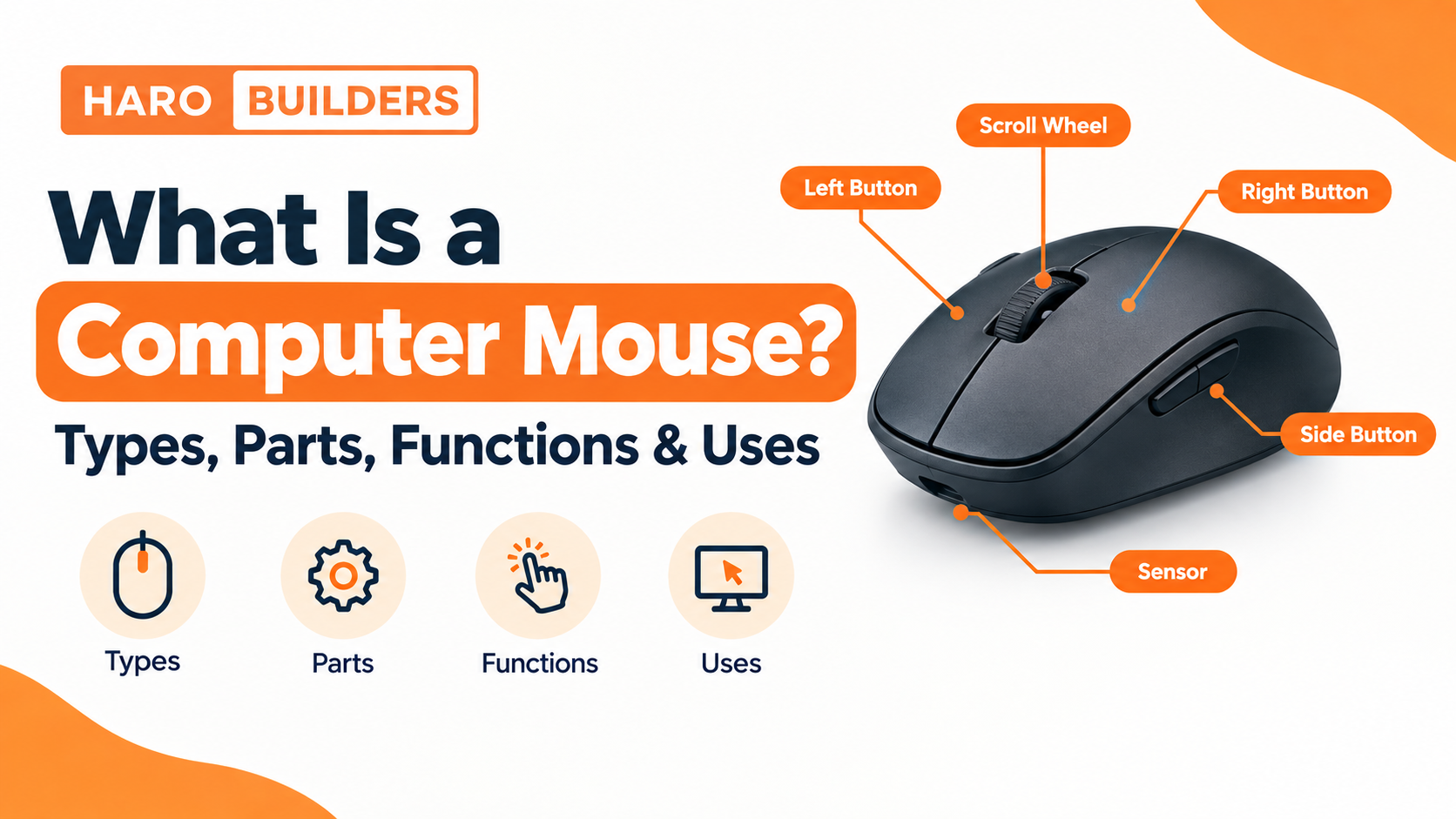
A computer mouse is a handheld pointing device that lets you control the pointer or cursor on a computer screen. By moving the mouse and using its buttons or wheel, you can select items, open files, click links, scroll through pages, drag objects, and interact with graphical interfaces.
Modern mice come in many forms. They can be wired or wireless, use optical or laser tracking, and be designed for general computing, gaming, comfort, portability, or specialized workflows.
This guide explains what a computer mouse is, how it works, its main parts, different types, functions, common uses, DPI, connectivity options, and how a mouse compares with a touchpad and trackball.
Quick Answer: What Is a Computer Mouse?
A computer mouse is an input and pointing device used to control a cursor or pointer on a computer display. It detects movement across a surface and sends movement and button information to the computer. The computer then uses that input to perform actions such as pointing, clicking, selecting, dragging, scrolling, and opening items.
In simple terms, a mouse provides a physical way to control and interact with objects on a computer screen.
What Is a Mouse in a Computer?
A mouse is one of the most common computer peripherals. It provides a convenient way to interact with software through a graphical user interface (GUI).
For example, when you move a mouse across a desk, the pointer usually moves across the screen. When you press the left button, the operating system or application receives a click input. When you rotate the scroll wheel, a webpage, document, or other interface can move vertically.
A mouse is therefore different from an output device such as a monitor. The monitor displays information to you, while the mouse sends physical actions from you to the computer.
A keyboard serves a similar input role, but it primarily captures key presses for text, commands, shortcuts, and navigation. If you want to understand how these two peripherals complement each other, see our guide to [what a keyboard does].
Why Is a Computer Mouse an Input Device?
A computer mouse is considered an input device because it sends information from the user to the computer.
The basic interaction looks like this:
User → Mouse → Computer → Operating System → Application
The mouse can send information about:
- Movement
- Button presses
- Wheel movement
- Additional side-button actions
- Other controls supported by the particular mouse
The computer processes those inputs and translates them into actions on screen.
For example, moving the mouse may move the pointer, while pressing the right button may open a context menu.
What Does a Computer Mouse Do?
The main purpose of a mouse is to make computer navigation and interaction easier.
Common mouse functions include:
| Function | What it does |
|---|---|
| Pointing | Moves the pointer to an item on screen |
| Clicking | Selects or activates an item |
| Double-clicking | Commonly opens files, folders, or applications |
| Right-clicking | Opens context-specific options |
| Scrolling | Moves through documents and webpages |
| Dragging | Moves an object while holding a button |
| Dropping | Releases a dragged object in a new location |
| Selecting | Highlights text, files, objects, or interface elements |
| Navigation | Helps users move around graphical interfaces |
The exact result of an action depends on the operating system and application.
How Does a Computer Mouse Work?
Although a mouse looks simple, several components work together to turn physical movement and button presses into computer input.
The basic process is:
Physical movement → Sensor → Mouse electronics → Connection → Computer → Cursor or application action
1. The Mouse Detects Movement
When you move a modern optical mouse, its sensor repeatedly captures information about the surface beneath it.
The mouse’s internal electronics compare changes between successive readings to determine how the device has moved.
Older mechanical mice used a physical ball and internal rollers to detect movement. Modern mice generally use optical tracking technology instead.
2. The Sensor Processes Movement
The sensor is one of the most important components in a modern mouse.
An optical mouse uses light and an imaging sensor to track changes in the surface beneath the device. Laser mice use a laser-based tracking system.
The sensor does not simply “see” the cursor. It detects movement relative to the surface and reports movement information to the mouse’s electronics.
3. The Mouse’s Electronics Process the Input
A controller inside the mouse processes information from the sensor and buttons.
Depending on the mouse, the controller may also handle information related to:
- DPI or sensitivity settings
- Button states
- Scroll-wheel movement
- Polling behavior
- Wireless communication
4. The Mouse Sends Data to the Computer
A wired mouse normally sends information through its cable.
A wireless mouse can communicate through a dedicated wireless receiver or Bluetooth, depending on its design.
The computer receives the mouse input and passes it through the operating system and relevant software.
5. The Cursor Responds
The final result is visible on screen.
Move the mouse and the pointer moves.
Click an item and the application responds.
Scroll the wheel and supported content moves.
Drag an object and the software can move it along with the pointer.
This is why a mouse is such an effective interface between physical movement and a graphical computer environment.
Parts of a Computer Mouse
Although designs vary, most traditional desktop mice contain several familiar components.
| Mouse Part | Main Function |
|---|---|
| Left mouse button | Primary selection and activation |
| Right mouse button | Context menus and secondary actions |
| Scroll wheel | Scrolling and, on many mice, middle-clicking |
| Optical or laser sensor | Detects movement |
| Side buttons | Additional programmable or navigation commands |
| DPI button | Changes sensitivity on supported models |
| Cable | Provides connection and often power for wired mice |
| Wireless receiver | Connects some wireless mice to a computer |
| Battery | Powers many wireless mice |
Left Mouse Button
The left button is normally the primary mouse control.
Common actions include:
- Selecting files
- Clicking links
- Pressing interface buttons
- Placing the text cursor
- Starting a drag operation
A single left click and double-click can have different meanings depending on the operating system and application.
Right Mouse Button
The right button commonly opens a context menu.
The available options depend on what you right-click.
For example, right-clicking a file may display options for opening, copying, renaming, deleting, or viewing properties.
Scroll Wheel
The scroll wheel is normally positioned between the main mouse buttons.
Its most common purpose is scrolling through:
- Webpages
- Documents
- Spreadsheets
- Lists
- Long menus
On many mice, pressing the wheel also works as a middle click.
Mouse Sensor
The sensor tracks movement across the surface.
Modern mice generally use optical tracking, while some products use laser tracking.
Sensor performance is one factor that affects how accurately a mouse can track movement.
Side Buttons
Many mice have one or more buttons on the side.
These may be assigned to actions such as browser back and forward navigation, application commands, or gaming controls.
Their behavior depends on the mouse and the software being used.
DPI Button
Some mice include a dedicated DPI button.
DPI is commonly used to describe mouse sensitivity or how much cursor movement results from physical mouse movement.
A higher setting can move the pointer farther with less physical movement, but higher DPI is not automatically better for every user or task.
Cable, Receiver, or Bluetooth Connection
A wired mouse uses a cable to communicate with the computer.
A wireless mouse may use:
- A USB wireless receiver
- Bluetooth
- Another proprietary wireless connection
The connection method affects setup, portability, power requirements, and compatibility.
Types of Computer Mouse
One reason mouse terminology becomes confusing is that “type” can describe different characteristics.
For example, optical describes tracking technology, wireless describes connectivity, and gaming describes intended use and feature design.
A single mouse can belong to several categories at the same time.
For example:
A mouse can be optical, wireless, gaming, ergonomic, and Bluetooth-compatible.
That is why it is better to classify mice by their defining characteristic.
Types by Tracking Technology
1. Mechanical Mouse
Mechanical mice use a physical ball to detect movement.
As the ball rolls across a surface, internal mechanisms detect movement along different axes.
Mechanical mice were common in earlier generations of personal computers but have largely been replaced by optical tracking.
2. Optical Mouse
An optical mouse uses light and a sensor to track movement across a surface.
Optical mice are now common for general computing because they do not require the mechanical ball and rollers used by older mice.
They are available in wired and wireless designs and are used for everything from office work to gaming.
3. Laser Mouse
A laser mouse uses laser-based illumination for tracking.
Laser tracking can provide detailed surface tracking, although practical performance depends on the mouse, sensor, surface, firmware, and other design factors.
The important point is that laser does not automatically mean better.
Types by Connection
4. Wired Mouse
A wired mouse connects directly to the computer through a cable, commonly USB.
Advantages include:
- No mouse battery required in typical designs
- Simple connection
- Consistent physical connection
- No separate wireless pairing
The main drawback is cable management and reduced freedom of movement.
5. Wireless Mouse
A wireless mouse communicates without a physical data cable.
Many wireless mice use a small USB receiver connected to the computer.
Advantages include:
- Cleaner desk setup
- Greater freedom of movement
- Easy portability
Potential considerations include battery or charging requirements and receiver compatibility.
6. Bluetooth Mouse
A Bluetooth mouse communicates directly with a Bluetooth-capable computer or device.
It can be useful with laptops and other devices where keeping a USB port available matters.
Bluetooth mice typically require pairing before use.
Types by Design and Purpose
7. Gaming Mouse
A gaming mouse is designed around features useful for computer games.
Depending on the model, it may include:
- Adjustable sensitivity
- Additional buttons
- Customizable controls
- High polling capabilities
- Ergonomic shapes
- Software for configuration
- RGB lighting
Not every gaming feature is useful to every player, so the best configuration depends on the games and preferences involved.
8. Ergonomic Mouse
An ergonomic mouse is designed with comfort and hand positioning in mind.
Different ergonomic designs may change:
- Hand position
- Button placement
- Grip style
- Body shape
- Wrist and forearm orientation
An ergonomic design that works well for one person may not feel comfortable to another.
9. Vertical Mouse
A vertical mouse places the hand in a more upright orientation than a conventional mouse.
The goal is generally to change how the hand and forearm are positioned during use.
This type can be worth considering for users who prefer a different grip or hand position.
10. Trackball Mouse
A trackball mouse remains mostly stationary while the user rotates a ball to control the pointer.
This can be useful where desk space is limited because the entire mouse does not need to travel across the surface.
Trackball designs require a different control technique from conventional mice.
Computer Mouse Types at a Glance
| Mouse Type | Classified By | Typical Benefit |
|---|---|---|
| Mechanical | Tracking | Historical design |
| Optical | Tracking | Common modern tracking |
| Laser | Tracking | Laser-based tracking |
| Wired | Connection | Simple direct connection |
| Wireless | Connection | Cable-free use |
| Bluetooth | Connection | Convenient device pairing |
| Gaming | Purpose | Gaming-oriented controls |
| Ergonomic | Design | Comfort-focused shape |
| Vertical | Design | More upright hand position |
| Trackball | Design | Pointer control without moving the whole mouse |
Optical vs Laser Mouse
Optical and laser mice are both designed to detect movement, but they use different tracking technologies.
| Feature | Optical Mouse | Laser Mouse |
|---|---|---|
| Tracking method | Optical light and sensor | Laser-based tracking |
| Moving ball | No | No |
| Common use | General computing, gaming, office work | General computing and specialized use |
| Connection | Wired or wireless | Wired or wireless |
| Is one always better? | No | No |
The right choice depends on the actual mouse implementation and the user’s needs rather than the label alone.
Wired vs Wireless vs Bluetooth Mouse
These terms are sometimes mixed together even though they describe connection methods.
| Feature | Wired | Wireless Receiver | Bluetooth |
|---|---|---|---|
| Physical data cable | Yes | No | No |
| USB receiver | Usually not needed for data connection | Usually required | Not required |
| Battery | Usually powered through cable | Usually battery/charging | Usually battery/charging |
| Pairing | Usually no | Receiver-based connection | Bluetooth pairing |
| Portability | Good | Very good | Very good |
| Cable clutter | Higher | Low | Low |
The right option depends on your computer, available ports, portability requirements, battery preferences, and workflow.
What Are the Functions of a Mouse?
A computer mouse supports several basic actions.
Pointing
Pointing means moving the cursor to a particular location on the screen.
This is the foundation of most mouse interactions.
Clicking
A click sends a button input to the computer.
A click can:
- Select an item
- Press a button
- Place the text cursor
- Activate a link
- Trigger an application command
Double-Clicking
A double-click consists of two clicks performed within a short interval.
It is commonly associated with opening files, folders, or applications in desktop environments, although behavior varies by software.
Right-Clicking
A right click commonly opens a context menu containing actions relevant to the selected object or location.
Scrolling
Scrolling moves through content without requiring you to drag a scrollbar manually.
It is particularly useful on:
- Webpages
- Documents
- Spreadsheets
- Long lists
- Code editors
Dragging and Dropping
To drag an object, you normally press and hold a mouse button, move the pointer, and release the button at the destination.
Drag-and-drop can be used for:
- Moving files
- Repositioning objects
- Selecting text
- Rearranging items
- Working with graphics
Selecting Items
A mouse can select:
- Files
- Folders
- Text
- Images
- Interface elements
- Objects inside applications
Selection behavior depends on the software.
Executing Commands
Mouse actions can trigger commands in applications.
For example, clicking a toolbar button can activate a function without requiring a keyboard shortcut.
Common Uses of a Computer Mouse
Web Browsing
A mouse makes it easy to point at links, click buttons, scroll through webpages, select text, and interact with web applications.
Office Work
Mice are commonly used with:
- Word processors
- Spreadsheets
- Presentation software
- Email applications
- Project-management tools
They are particularly useful when selecting cells, resizing objects, moving items, and interacting with menus.
Graphic Design
Design applications often require precise pointer control.
A mouse can be used for:
- Selecting objects
- Drawing paths
- Resizing elements
- Moving layers
- Adjusting controls
- Navigating tool panels
For some specialized tasks, a graphics tablet or pen can be more suitable than a mouse.
Gaming
Gaming mice can provide additional buttons, adjustable sensitivity, customization software, and other features designed around gaming.
The appropriate features depend heavily on the game genre and player’s preferences.
Education
Students can use mice to navigate educational software, online lessons, presentations, research websites, and interactive applications.
File Management
A mouse makes it easy to select, move, rename, copy, and organize files and folders.
Mouse vs Touchpad
A mouse and touchpad can perform many of the same basic tasks, but they provide different physical interfaces.
| Feature | Mouse | Touchpad |
|---|---|---|
| Separate device | Yes | Usually built into a laptop |
| Physical movement | Move device | Move finger |
| Desk space | Usually required | No external space |
| Portability | Requires carrying separate device | Always attached to laptop |
| Gestures | Model/software dependent | Often strong gesture support |
| Gaming | Common | Less common |
| Precision | Often preferred for pointer-intensive work | Convenient for mobile use |
Neither is universally better.
A laptop user may prefer a touchpad while traveling and a mouse when working at a desk.
Mouse vs Trackball
A conventional mouse is moved across a surface.
A trackball remains mostly stationary while you rotate a ball.
| Feature | Mouse | Trackball |
|---|---|---|
| Device movement | Required | Mostly stationary |
| Desk space | More | Less |
| Learning curve | Familiar to most users | Different control method |
| Pointer control | Move mouse | Rotate ball |
| Portability | Usually simple | Varies by design |
Trackballs can be useful in situations where moving a conventional mouse is inconvenient or desk space is limited.
What Is DPI on a Mouse?
DPI is commonly used as a measurement of mouse sensitivity.
In practical terms, changing the DPI setting changes how much the pointer moves in response to physical mouse movement.
For example, if you move a mouse the same physical distance:
- A lower sensitivity setting generally produces less cursor movement.
- A higher sensitivity setting generally produces more cursor movement.
Higher DPI is not automatically better.
A graphic designer, office worker, and competitive gamer may prefer different sensitivity settings because they use the pointer differently.
Some mice allow users to switch between multiple DPI settings using a dedicated button or software.
What Type of Mouse Should You Use?
There is no single mouse that is ideal for every user.
For Students
A basic wired, wireless, or Bluetooth mouse with comfortable controls is usually sufficient for browsing, documents, research, and general study.
For Office Work
Comfort, reliable tracking, button placement, and long-term usability may matter more than gaming-oriented specifications.
For Gaming
Look for features that actually match the games you play, such as additional buttons, adjustable sensitivity, appropriate shape, and configuration software.
For Graphic Design
Precise pointer control and comfortable movement are often important. Depending on the work, a mouse may be paired with or replaced by a drawing tablet.
For Small Desks
A compact mouse or trackball can help when there is limited room for moving a conventional mouse.
For Travel
A compact wireless or Bluetooth mouse can be convenient because it reduces cable clutter and takes less space in a bag.
If you’re building a laptop workstation, you can also see HaroBuilder’s guide to [tech gear for a MacBook Pro], which includes keyboards and mice among useful computer accessories.
Advantages of a Computer Mouse
Easy Navigation
A mouse provides direct pointer control and makes many graphical interfaces easy to navigate.
Precise Selection
A good mouse can make selecting small interface elements, objects, or text easier.
Fast Interaction
Clicking, double-clicking, scrolling, and dragging can be faster than navigating every command through menus or keyboard controls.
Wide Variety
There are mice designed for:
- Office work
- Gaming
- Travel
- Ergonomic use
- Graphic work
- General computing
Customization
Many modern mice allow users to customize buttons, sensitivity, lighting, or software controls.
Limitations of a Computer Mouse
Requires Space
A conventional mouse needs room to move across a surface.
Can Require Batteries
Wireless models usually need batteries or rechargeable power.
Cable Management
Wired models introduce a cable that may add clutter to a workspace.
Comfort Depends on Design
A mouse that feels comfortable to one person may not suit another person’s hand size, grip, or working habits.
Not Always Ideal for Every Device
Touch-first devices and some portable workflows may be easier to operate using a touchscreen or touchpad.
How to Maintain a Computer Mouse
A mouse does not usually require complicated maintenance.
Keep the Sensor Clean
Dust and debris around the sensor area can interfere with tracking.
Clean the Surface
Wipe the mouse carefully using an appropriate dry or lightly damp cleaning method recommended for the device.
Avoid allowing liquid to enter the mouse.
Use a Suitable Surface
A clean, consistent surface can help tracking performance.
A mouse pad can also provide a predictable surface and protect the desk.
Protect the Cable
If you use a wired mouse, avoid repeatedly bending or sharply twisting the cable.
Maintain Wireless Power
Recharge or replace batteries when necessary.
If the mouse suddenly stops responding, check its power state before assuming that the hardware has failed.
Who Invented the Computer Mouse?
The computer mouse is strongly associated with Douglas Engelbart and his research team at Stanford Research Institute.
The first prototype was built in the 1960s. The original design was a wooden device with wheels, and Bill English built the first prototype based on Engelbart’s concept.
Engelbart’s team later demonstrated the mouse publicly during the famous 1968 demonstration of the NLS system.
The Computer History Museum identifies Engelbart as a key developer of the mouse input device and documents the original SRI mouse and Bill English’s role in building the first prototype.
Are All Computer Mice the Same?
No.
Mice differ in:
- Tracking technology
- Connection method
- Shape
- Number of buttons
- Sensor characteristics
- Sensitivity settings
- Size
- Weight
- Ergonomic design
- Intended use
- Software support
The important point is that these characteristics can overlap.
For example, a single product could be a wireless Bluetooth gaming mouse with an optical sensor, adjustable DPI, side buttons, and an ergonomic shape.
Frequently Asked Questions About Computer Mice
What is a computer mouse?
A computer mouse is a handheld pointing and input device that detects movement and button actions and sends that information to a computer. It is commonly used to control a cursor, select items, click buttons, scroll, drag objects, and navigate graphical interfaces.
What is a mouse used for?
A mouse is used for pointing, clicking, selecting, opening items, scrolling, dragging and dropping, navigating software, and interacting with graphical interfaces.
What are the main parts of a computer mouse?
Common parts include the left button, right button, scroll wheel, movement sensor, side buttons, and sometimes a DPI button. Wired models also have a cable, while wireless models may use a receiver and battery.
What are the functions of a mouse?
The main functions include pointing, clicking, double-clicking, right-clicking, scrolling, selecting, dragging and dropping, and executing commands within software.
How does a computer mouse work?
A modern mouse uses a sensor to detect movement across a surface. Its internal electronics process movement and button inputs and send the resulting information to the computer through a cable, wireless receiver, or Bluetooth connection.
What are the different types of computer mouse?
Mice can be classified by tracking technology, connection method, or design. Common examples include mechanical, optical, laser, wired, wireless, Bluetooth, gaming, ergonomic, vertical, and trackball mice.
What is an optical mouse?
An optical mouse uses light and a sensor to detect movement across a surface. Optical tracking is common in modern computer mice.
What is a wireless mouse?
A wireless mouse communicates with a computer without a physical data cable. Depending on the model, it may use a USB wireless receiver or another wireless technology.
What is a Bluetooth mouse?
A Bluetooth mouse communicates with a compatible computer or device using Bluetooth rather than a physical cable or conventional USB receiver.
What is DPI on a mouse?
DPI is commonly used to describe mouse sensitivity. Changing the DPI setting changes how much pointer movement results from a given amount of physical mouse movement.
Is a mouse an input device?
Yes. A mouse is an input device because it sends user actions such as movement and button presses to the computer.
Is a mouse better than a touchpad?
It depends on the user and task. A mouse can provide precise control and may be preferable for desktop work or gaming, while a touchpad is convenient because it is integrated into most laptops and requires no separate desk space.
What is the difference between an optical and laser mouse?
Both use sensor-based tracking, but they use different illumination technologies. Optical mice use optical light and a sensor, while laser mice use laser-based tracking. The better choice depends on the particular mouse and intended use rather than the label alone.
Key Takeaways
- A computer mouse is a pointing and input device.
- It lets users control a cursor and interact with graphical interfaces.
- Modern mice commonly use optical tracking.
- Mice can be classified by tracking technology, connection, design, and intended use.
- Optical, laser, wired, wireless, Bluetooth, gaming, ergonomic, vertical, and trackball describe different characteristics or designs.
- A mouse’s main controls include buttons, a scroll wheel, and a movement sensor.
- DPI affects mouse sensitivity, but a higher DPI is not automatically better.
- Wired mice connect through a cable, while wireless models may use a receiver or Bluetooth.
- Different users may need different mice for office work, gaming, design, travel, or limited desk space.
- A mouse and touchpad can perform many of the same tasks but offer different physical interfaces.
- The most suitable mouse depends on the user’s device, workflow, comfort, and preferences.
Conclusion
A computer mouse is much more than a device that moves a pointer around a screen. It is an important input interface that converts physical movement and button actions into commands a computer can understand.
Modern mice differ considerably in how they track movement, connect to computers, fit the hand, and support different tasks. Understanding the difference between optical and laser tracking, wired and wireless connections, conventional and ergonomic designs, and general-purpose and gaming mice makes it easier to understand what each mouse is designed to do.
For everyday computing, the best mouse is not necessarily the one with the highest DPI or the largest number of features. The right choice depends on how you use your computer, how much space you have, what type of connection your device supports, and which design feels comfortable for your workflow.
For more technology guides and practical resources, explore HaroBuilder’s technology resources.


💬 Comments 0
No comments yet. Be the first to share your thoughts! 💬
✍️ Leave a Comment