
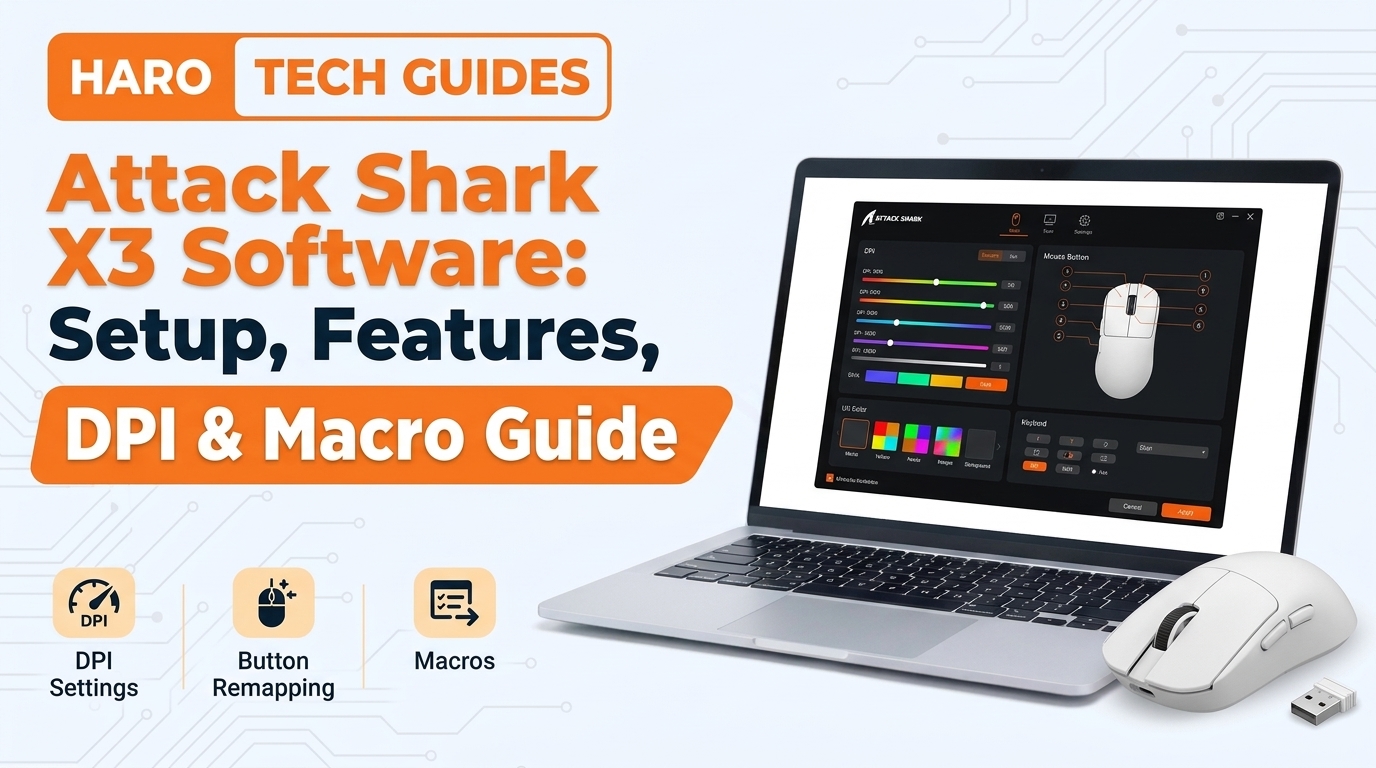
A new gaming mouse often feels fast out of the box, yet its defaults rarely suit everyone. The attack shark x3 software fixes that gap by letting owners change DPI, polling rate, buttons, and macros. Without it, the mouse still works, but many of its best features stay locked behind fixed presets.
This guide explains what the driver does, how to install it, and which settings matter most daily. Readers new to pointing devices can first review what is a computer mouse for the basic hardware terms. After that, each section below moves from simple setup steps toward advanced tuning, comparisons, and troubleshooting.
The X3 earned attention as a budget mouse with flagship sensor hardware and a featherweight shell. Owners who learn its driver can match the mouse to shooters, strategy games, design work, or office tasks. The sections below cover each of those uses with practical starting values and clear checks.
Quick Answer: What Is Attack Shark X3 Software?
Attack Shark X3 software is the official driver program that customizes the X3 gaming mouse on a computer. It controls DPI levels, polling rate, lift off distance, buttons, and macros, then saves changes to the mouse. Download pages can differ by model version, so owners should match the driver to their exact mouse.
Attack Shark X3 Software at a Glance
The table below summarizes the main facts about the driver and the mouse it controls.
| Item | Details |
|---|---|
| Product | Driver for the Attack Shark X3 mouse |
| Sensor supported | PixArt PAW3395 |
| DPI range | Up to 26,000 in six levels |
| Polling rate on X3 | 125Hz to 1000Hz |
| Programmable buttons | 5 |
| Connection modes | 2.4GHz wireless, Bluetooth 5.2, USB-C wired |
| Mouse weight | About 49g, plus or minus 3g |
| Main settings | DPI, polling rate, LOD, buttons, macros |
In plain terms, the driver turns a fixed preset mouse into one that follows each player’s personal habits.
Simple words: the X3 hardware sets the limits, and the software decides how the mouse behaves inside them.
What Does the Attack Shark X3 Software Do?
The driver acts as a control panel that talks directly to the mouse firmware through a USB connection. Each change a user makes travels from the computer to the mouse, where onboard memory stores it. Because of that onboard storage, many settings stay active on a second computer without the driver installed.
The program groups its controls into a few main areas, and each area handles one type of behavior. Users who learn these areas once can change the mouse for a new game in under two minutes.
DPI Adjustment
DPI means dots per inch, and it controls cursor travel for each inch of hand movement. The X3 ships with six default steps: 800, 1600, 2400, 3200, 5000, and 26,000 DPI. Inside the software, users can replace any of these presets with custom values that suit their screen. Many competitive shooter players stay between 400 and 1600 DPI, while office users often prefer faster settings.
Polling Rate Control
Polling rate describes how often the mouse reports its position to the computer each second. The standard X3 supports rates from 125Hz up to 1000Hz, which equals one report every millisecond. Higher rates usually feel smoother on screen, but they also drain the wireless battery faster during long sessions.
Lift Off Distance Settings
Lift off distance, or LOD, sets how high the mouse can rise before the sensor stops tracking. A low LOD helps players who lift and reposition the mouse often during fast aiming movements. A slightly higher value can help on thick cloth pads, glass surfaces, or uneven desks.
Button Remapping
The X3 has five programmable buttons: left click, right click, wheel click, forward, and back. The software lets owners assign each button a new function, keyboard key, media control, or shortcut. Players often move a reload or push to talk key onto a side button for quicker access.
Macro Creation
A macro records a sequence of key presses and replays the whole sequence from one button press. The driver includes a macro manager where users record actions, edit timing, and assign sequences to buttons. Do not use macros in online games that ban automation, because accounts can face suspensions or permanent bans.
Key Characteristics of the Attack Shark X3 Software Interface
The driver window looks simple, and these key characteristics explain how the main screen usually behaves:
- A picture of the mouse sits in the center, with each button labeled for quick remapping.
- DPI presets appear as numbered slots, and each slot shows its own color indicator on screen.
- Polling rate options sit in a dropdown list that changes the reporting speed after users press apply.
- A separate macro manager window records keystrokes, mouse clicks, and the delays between each action.
- A reset button restores factory defaults when experiments go wrong or settings stop behaving as expected.
- Battery level and connection status often appear near the top when the mouse runs in wireless mode.
Menu names and layouts can change between driver versions, so the labels on screen may differ slightly. The functions stay the same, though, and the steps in this guide still apply to newer releases.
Why Does the Attack Shark X3 Software Matter?
Hardware alone sets the ceiling, yet software decides how close each user gets to that ceiling. A 26,000 DPI sensor means little if the presets feel wrong for a specific game or monitor. The driver closes that gap and lets one mouse serve gaming, design work, and office tasks.
Budget mice often ship with weak or missing software, which leaves owners stuck with factory values. The X3 stands out because its driver covers the same core settings found on far pricier brands. That mix of low price and full control explains why the X3 appears in many budget mouse recommendations.
Benefits of Using the Driver
The main benefits of installing the official Attack Shark driver include the following points:
- Custom DPI presets let players match cursor speed to their preferred game sensitivity and monitor.
- Polling rate control helps users balance smooth tracking against longer battery life on wireless modes.
- Button remapping places frequent commands under the thumb, which saves time during busy gaming moments.
- Macro tools automate repeated keystrokes in productivity apps, spreadsheets, and offline single player games.
- Onboard memory keeps saved profiles inside the mouse, so settings travel between different computers easily.
- Firmware update options, where available, can fix connection bugs and improve stability over many months.
Attack Shark X3 vs X3 Pro vs X3 MAX: Which Software Features Apply?
Attack Shark sells several mice under the X3 name, and their driver options differ slightly by hardware. Buyers often mix these models up, so the comparison below helps before downloading anything.
| Feature | X3 | X3 Pro | X3 MAX |
|---|---|---|---|
| Sensor | PAW3395 | PAW3395 | PAW3950MAX |
| Max polling rate | 1000Hz | 4000Hz wireless, 8000Hz wired | Check the listing |
| Weight | About 49g | About 59g | Check the listing |
| Driver settings | DPI, LOD, buttons, macros | Same, plus higher polling | Same core settings |
The core driver menus look similar, but each model may need its own matching download page.
The X3 Pro reaches 8000Hz in wired mode and up to 4000Hz over its 2.4GHz wireless link. Those higher rates only appear inside the Pro driver, so the standard X3 software will not show them. Owners of the X3 MAX should confirm sensor and polling details on the official listing before tuning anything.
Attack Shark X3 Software vs Web Driver
Some newer Attack Shark products use a browser based web driver instead of a downloaded desktop program. Both versions change the same core settings, but they install and update in different ways.
| Factor | Desktop driver | Web driver |
|---|---|---|
| Installation | Download and run installer | Open a page in a browser |
| Updates | Manual reinstall | Loads the latest page |
| Offline use | Works without internet | Usually needs a connection |
| Browser needs | None | Often a Chromium browser |
Owners should use whichever version the official Attack Shark site lists for their exact model.
Attack Shark X3 Software vs Onboard Mouse Controls
The X3 also has a DPI button underneath, so some changes work without any software at all. That button cycles through saved DPI presets, and the bottom switch selects wired, wireless, or Bluetooth modes.
| Task | Onboard controls | Software |
|---|---|---|
| Cycle DPI presets | Yes | Yes |
| Set custom DPI values | No | Yes |
| Change polling rate | Not usually | Yes |
| Remap buttons | No | Yes |
| Record macros | No | Yes |
The bottom controls handle quick switching, while the driver handles every deeper customization task.
DPI vs Polling Rate: What Is the Difference?
New owners often confuse DPI with polling rate, because both numbers relate to cursor speed and smoothness. DPI decides how far the cursor travels, while polling rate decides how often the mouse reports. A high DPI with a low polling rate can feel jumpy, since large movements arrive in fewer reports.
| Term | What it controls | Typical X3 value |
|---|---|---|
| DPI | Cursor distance per inch | 400 to 3200 |
| Polling rate | Reports per second | 1000Hz |
| LOD | Tracking height | Lowest stable level |
Changing one setting does not replace the other, so players should tune each value on its own.
How to Install Attack Shark X3 Software
Installation takes about five minutes on a typical Windows computer with a free USB port. The steps below follow the order most manuals recommend for a clean first setup.
Step 1: Confirm the Exact Model
Check the box or base to confirm whether the unit is an X3, X3 Pro, or X3 MAX. The wrong driver may fail to detect the mouse or show missing menu options on screen.
Step 2: Download From the Official Source
Visit the official Attack Shark website and open its download or driver section for the matching model. Avoid third party driver mirrors, because modified installers can hide malware or outdated files. Save the installer to an easy folder such as Downloads before opening it.
Step 3: Connect the Mouse by Cable
Plug the mouse into the computer with the included USB-C cable before launching the installer. Many drivers detect the mouse most reliably over a wired link instead of a Bluetooth connection.
Step 4: Run the Installer
Open the downloaded file, accept the prompts, and let the program finish copying its files. Windows may show a security prompt, so confirm the publisher name before approving the installation.
Step 5: Launch the Program and Check Detection
Open the program and look for the mouse image or a connected status on the main screen. If nothing appears, unplug the cable, wait ten seconds, and reconnect it to another port.
Step 6: Save a Baseline Profile
Before changing anything, note the default values so a quick reset stays possible later. Many users take a screenshot of the main screen as a simple record of factory settings.
How to Create a Macro in the X3 Driver
Macros take longer to set up than DPI presets, so a clear order of actions saves time. The short process below works for most versions of the Attack Shark macro manager.
Macro Step 1: Open the Macro Manager
Click the macro section or button inside the driver to open the recording window. Create a new macro and give it a clear name, such as “copy paste” or “build order”.
Macro Step 2: Record the Sequence
Press the record button, perform the key presses in order, and press stop when finished. The manager lists each action with its delay, so users can review the full sequence afterward.
Macro Step 3: Edit the Timing
Shorten or lengthen delays between actions if the target program misses inputs during playback. Some programs need at least 20 to 50 milliseconds between keys to register each press correctly.
Macro Step 4: Assign and Test the Macro
Assign the finished macro to a side button, press apply, and test it inside a safe program. A text editor works well for testing, because each keystroke appears clearly on the page.
How to Connect the X3 Across Its Three Modes
The bottom switch on the X3 selects wired, 2.4GHz wireless, or Bluetooth mode for different situations. Wired mode charges the battery and gives the most stable link for installing or updating the driver.
The 2.4GHz mode uses the small USB receiver and suits gaming, because it usually offers lower latency. Bluetooth mode skips the receiver entirely, which helps with tablets, laptops with few ports, or travel bags. Many owners keep 2.4GHz for games and switch to Bluetooth when working away from their main desk.
| Mode | Best for | Main tradeoff |
|---|---|---|
| USB-C wired | Setup and charging | Cable on the desk |
| 2.4GHz wireless | Gaming | Needs the receiver |
| Bluetooth 5.2 | Travel and tablets | Higher latency |
The right mode depends on the task, so switching between them stays normal for most daily users.
How to Set Up the Best Attack Shark X3 Settings
No single setting suits every user, so the right values depend on game type and desk space. The starting points below reflect common choices that many players and reviewers often recommend.
Settings for First Person Shooters
Shooter players usually prefer 400 to 1600 DPI with in game sensitivity kept low for precise aim. Set polling to 1000Hz, keep LOD at its lowest stable value, and disable any cursor acceleration.
Settings for MOBA and Strategy Games
Strategy players often move the cursor across the whole screen, so 1600 to 3200 DPI feels comfortable. Side buttons can hold camera controls, item shortcuts, or ability keys for faster reactions in team fights.
Settings for Office and Design Work
Office users on large or dual monitors often prefer 2400 DPI or higher for less hand movement. Designers may set one side button to undo and the other to a zoom or pan shortcut.
| Use case | DPI | Polling | Button idea |
|---|---|---|---|
| Shooter games | 400 to 1600 | 1000Hz | Push to talk |
| MOBA games | 1600 to 3200 | 1000Hz | Camera lock |
| Office work | 2400 to 3200 | 500Hz | Copy and paste |
| Design work | 1600 to 2400 | 1000Hz | Undo and redo |
Treat these values as starting points, then adjust in small steps after a week of real use.
Real World Example: Tuning the X3 for a Shooter Player
Consider a player who bought the X3 for tactical shooters and found the default 1600 DPI too fast. He opened the driver, changed the first preset to 800 DPI, and lowered his game sensitivity slightly. He also moved the push to talk command onto the back side button for easier team communication.
After one week, his tracking improved, and onboard memory kept those settings on his laptop too. He later lowered polling to 500Hz on that laptop to stretch battery life during travel. That small routine shows how one driver session can fit a mouse to two different daily situations.
Attack Shark X3 Battery and Sleep Settings
The X3 lists up to 200 hours of battery life under test conditions with lower polling rates. Real results vary, because higher polling rates and constant gaming use drain the battery much faster. The driver or firmware may include a sleep timer that turns the sensor off after idle periods.
Shorter sleep timers save charge, though the first click after waking may arrive slightly late. Players who hate that delay often extend the timer and charge the mouse more often instead.
Tips for Getting More From the Attack Shark X3 Software
Use these tips to keep the driver stable and the mouse responsive over months of use:
- Keep the driver version matched to the mouse model listed on the official Attack Shark website.
- Save each finished setup to onboard memory before closing the program or unplugging the cable.
- Use 2.4GHz wireless for gaming, since Bluetooth often adds extra latency during fast movements.
- Lower the polling rate to 500Hz on laptops when battery life matters more than tracking smoothness.
- Test new DPI values in a practice range before trusting them in ranked or competitive matches.
- Close other mouse utilities, because two drivers fighting for control can cause erratic cursor behavior.
- Recheck settings after firmware updates, since some updates reset profiles back to factory default values.
Troubleshooting Attack Shark X3 Software Problems
Most driver problems trace back to connection mode, version mismatch, or conflicts with other software. The table below lists the usual issues with a fast first check for each one.
| Problem | Likely cause | First check |
|---|---|---|
| Mouse not detected | Wrong mode or model | Connect by cable |
| Settings not saving | Changes not applied | Press apply or save |
| Buttons act oddly | Old macro or remap | Reset to default |
| Laggy wireless cursor | Weak receiver signal | Move receiver closer |
| Bluetooth drops | Interference or low battery | Charge and pair again |
Start with the cable connection test, because it rules out most wireless and detection issues quickly.
Why Does the Software Not Detect the Mouse?
The program usually reads the mouse over USB, so Bluetooth mode often hides the device from detection. Switch the bottom selector to wired or 2.4GHz mode, then restart the program as administrator. If detection still fails, download the driver again and confirm it matches the exact model name.
Why Do Settings Reset After Restarting?
Settings usually reset when users close the program before pressing the apply or save button. Some firmware updates also restore defaults, so recheck every preset after any update finishes.
Why Does the Cursor Stutter in Wireless Mode?
Stuttering often comes from a receiver placed behind the computer case, far from the mouse itself. Plug the receiver into a front port or a short extension cable placed near the mousepad. Routers, phones, and other wireless devices nearby can also interfere with the 2.4GHz signal.
Common Mistakes With Attack Shark X3 Software
1. Downloading the Driver From Unofficial Sites
Unofficial download pages often bundle old versions, adware, or modified files with the real installer. Always use the official Attack Shark site, even when another page ranks higher in search results.
2. Using the Wrong Model’s Driver
The X3, X3 Pro, and X3 MAX can need separate downloads with different menus and firmware. A mismatched driver may hide polling options or fail to detect the mouse at all.
3. Setting DPI Far Too High
A large number on the box does not mean the highest DPI suits every player or game. Extreme DPI often amplifies hand tremors, which makes small aiming corrections harder to control.
4. Forgetting to Save Changes
Changes inside the program may stay temporary until the user presses apply or saves the profile. Close the driver only after confirming the new values work on the mouse during real use.
5. Running Several Mouse Utilities Together
Two mouse programs can fight over the same device and cause random button or cursor behavior. Uninstall old utilities from previous mice before installing the Attack Shark driver for the first time.
6. Ignoring Game Rules on Macros
Macros help in offline work, but many online games treat automated inputs as cheating. Read each game’s terms before assigning any macro that fires several actions from one click.
Best Practices for Long Term Use
Treat the driver like any other system tool and review it every few months for updates. Keep a written note of preferred DPI, polling, and button choices for fast recovery after resets. Clean the sensor window gently with a dry cloth, because dust can cause sudden tracking jumps.
Similar habits help with other peripherals, as the guide on hyperx quadcast software shows for microphone settings. A tidy driver routine keeps every device predictable, which matters most during long gaming or work sessions.
Who Should Use the Attack Shark X3 Software?
Competitive gamers gain the most, because DPI, polling, and LOD tuning directly affect aiming consistency. Office workers also benefit when side buttons handle copy, paste, undo, or browser back and forward tasks. Casual users who only browse and email can skip the driver, since the defaults work fine.
Left handed users should note that the X3 uses a symmetrical shell with side buttons on one side. Remapping those buttons through the driver can still make the mouse more comfortable for different hands.
Quick Self Check Questions
Readers can test their knowledge of the X3 driver with these short practice questions below.
What Setting Controls Tracking Height?
Lift off distance controls how high the mouse can rise before the sensor stops tracking movement.
Which Model Reaches 8000Hz Polling?
The X3 Pro reaches 8000Hz in wired mode, while the standard X3 tops out at 1000Hz.
Where Do Saved Profiles Live?
Saved profiles live in the mouse’s onboard memory, so they move with the mouse between computers.
Attack Shark X3 Software Setup Checklist
Use this checklist before calling the Attack Shark driver setup complete and ready:
- Confirm the exact mouse model printed on the box or the base before downloading anything.
- Download the driver only from the official Attack Shark website for that specific model.
- Connect the mouse with the USB-C cable during installation for the most reliable detection.
- Record the factory default values with a screenshot before changing any single setting.
- Set DPI presets that match the main games and the monitor resolution in daily use.
- Choose a polling rate that balances smooth tracking with the expected wireless battery life.
- Remap side buttons to the commands used most often during games or daily work.
- Save the profile to onboard memory and confirm the changes still work after a restart.
Frequently Asked Questions
Is Attack Shark X3 software free?
Attack Shark X3 software is usually a free download from the official Attack Shark website. The company offers it so owners can change DPI, buttons, polling rate, and macros without paying.
Does the Attack Shark X3 work without software?
Yes, the Attack Shark X3 works as a standard plug and play mouse without any driver installed. The bottom DPI button still cycles presets, but custom values, remapping, and macros need the software.
Does Attack Shark X3 software work on Mac?
Mac support depends on the driver version, and many Attack Shark desktop drivers usually target Windows only. Mac owners can still use the mouse, and a web driver may help where Attack Shark offers one.
How do I update the Attack Shark X3 firmware?
Firmware updates, when available, usually run through the official driver or a separate updater from Attack Shark. Connect the mouse by cable, keep it plugged in, and never unplug it during the update.
Why is my Attack Shark X3 not showing in the software?
The Attack Shark X3 often hides from the software in Bluetooth mode or with a mismatched driver. Switch to wired mode, reconnect the cable, and reinstall the driver that matches the exact model.
What DPI should I use on the Attack Shark X3?
Many shooter players use 400 to 1600 DPI on the Attack Shark X3 for steady aiming control. Office and design users often choose 1600 to 3200 DPI for faster movement across large monitors.
Can I save profiles on the Attack Shark X3?
Yes, the Attack Shark X3 software saves settings to onboard memory inside the mouse itself. Those saved values stay active on other computers, even when the driver is not installed there.
Is the Attack Shark X3 software safe?
The Attack Shark X3 software is usually safe when downloaded directly from the official Attack Shark website. Copies from unknown mirror sites carry real risks, so scan any installer before opening it.
Does polling rate affect battery life on the X3?
Yes, higher polling rates on the X3 send more reports each second, which drains the battery faster. Lowering the rate to 500Hz usually extends wireless sessions with little visible change in casual use.
Can I use Attack Shark X3 macros in online games?
The Attack Shark X3 software can record macros, but many online games forbid automated inputs. Check each game’s rules first, because macro use can lead to warnings, suspensions, or permanent bans.
Key Takeaways
- Attack Shark X3 software is the official driver that customizes DPI, polling, LOD, buttons, and macros.
- The X3 uses a PixArt PAW3395 sensor with up to 26,000 DPI across six adjustable presets.
- The standard X3 reaches 1000Hz polling, while the X3 Pro reaches 8000Hz in wired mode.
- Owners should download the driver only from the official Attack Shark website for their exact model.
- Connecting by USB-C cable during installation gives the most reliable mouse detection in the program.
- Onboard memory stores saved settings, so profiles keep working on computers without the driver installed.
- Shooter players usually prefer 400 to 1600 DPI with a 1000Hz polling rate and low LOD.
- Higher polling rates drain the wireless battery faster than lower rates during long gaming sessions.
- Macros help with offline tasks, but many online games ban automated inputs and punish their use.
- Most detection problems disappear after switching from Bluetooth to wired mode and restarting the program.
Final Thoughts
The attack shark x3 software turns a light, affordable mouse into a tool built around each player’s habits. Start with official downloads, a wired connection, and small DPI changes tested inside real games. Once the basics work, macros, polling tweaks, and button remaps add comfort without extra hardware costs.
Explore more tech guides on Haro Builder.


💬 Comments 0
No comments yet. Be the first to share your thoughts! 💬
✍️ Leave a Comment