
A streamer unboxes a new QuadCast S, plugs it in, and watches a rainbow glow fill the grille. Within minutes, the same streamer wants calmer colors, a quieter monitor level, and a firmware check. That moment sends most owners searching for HyperX QuadCast software and the right download source.
HyperX ships one free app for its microphones, and the app name confuses many first time buyers. Readers who track app releases may also enjoy our guide on new software versions lcftechmods for update habits.
This guide explains what the software does, which QuadCast models it supports, and how to install it. It also covers firmware updates, common errors, Mac limits, and the mistakes that waste a setup session.
Quick Answer: What Is HyperX QuadCast Software?
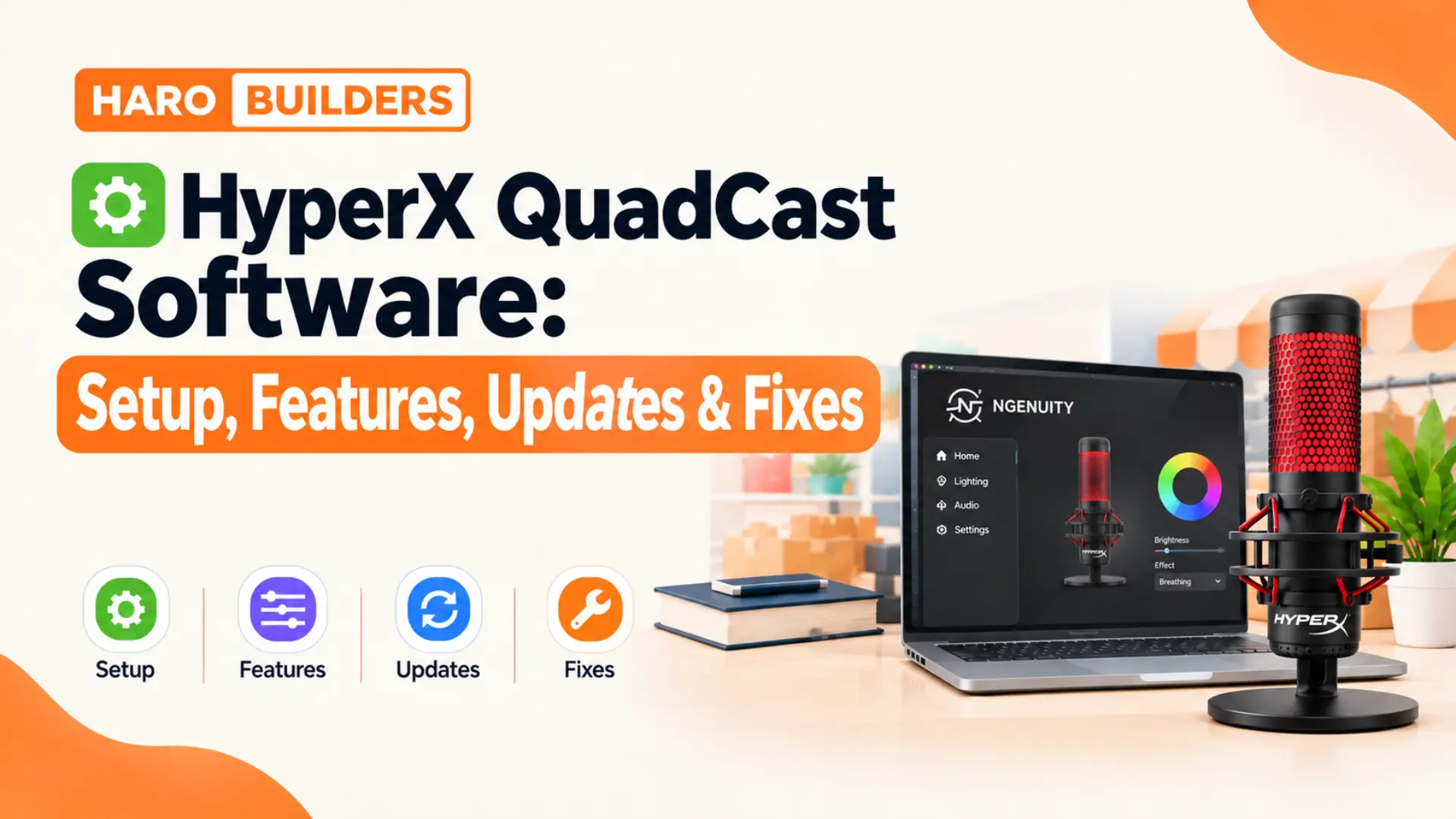
HyperX QuadCast software is HyperX NGENUITY, a free Windows app that controls supported QuadCast microphones. It handles RGB lighting, mic monitoring, and firmware updates on newer QuadCast models. The original QuadCast works as a plug and play mic and usually needs no software at all. Features vary by model, so check the official compatibility list before installing anything.
HyperX QuadCast Software at a Glance
HyperX NGENUITY is the official control app that HyperX, now part of HP, offers for its peripherals. The Microsoft Store listing names the QuadCast S, DuoCast, and SoloCast among its supported microphones. Newer retail listings for the QuadCast 2 and QuadCast 2 S also point buyers toward NGENUITY.
| Item | Detail |
|---|---|
| Official name | HyperX NGENUITY |
| Cost | Free |
| Platform | Windows 10 and Windows 11 |
| Download sources | HyperX website, Microsoft Store |
| Main jobs | Lighting, mic tuning, monitoring, firmware |
| Original QuadCast | Works without software |
The table shows that one free app covers every software task across the supported QuadCast lineup.
What Does HyperX QuadCast Software Do?
NGENUITY acts as a control panel that sits between Windows and the microphone’s onboard settings. Each supported QuadCast shows its own menu, so the visible options change from model to model.
Lighting Control
The QuadCast S introduced RGB lighting with 16.7 million colors, and NGENUITY controls every visible effect. Owners pick solid colors, breathing patterns, cycles, or waves, and the grille updates in real time. HyperX also lists two lighting zones on the QuadCast S, which allows two separate color areas.
Several reviewers noted that turning the lights off on the QuadCast S requires the software. Without NGENUITY, the mic usually keeps its default rainbow effect every time it connects to a computer. The QuadCast 2 uses red lighting by default, and NGENUITY changes effects for both live and mute states.
Microphone Tuning and Monitoring
On the QuadCast S, gain stays on a physical dial at the base of the microphone. The QuadCast 2 moved more controls into a multifunction dial and added software tuning through NGENUITY. HyperX describes the QuadCast 2 app controls as mic tuning, monitoring adjustment, and lighting personalization.
The QuadCast 2 S goes further, with retail listings naming a 10 band EQ and a limiter. Those listings also mention individual LED control and an AI noise reduction feature inside NGENUITY. Exact options depend on firmware and app version, so the menu may differ slightly between machines.
Firmware Updates
NGENUITY checks connected HyperX devices for new firmware and walks users through each install. Firmware changes fix bugs, add features, and sometimes improve audio quality on older models. HyperX used a firmware update to unlock 24 bit, 96 kHz recording on the SoloCast, for example.
Profiles and Sync
The current NGENUITY build supports saved profiles and cloud sync for signed in users. Streamers who switch between a desktop and a laptop can carry the same lighting setup across both. Profile support varies by device, so microphone menus may show fewer profile options than keyboards.
Key Characteristics of HyperX QuadCast Software
These traits define how the app behaves on a typical Windows setup:
- NGENUITY costs nothing and installs from the HyperX website or the Microsoft Store on Windows.
- The app detects connected HyperX devices automatically and lists each one in a sidebar menu.
- Lighting changes apply in real time, so users see each color adjustment before saving it.
- Firmware updates arrive through the same app, which removes the need for separate download pages.
- Audio options grow with each QuadCast generation, with the QuadCast 2 S offering the deepest controls.
- The software supports Windows 10 and Windows 11 only, which leaves Mac owners without native access.
Does the Original HyperX QuadCast Need Software?
The first QuadCast launched with fixed red lighting and no NGENUITY support listed by HyperX. Gain, mute, and polar pattern all live on physical controls on the microphone body. So owners of the original model can skip NGENUITY entirely and still record clean audio.
A search for HyperX QuadCast software from an original owner usually comes from a driver concern. Windows and macOS recognize the QuadCast as a standard USB audio device without extra drivers. If the mic fails to appear, the cable, port, or system sound settings deserve the first check.
Which QuadCast Models Work With NGENUITY?
Four QuadCast models sit in the lineup, and each one treats the app differently. The table below compares lighting, software support, and the main controls inside NGENUITY.
| Model | Lighting | NGENUITY support | Main app features |
|---|---|---|---|
| QuadCast | Red only | Not listed | None needed |
| QuadCast S | RGB, two zones | Yes | Lighting, firmware |
| QuadCast 2 | Red with effects | Yes | Tuning, monitoring, lighting |
| QuadCast 2 S | Per LED RGB | Yes | EQ, limiter, noise reduction |
Each newer generation adds more software controls, so the app matters more on later models. HyperX can add or remove features through updates, so the official product page holds the final word.
QuadCast S vs QuadCast 2: Software Differences
Buyers often compare these two models, and software features form a large part of the gap. The QuadCast S focuses on lighting, while the QuadCast 2 leans toward audio control inside NGENUITY.
| Feature | QuadCast S | QuadCast 2 |
|---|---|---|
| Lighting | Full RGB | Red with effects |
| Gain control | Physical dial | Multifunction dial |
| App audio tuning | Limited | Mic tuning, monitoring |
| Recording quality | 16 bit, 48 kHz | 24 bit, 96 kHz |
Streamers who want color choice favor the S, while audio focused buyers lean toward the QuadCast 2. The QuadCast 2 S combines both directions with full RGB and the richest audio menu. That model suits creators who want one microphone and one app to handle every adjustment.
NGENUITY vs NGENUITY Legacy: Which Version Fits?
HyperX offers two builds of its software, and picking the wrong one causes detection failures. HP describes the current NGENUITY as a rebuilt app with a modern interface and newer device support. NGENUITY Legacy stays available for older peripherals that the new build has not absorbed yet.
| Feature | NGENUITY | NGENUITY Legacy |
|---|---|---|
| Release | Rebuilt in 2024 | Original version |
| Device focus | Newer devices | Older devices |
| Interface | Modern layout | Classic layout |
| Cost | Free | Free |
Readers should match the build to their exact QuadCast model using the HyperX compatibility page. Both versions can sit on one computer, but running two control apps sometimes creates conflicts. Uninstall the Legacy build if every connected device already appears inside the current NGENUITY app.
HyperX QuadCast Software vs Windows Sound Settings
Many users confuse NGENUITY controls with the volume and level sliders inside Windows sound settings. The two tools overlap a little, but each handles a separate layer of the audio chain.
| Task | NGENUITY | Windows sound settings |
|---|---|---|
| Lighting effects | Yes | No |
| Firmware updates | Yes | No |
| Input level | Some models | Yes |
| Default device choice | No | Yes |
Windows decides which mic apps hear, while NGENUITY decides how supported QuadCast hardware behaves. Set the QuadCast as the default recording device in Windows before testing any NGENUITY change. Otherwise, Discord, OBS, or Zoom may listen to a webcam mic and hide the real result.
How Do Polar Patterns Work With the Software?
Every QuadCast model offers four polar patterns: cardioid, omnidirectional, bidirectional, and stereo recording. On the QuadCast S and QuadCast 2, a physical knob selects the pattern directly. The QuadCast 2 S adds onboard indicators that display the active pattern, mute status, and levels.
| Pattern | Pickup area | Best use |
|---|---|---|
| Cardioid | Front | Solo streaming |
| Bidirectional | Front and back | Two person interviews |
| Omnidirectional | All sides | Group calls |
| Stereo | Left and right | Music, ambience |
Choosing the right pattern matters more for sound than any lighting or app setting. Cardioid suits solo streaming because it picks up sound mainly from the front of the grille. Bidirectional works for two person interviews across a desk, and omnidirectional suits group conversations. Stereo adds width for ambient or musical recordings, though it rarely helps spoken commentary.
In simple words: NGENUITY controls how a QuadCast looks and behaves, while Windows controls which apps hear it.
Is HyperX QuadCast Software Worth Installing?
The answer depends on the exact model on the desk and the role it plays in a setup. Original QuadCast owners gain nothing from the app, so they can skip the download entirely. QuadCast S owners should install NGENUITY at least once, because lighting and firmware control live there.
QuadCast 2 owners get more value, since mic tuning and monitoring sit inside the app. QuadCast 2 S owners gain the most, with EQ, a limiter, and noise reduction all waiting in NGENUITY. Podcasters who record weekly episodes benefit from those audio tools far more than casual Discord users.
A quick rule helps buyers decide before spending time on the install and setup process. If the microphone shows RGB lighting or a 2 in its name, install NGENUITY on day one. If the microphone glows red and carries only the QuadCast name, leave the app off the system.
Is HyperX QuadCast Software Available on Mac?
No native macOS build of NGENUITY exists at the time of writing in October 2026. HP’s own guide lists Windows 10 and Windows 11 as the only supported desktop platforms. The QuadCast hardware still works on a Mac as a plug and play USB microphone.
Mac owners lose lighting control and firmware updates, which matters most on QuadCast S units. Several reviewers report success with Windows virtual machines such as Parallels for occasional NGENUITY tasks. Results vary with USB passthrough, so treat that method as an unofficial workaround, not a supported path.
A simpler fix uses a borrowed Windows PC once to set lighting and install firmware. Whether settings stay on the mic after unplugging depends on the model, so test before relying on it. Do not buy a QuadCast S for lighting control alone if every computer in the house runs macOS.
Is HyperX QuadCast Software Free?
Yes, HyperX gives both NGENUITY builds away at no cost, with no subscription or paid tier. Any site that charges for a QuadCast app likely bundles unwanted extras or outright malware. Download only from the official HyperX website or the Microsoft Store listing for safety.
Free creative tools often pair well with a streaming setup built around a QuadCast mic. Our guide on which graphic design software is free gfxtek covers options for stream overlays and thumbnails. A free mic app and a free design tool together keep a starter streaming budget focused on hardware.
Is HyperX QuadCast Software Safe?
The official NGENUITY app comes from HyperX, which HP owns, and ships through the Microsoft Store. Microsoft Store apps pass a review process, which adds a layer of trust for cautious users. The risk appears only when users grab installers from mirror sites, forums, or file sharing links.
Check the publisher name before installing, and expect HyperX or HP as the listed developer. Antivirus warnings on an official installer are rare, so treat any warning as a reason to stop. A safe install always starts from the Microsoft Store or the official HyperX page.
System Requirements for HyperX QuadCast Software
NGENUITY asks for little from a modern computer, and most gaming or office PCs qualify easily. The table below lists the main requirements from HP’s published guide to NGENUITY.
| Requirement | Detail |
|---|---|
| Operating system | Windows 10 64 bit or Windows 11 |
| Storage | About 480 MB |
| Connection | Direct USB port preferred |
| Internet | Needed for downloads and firmware |
Almost any modern Windows PC meets these needs, so hardware rarely blocks the install. Older Windows builds may struggle, so update the system before installing the app.
How to Install HyperX QuadCast Software
The full install takes under ten minutes on a typical home connection and Windows PC. Follow these steps in order to avoid the most common detection problems.
Confirm model → Connect directly → Install NGENUITY → Detect mic → Update firmware → Set preferencesStep 1: Confirm the QuadCast Model
Check the label under the base or the original box to confirm the exact model name. The QuadCast S, QuadCast 2, and QuadCast 2 S each need NGENUITY for full control. Original QuadCast owners can stop here because their mic needs no companion software.
Step 2: Connect the Mic Directly
Plug the QuadCast into a rear USB port on the computer instead of a hub. Hubs and front panel ports sometimes drop data, which can interrupt detection or firmware installs. Use the cable that shipped with the microphone whenever possible for the most stable link.
Step 3: Download NGENUITY From an Official Source
Open the Microsoft Store, search for HyperX NGENUITY, and click the install button. Users who prefer a direct installer can download the same app from the HyperX NGENUITY page. Pick the Legacy build only when the compatibility list names the QuadCast model under that version.
Step 4: Launch the App and Detect the Mic
On first launch, NGENUITY scans for connected HyperX hardware and lists each device in the sidebar. Click the QuadCast entry to open its lighting, audio, and firmware panels. A short tutorial appears for new users and explains where each control sits.
Step 5: Install Any Pending Firmware
Open the device information or settings area and look for a firmware update prompt. Click update, wait for the progress bar, and keep the cable connected the entire time. Unplugging mid update can leave the microphone unresponsive and force a recovery attempt.
Step 6: Set Lighting and Audio Preferences
Choose a lighting effect, adjust brightness, and set separate colors for live and mute states. On QuadCast 2 and 2 S models, adjust monitoring and tuning while speaking at normal volume. Save the changes, close the app, and record a short test clip in any recorder.
How to Update QuadCast Firmware Safely
Firmware updates carry more risk than lighting changes because they rewrite the mic’s internal code. Close OBS, Discord, and any other app that holds the microphone open before starting. Disable sleep mode on laptops so the system stays awake during the full install.
If an update freezes, close NGENUITY, reconnect the mic, and restart the process from the beginning. Reinstalling NGENUITY often clears stubborn failures that survive a simple restart of the app. Contact HyperX support if the microphone stays dark or silent after two clean attempts.
Never unplug a QuadCast while NGENUITY shows a firmware progress bar on screen.
How to Test QuadCast Audio After Setup
A short test recording confirms that lighting, firmware, and Windows settings all work together. Open the Windows Voice Recorder or Audacity, speak at a normal distance, and play the clip back. Listen for clipping on loud words, background hum, and uneven volume between sentences.
Lower gain if loud words distort, and raise it slightly if the waveform looks thin. Repeat the test after every firmware update because updates can reset levels or lighting on some models. A two minute test saves streamers from discovering audio problems halfway through a live broadcast.
Save one reference clip after the first clean setup and keep it in a labeled folder. Compare later tests against that clip to spot gain drift, new hum, or firmware side effects. A side by side listen reveals small changes that a live monitor often hides during busy sessions. Podcasters with weekly schedules gain the most from this habit because episodes stay consistent over months.
Benefits of Using NGENUITY With a QuadCast
Owners who install the app gain several practical advantages over the default plug and play setup:
- Streamers match mic lighting to channel colors and keep a consistent look on camera.
- Firmware updates fix known bugs and occasionally unlock better recording quality on supported models.
- Mute state colors give a clear visual signal, which prevents embarrassing hot mic moments.
- QuadCast 2 S owners gain EQ and limiter controls without buying separate audio software.
- One app manages several HyperX devices, so headset and keyboard lighting can match the mic.
Real World Example: A Streamer’s QuadCast S Setup
Consider a part time Twitch streamer who records gameplay commentary three evenings a week. The streamer bought a QuadCast S because the RGB glow fit a purple and blue room theme. The default rainbow cycle clashed with the room lights and distracted viewers during quiet scenes.
After installing NGENUITY, the streamer set a slow purple breathing effect for the live state. A solid red color marked the mute state, which made muted moments obvious on camera. A pending firmware update installed in about two minutes during the same session.
The whole setup took fifteen minutes, and the lighting stayed consistent across later streams. The only extra step involved setting the QuadCast as the default device inside Windows sound settings.
Best Practices for QuadCast Lighting on Stream
Lighting looks best when it supports the scene instead of competing with the streamer’s face. Pick one or two colors from the channel branding and keep the effect speed slow. Fast rainbow cycles draw eyes away from gameplay and can look harsh on compressed video.
Match the mute color to a clear warning tone such as red or orange. Viewers learn the signal quickly, and the streamer gains a reliable visual reminder before speaking. Lower brightness for late night streams, since a bright grille can wash out a dim webcam shot.
Troubleshooting HyperX QuadCast Software Problems
Most NGENUITY problems follow a short list of patterns, and each pattern has a quick first check.
| Problem | Likely cause | First check |
|---|---|---|
| App misses the mic | Hub or wrong build | Direct USB port |
| Lighting will not change | Conflicting RGB app | Close iCUE or Synapse |
| Firmware update stalls | Unstable connection | Reconnect and retry |
| App crashes on launch | Corrupt install | Reinstall NGENUITY |
| No sound in apps | Wrong default device | Windows sound settings |
Most failures trace back to connections or conflicting software, not a faulty microphone.
Why Does NGENUITY Not Detect the QuadCast?
Detection failures usually come from a USB hub, a loose cable, or the wrong software build. Move the mic to a rear port, confirm the model on the compatibility list, and relaunch NGENUITY. If the mic still hides, test it in Windows sound settings to confirm the hardware works.
Why Do QuadCast Lights Ignore NGENUITY Changes?
Other RGB suites such as Corsair iCUE or Razer Synapse sometimes grab control of USB lighting. Close those apps fully from the system tray, and reopen NGENUITY to retry the change. Check for a firmware update too, because outdated firmware can block newer lighting effects.
Why Does the App Crash on Startup?
Crashes often follow a corrupted install or an outdated Windows build on the host machine. Update Windows, reinstall NGENUITY, and remove the Legacy build if the system no longer needs it.
Common Mistakes
1. Downloading NGENUITY From Unofficial Sites
Third party download sites sometimes wrap the free installer with adware or browser hijackers. Stick to the Microsoft Store or the HyperX website for every NGENUITY download.
2. Installing Software for the Original QuadCast
Owners of the first QuadCast often install NGENUITY and assume the app has failed. That model never had software support, so the empty device list reflects normal behavior.
3. Unplugging During a Firmware Update
Pulling the cable mid update interrupts the write process and can leave the mic unresponsive. Wait for the confirmation message before touching the cable or closing the app.
4. Running Two RGB Apps at Once
Multiple lighting suites fight over the same USB device and produce flicker or ignored settings. Keep one RGB controller active at a time while configuring the QuadCast lighting.
5. Ignoring the Windows Default Device
NGENUITY changes mean nothing if Discord or OBS listens to a different microphone entirely. Set the QuadCast as default in Windows, and confirm the input choice inside each app.
6. Expecting Full Mac Support
Mac buyers sometimes purchase a QuadCast S for lighting control and discover no native app exists. Plan for a Windows machine or accept the default lighting before buying for macOS.
Tips for Getting More From HyperX QuadCast Software
These habits keep the microphone stable and the app useful over months of daily use:
- Check NGENUITY for firmware updates once a month to catch fixes and new features early.
- Pick a distinct mute color so viewers and the streamer both spot muted moments instantly.
- Lower lighting brightness during long sessions, because bright grilles reflect on glasses and screens.
- Test every audio change with a short recording instead of trusting the live monitor alone.
- Keep the original USB cable for firmware work, since cheap cables often drop the connection.
HyperX QuadCast Software Checklist
Run through this short list during every new QuadCast setup or computer change:
- Confirm the exact QuadCast model before downloading any software or reading setup guides.
- Connect the microphone to a rear USB port with the original cable for stable detection.
- Install NGENUITY from the Microsoft Store or the official HyperX website only, nowhere else.
- Choose the current or Legacy build based on the official HyperX compatibility list.
- Install pending firmware and keep the cable connected until the app confirms success.
- Set lighting for live and mute states, and save the changes before closing the app.
- Select the QuadCast as the default recording device in Windows sound settings afterward.
- Record a short test clip to verify sound quality, levels, and lighting behavior together.
Frequently Asked Questions
What is HyperX QuadCast software called?
HyperX QuadCast software is called HyperX NGENUITY, a free Windows app from HyperX. The app controls lighting, firmware, and audio options on every supported QuadCast model.
Do I need HyperX QuadCast software to use the mic?
No, every QuadCast works as a plug and play USB microphone without extra software. HyperX QuadCast software only adds lighting control, firmware updates, and deeper audio tuning on newer models.
Is HyperX QuadCast software free?
Yes, HyperX QuadCast software costs nothing, and both NGENUITY builds download free from official sources. No subscription or paid upgrade exists for any QuadCast feature inside the app.
Does HyperX QuadCast software work on Mac?
No native macOS version of HyperX QuadCast software exists, since NGENUITY runs on Windows only. The microphone itself still works on a Mac, but lighting and firmware controls stay unavailable.
Does the original QuadCast support NGENUITY?
The original QuadCast does not appear on HyperX’s NGENUITY support list and needs no software. Its physical controls handle gain, mute, and polar patterns without any app.
How do I update QuadCast firmware?
Open HyperX QuadCast software, select the mic, and accept any firmware prompt in the device panel. Keep the USB cable connected until NGENUITY confirms that the update finished successfully.
Why does NGENUITY not find my QuadCast?
NGENUITY usually misses a QuadCast because of a USB hub, a loose cable, or the wrong build. Connect the mic directly, confirm compatibility, and relaunch HyperX QuadCast software to retry.
Can I turn off the QuadCast S lights?
Yes, HyperX QuadCast software lets QuadCast S owners turn the RGB lighting off from the lighting panel. Without the app, the mic usually stays on its default color cycle.
What is the difference between NGENUITY and NGENUITY Legacy?
NGENUITY is the rebuilt current version of HyperX QuadCast software with support for newer devices. NGENUITY Legacy remains for older HyperX peripherals that the new build has not absorbed yet.
Which QuadCast has the most software features?
The QuadCast 2 S offers the deepest HyperX QuadCast software controls among current models. Retail listings mention a 10 band EQ, a limiter, per LED lighting, and AI noise reduction.
Key Takeaways
- HyperX QuadCast software goes by the name HyperX NGENUITY and costs nothing to download.
- NGENUITY supports Windows 10 and Windows 11, with no native app available for macOS users.
- The original QuadCast needs no software because every control sits on the microphone body.
- QuadCast S owners need NGENUITY to change or switch off the default RGB lighting.
- QuadCast 2 adds mic tuning and monitoring controls inside the app alongside lighting effects.
- QuadCast 2 S offers the deepest controls, including EQ, limiter, and noise reduction options.
- Download NGENUITY only from the Microsoft Store or the official HyperX website for safety.
- Pick the current or Legacy build by checking the official HyperX compatibility list first.
- Connect the mic directly to a rear USB port to avoid detection and firmware failures.
- Keep the cable connected during firmware updates until the app confirms the install finished.
- Close other RGB suites before changing lighting, because they often block NGENUITY control.
- Set the QuadCast as the Windows default input so every recording app hears the right mic.
Final Thoughts
HyperX QuadCast software turns a good USB microphone into a device that matches each streamer’s setup. The original QuadCast works fine without it, but later models gain lighting, tuning, and firmware control. Start with the right build, connect directly, and treat firmware updates with patience.
Owners who follow the checklist above usually finish setup in under fifteen minutes on Windows. Mac users should plan a Windows workaround or accept default lighting before buying an RGB model. Explore more tech guides and software walkthroughs on Haro Builder for practical setup help.

💬 Comments 0
No comments yet. Be the first to share your thoughts! 💬
✍️ Leave a Comment