
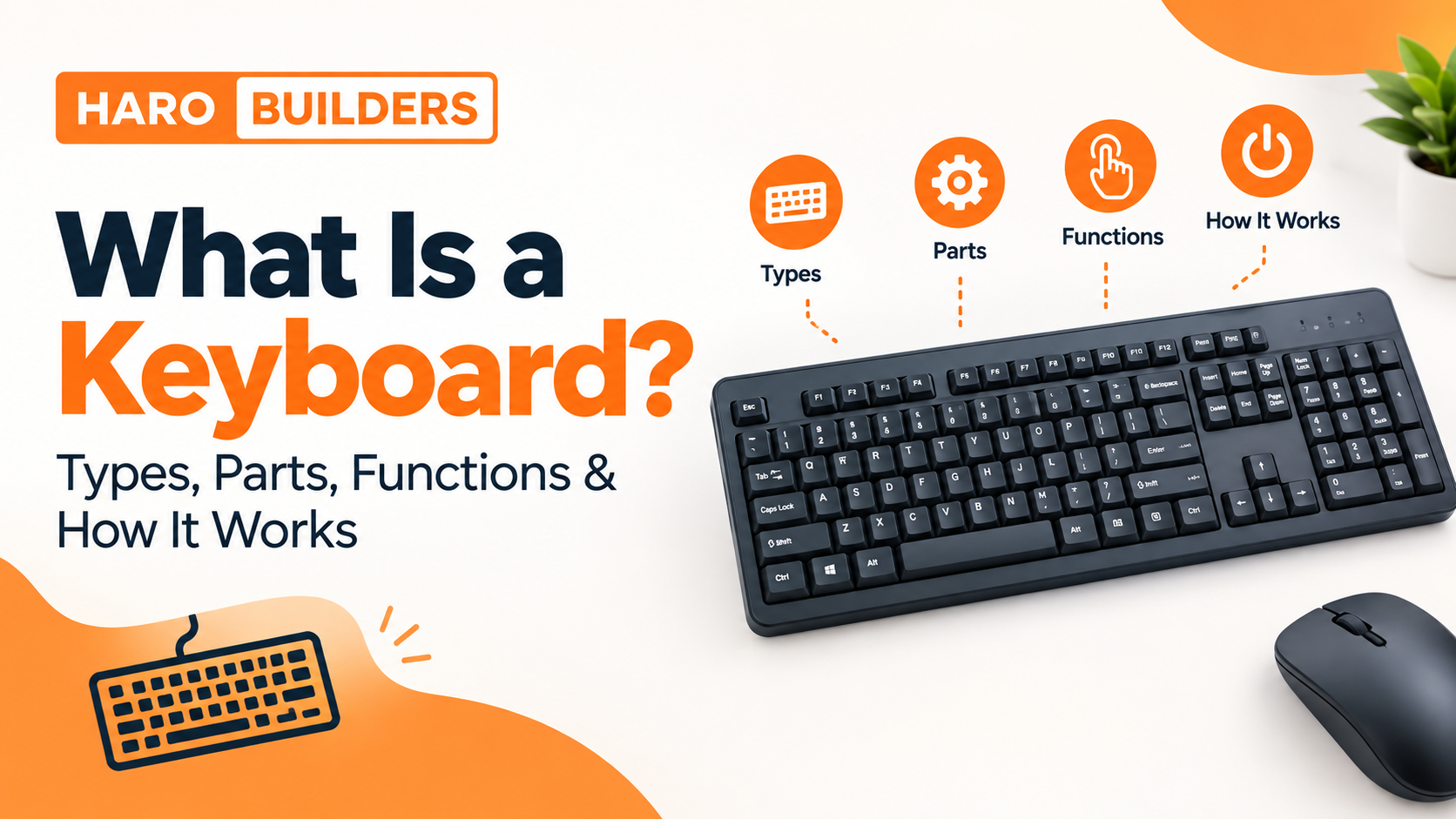
A keyboard is an input device that lets you enter letters, numbers, symbols, commands, and shortcuts into a computer or other digital device. When you press a key, the keyboard detects the input and sends information to the computer, where the operating system and application interpret it as text, navigation, or an action.
Keyboards come in many forms, including mechanical, membrane, wireless, ergonomic, gaming, laptop, and virtual keyboards. They can also use different layouts, such as QWERTY, AZERTY, and QWERTZ.
This guide explains what a keyboard is, what it does, how it works, its main parts and keys, different keyboard types, layouts, uses, shortcuts, and how to choose one.
What Is a Keyboard?
A keyboard is a hardware input device used to enter information and commands into a computer. It contains keys that represent letters, numbers, symbols, functions, navigation commands, and other actions.
When you type a sentence, enter a password, use a keyboard shortcut, move through a document, or control a game, the keyboard provides the physical interface between you and the computer.
In simple terms:
A keyboard lets you communicate with a computer by pressing keys that generate input.
Unlike a monitor or printer, which primarily provide output, a keyboard sends information to the computer. That is why it is classified as an input device.
What Is a Keyboard in a Computer?
In a computer system, a keyboard is one of the most common input devices. It is used to enter:
- Letters and words
- Numbers
- Punctuation
- Symbols
- Commands
- Keyboard shortcuts
- Navigation instructions
- Application controls
For example, pressing A produces an input that an application can interpret as the letter “A.” Pressing Ctrl + S in many Windows applications can invoke a save command.
The exact behavior of a key depends on the operating system, application, keyboard layout, and the key or combination being used.
Why Is a Keyboard an Input Device?
A keyboard is an input device because it sends information from the user to the computer.
The basic flow is:
User → Keyboard → Computer → Operating System → Application
A monitor works in the opposite direction: it displays information from the computer to the user.
Other common computer input devices include:
- Mouse
- Touchpad
- Microphone
- Scanner
- Webcam
- Game controller
- Touchscreen
A keyboard is particularly important because it can provide both text input and command input.
What Does a Keyboard Do?
The main function of a keyboard is to allow users to enter information and control software.
1. Typing Text
The most obvious use is entering text into applications such as:
- Word processors
- Email applications
- Web browsers
- Messaging apps
- Note-taking software
2. Entering Numbers
Number keys can be used for calculations, forms, spreadsheets, accounting, programming, and data entry.
Keyboards with a dedicated numeric keypad can make frequent number entry more convenient.
3. Entering Symbols
Keyboards provide access to punctuation and symbols such as:
!@#$%&*?
The exact arrangement varies according to the keyboard layout.
4. Navigating Documents and Interfaces
Navigation keys such as the arrow keys, Home, End, Page Up, and Page Down help users move through documents and interfaces.
5. Running Commands
Some keys and key combinations perform commands instead of entering ordinary characters.
For example:
- Ctrl + C commonly copies selected content on Windows.
- Ctrl + V commonly pastes copied content.
- Ctrl + Z commonly undoes an action.
Keyboard shortcuts vary by operating system and application.
6. Controlling Games and Software
Gaming keyboards can provide features designed for fast key input, programmable controls, macros, and other gaming-oriented functions.
How Does a Computer Keyboard Work?
A keyboard may look simple, but several components work together when you press a key.
A simplified process looks like this:
Press a key → keyboard detects the key → keyboard controller processes the input → input is sent to the computer → operating system processes it → application responds
Modern computer keyboards commonly communicate through standard input interfaces such as USB or Bluetooth, while USB-connected keyboards can use the Human Interface Device (HID) framework. Windows documentation describes keyboard input in terms of scan codes, virtual-key codes, keyboard messages, and input processing. Microsoft’s keyboard input documentation
Step 1: You Press a Key
When you press a key, its underlying mechanism changes an electrical state or otherwise detects the key press.
The physical mechanism depends on the keyboard.
A mechanical keyboard, for example, uses individual mechanical switches. A membrane keyboard uses a membrane-based mechanism.
Step 2: The Keyboard Controller Detects the Input
The keyboard’s controller determines which key or keys were activated.
Keyboards commonly use a matrix arrangement to identify key presses efficiently.
Step 3: The Keyboard Sends the Input
The keyboard sends information to the computer through its connection.
Common connection methods include:
- USB
- Bluetooth
- Other wireless technologies
Step 4: The Operating System Interprets the Input
The operating system receives keyboard input and processes it according to the active keyboard layout and input system.
The same physical key can produce different characters depending on the selected layout or modifier keys.
Step 5: The Application Responds
The application then uses the input.
For example:
- A text editor may insert a character.
- A browser may activate a shortcut.
- A game may interpret a key as movement.
- A spreadsheet may move between cells.
This is why a keyboard is more than a collection of buttons. It is part of the computer’s input system.
What Are the Parts of a Keyboard?
A keyboard contains many keys and physical components, but the most useful way to understand it is by grouping the keys according to their purpose.
1. Alphanumeric Keys
Alphanumeric keys include letters and numbers.
They form the main typing area of a standard keyboard.
Examples include:
- A–Z
- 0–9
They are primarily used for entering words, numbers, and other text.
2. Function Keys
Function keys are commonly labeled F1 through F12 on standard desktop keyboards.
Their behavior depends on the operating system and application.
They may perform actions such as opening help, refreshing a page, changing display settings, controlling media, or triggering application-specific commands.
3. Modifier Keys
Modifier keys change the behavior of another key when pressed together.
Common modifier keys include:
- Shift
- Ctrl
- Alt
- Windows key
- Command on Mac keyboards
- Option on Mac keyboards
For example, Shift + a letter can produce an uppercase letter.
4. Navigation Keys
Navigation keys help users move around documents, webpages, and interfaces.
Examples include:
- Arrow keys
- Home
- End
- Page Up
- Page Down
5. Editing Keys
Editing keys help users modify text or content.
Examples include:
- Backspace
- Delete
- Insert
The exact behavior of some keys depends on the application.
6. Numeric Keypad
A numeric keypad is the separate number section found on many full-size keyboards.
It normally includes:
- Number keys
- Decimal point
- Addition
- Subtraction
- Multiplication
- Division
- Enter
A numeric keypad is especially useful for frequent numerical data entry.
7. Special and Multimedia Keys
Some keyboards include additional keys for:
- Volume
- Play/pause
- Mute
- Calculator
- Browser controls
- Lighting
- Programmable functions
These are more common on multimedia and gaming keyboards.
Keyboard Keys and Their Functions
The following table explains some of the most common keys.
| Key | Main Function |
|---|---|
| Enter | Confirms an action or creates a new line in many applications |
| Spacebar | Inserts a space between characters |
| Backspace | Deletes the character or content before the cursor in many text fields |
| Delete | Deletes selected content or content after the cursor depending on context |
| Tab | Moves focus between controls or inserts indentation in some applications |
| Shift | Modifies another key, such as producing uppercase letters |
| Ctrl | Used with other keys for shortcuts on many Windows/Linux systems |
| Alt | Modifier used for commands and shortcuts |
| Esc | Commonly cancels or exits an active operation |
| Caps Lock | Toggles uppercase letter entry |
| Arrow Keys | Move through documents, menus, fields, and other interfaces |
| Home | Moves to the beginning of a line or location depending on the application |
| End | Moves to the end of a line or location depending on the application |
| Page Up | Moves upward through content |
| Page Down | Moves downward through content |
| Windows Key | Opens or interacts with Windows features |
| Command | Common macOS modifier key |
The exact behavior of a key can change depending on the operating system and software.
What Are the Types of Keyboards?
There is no single way to classify keyboards.
A common mistake is to treat mechanical, wireless, QWERTY, gaming, and ergonomic as if they were all categories on the same level. They are not.
A keyboard can be mechanical and wireless, for example. It can also be QWERTY and gaming.
The clearest approach is to classify keyboards by different characteristics.
Types of Keyboards by Key Mechanism
Mechanical Keyboard
Mechanical keyboards use individual mechanical switches beneath the keys.
They are popular with:
- Gamers
- Programmers
- Writers
- Enthusiasts
Different switches can produce different levels of tactile feedback, actuation characteristics, and sound.
Membrane Keyboard
Membrane keyboards use a membrane-based electrical contact system rather than individual mechanical switches for each key.
They are widely used for general computing and are often available at relatively affordable prices.
Scissor-Switch Keyboard
Scissor-switch keyboards use a low-profile mechanism commonly associated with laptops and slim keyboards.
They typically have a relatively short key travel and compact construction.
Types of Keyboards by Connection
Wired Keyboard
A wired keyboard connects directly to the computer, commonly through USB.
Advantages include:
- No keyboard battery requirement
- Simple setup
- Stable physical connection
Wireless Keyboard
A wireless keyboard communicates without a traditional cable.
Depending on the model, it may use Bluetooth or another wireless connection.
Wireless keyboards can help reduce cable clutter and make flexible desk setups easier.
Types of Keyboards by Purpose
Gaming Keyboard
Gaming keyboards are designed with features intended for gaming.
Depending on the model, these can include:
- Mechanical switches
- Programmable keys
- RGB lighting
- Anti-ghosting features
- N-key rollover
- Dedicated media controls
Not every gaming keyboard includes all of these features.
Ergonomic Keyboard
Ergonomic keyboards are designed around different approaches to hand and wrist positioning.
Some use split layouts, curved designs, tenting, or other shape changes.
The best ergonomic design is personal because comfort depends on the user, workstation, typing habits, and keyboard design.
Multimedia Keyboard
Multimedia keyboards include extra controls for functions such as:
- Volume
- Playback
- Mute
- Media navigation
Accessibility Keyboard
Some keyboards are designed to make computer input easier for users with particular accessibility needs.
They may provide larger keys, alternative layouts, programmable controls, or compatibility with assistive technologies.
Types of Keyboards by Form Factor
Full-Size Keyboard
A full-size keyboard usually includes the main typing area, function keys, navigation cluster, and a dedicated numeric keypad.
Tenkeyless Keyboard
A tenkeyless or TKL keyboard removes the dedicated numeric keypad to reduce width.
Compact Keyboard
Compact keyboards reduce the physical size by removing or combining certain sections.
Laptop Keyboard
Laptop keyboards are integrated into portable computers and are usually designed around space limitations.
Physical vs Virtual Keyboard
A physical keyboard is a hardware device with physical keys.
A virtual keyboard is software displayed on a screen. Users interact with it through a touchscreen, mouse, pointer, or another input method.
Smartphones and tablets commonly use virtual keyboards.
Keyboard Types Comparison
| Keyboard Type | Main Characteristic | Common Use | Main Consideration |
|---|---|---|---|
| Mechanical | Individual mechanical switches | Gaming, typing, programming | Switch feel, sound, cost |
| Membrane | Membrane-based mechanism | General computing | Key feel and durability vary |
| Scissor-switch | Low-profile mechanism | Laptops, slim keyboards | Short travel and compact design |
| Wired | Physical cable connection | Desktops, offices, gaming | Cable management |
| Wireless | Wireless connection | Flexible workspaces | Battery/charging |
| Ergonomic | Comfort-oriented design | Extended typing | Adaptation and personal fit |
| Gaming | Gaming-oriented features | PC gaming | Extra features and cost |
| Multimedia | Dedicated media controls | Home and office use | Extra controls |
| Virtual | Software-based keyboard | Phones, tablets, touch devices | No physical key feedback |
What Is a Keyboard Layout?
A keyboard layout describes how characters, symbols, and functions are arranged on the keyboard.
The layout is different from the keyboard’s physical mechanism.
For example:
- Mechanical describes the key mechanism.
- Wireless describes the connection.
- Gaming describes the intended feature set.
- QWERTY describes a layout.
This distinction is important because one keyboard can have several of these characteristics at once.
Common Keyboard Layouts
QWERTY
QWERTY is one of the most widely recognized keyboard layouts. The name comes from the first six letters across the top letter row.
AZERTY
AZERTY is commonly associated with French-language keyboard layouts.
QWERTZ
QWERTZ is used in several Central European language environments.
Dvorak
Dvorak is an alternative keyboard layout designed with a different character arrangement from QWERTY.
Different layouts can change where characters and symbols are located, so switching layouts may require an adjustment period.
What Are the Main Functions of a Keyboard?
Keyboard functions can be grouped into several categories.
Text Input
The keyboard lets users enter letters, words, punctuation, and symbols.
Numerical Input
Number keys and numeric keypads allow efficient number entry.
Navigation
Arrow keys and other navigation controls help users move through digital content.
Editing
Backspace, Delete, and other keys allow users to modify information.
Command Input
Function keys and shortcuts can trigger commands.
Application Control
Applications can assign specific actions to keys or key combinations.
Gaming Control
Games can map keyboard keys to movement, abilities, menus, and other actions.
Accessibility
Keyboard navigation can provide an alternative to mouse-based interaction in many software environments.
What Are Keyboards Used For?
A computer keyboard can be used for many tasks.
Education
Students use keyboards to:
- Write assignments
- Search the web
- Enter data
- Complete online activities
- Take notes
Office Work
Office users commonly rely on keyboards for:
- Documents
- Spreadsheets
- Data entry
- Communication
- Shortcuts
Programming
Developers spend significant time entering code, commands, symbols, and shortcuts.
Gaming
PC games frequently use keyboard keys for movement, commands, inventory controls, and other actions.
Web Browsing
A keyboard can be used for typing URLs, searching, navigating forms, and using browser shortcuts.
Content Creation
Writers, editors, designers, and other professionals use keyboards to enter text and trigger application commands.
Common Keyboard Shortcuts
Keyboard shortcuts allow users to perform actions without navigating through menus.
Here are several common Windows shortcuts:
| Shortcut | Common Function |
|---|---|
| Ctrl + C | Copy |
| Ctrl + V | Paste |
| Ctrl + X | Cut |
| Ctrl + Z | Undo |
| Ctrl + A | Select all |
| Ctrl + S | Save |
| Ctrl + F | Find |
| Alt + Tab | Switch between open applications |
On macOS, many equivalent shortcuts use the Command (⌘) key rather than Ctrl.
Shortcut behavior can vary between operating systems and applications, so users should check the documentation for software-specific commands.
How Many Keys Are on a Keyboard?
There is no universal number of keys for every keyboard.
The number depends on the design and purpose of the keyboard.
For example, a full-size desktop keyboard may include a dedicated numeric keypad and separate navigation controls, while a compact keyboard may remove or combine several sections.
Laptop keyboards also vary considerably in layout and key count.
That means answers such as “every keyboard has exactly 104 keys” are too broad.
Standard Keyboard vs Compact Keyboard
A standard full-size keyboard provides more dedicated keys and usually includes a numeric keypad.
A compact keyboard reduces physical size by removing or combining some keys or sections.
Full-size keyboard
Best suited to users who:
- Need a numeric keypad
- Use many dedicated navigation keys
- Want a traditional layout
Compact keyboard
Useful for users who:
- Have limited desk space
- Travel frequently
- Prefer a smaller setup
- Do not regularly need a dedicated number pad
Mechanical vs Membrane Keyboard
| Feature | Mechanical | Membrane |
|---|---|---|
| Key mechanism | Individual switches | Membrane-based mechanism |
| Key feel | Varies by switch | Generally softer |
| Customization | Often extensive | Usually more limited |
| Sound | Depends on switch | Often quieter |
| Price | Wide range, often higher | Often budget-friendly |
| Common users | Gamers, enthusiasts, typists | General users, offices |
Neither is automatically the right choice for everyone.
The better option depends on typing preference, budget, noise tolerance, intended use, and desired features.
Wired vs Wireless Keyboard
| Feature | Wired | Wireless |
|---|---|---|
| Connection | Cable | Bluetooth or other wireless technology |
| Battery | Usually not required | Usually required or rechargeable |
| Cable clutter | More | Less |
| Portability | Less flexible | More flexible |
| Setup | Usually straightforward | May require pairing |
For a permanent desktop workstation, a wired keyboard can be convenient. For flexible desk setups, travel, or multi-device use, wireless can be more practical.
How to Choose the Right Keyboard
The best keyboard depends on what you actually do with it.
For Students
Look for:
- Comfortable typing
- Reliable construction
- Standard layout
- Reasonable price
For Office Workers
Prioritize:
- Comfort
- Quiet operation if needed
- Easy access to common keys
- Reliable connection
For Programmers
Consider:
- Comfortable key feel
- Familiar layout
- Shortcut access
- Programmability if useful
For Gamers
Consider:
- Key response
- Rollover/anti-ghosting features
- Programmable controls
- Preferred switch type
For Frequent Number Entry
A keyboard with a dedicated numeric keypad can be useful.
For Small Desks
A compact or tenkeyless keyboard can free up desk space.
For Frequent Travel
A compact wireless keyboard can reduce the amount of equipment you need to carry.
Keyboard Advantages
Keyboards offer several practical advantages:
- Fast text entry
- Precise character input
- Efficient shortcuts
- Convenient navigation
- Strong support for programming and data entry
- Useful controls for gaming
- Compatibility with a wide range of computers and applications
Keyboard Limitations
Keyboards also have some limitations:
- Users need to learn the layout
- Physical keys can wear over time
- Keyboards can collect dust and debris
- Some designs can be noisy
- Poor workstation setup can make extended typing uncomfortable
- Specialized keyboards may cost considerably more than basic models
How to Maintain a Keyboard
Good maintenance can help keep a keyboard clean and functional.
Keep liquids away
Spilled liquid can damage electronic components.
Clean dust and debris
Dust and debris can collect between keys. Follow the manufacturer’s cleaning instructions for your specific keyboard.
Avoid forcing keys
If a key becomes difficult to press, investigate the cause instead of repeatedly applying excessive force.
Keep the keyboard in a suitable environment
Avoid unnecessary exposure to moisture, extreme conditions, or contaminants.
Maintain wireless keyboards
Recharge or replace batteries when necessary and keep the keyboard’s connection method in mind when troubleshooting.
Common Keyboard Problems
Some common keyboard issues include:
- Keys not responding
- Repeated characters
- Incorrect characters appearing
- Wireless connection problems
- Keyboard layout changes
- Sticky or damaged keys
- Function keys behaving differently than expected
Before assuming the keyboard is physically broken, check the connection, selected keyboard layout, operating-system settings, application behavior, and battery status for wireless models.
Keyboard Features to Look For
Different keyboards offer different features.
Useful features may include:
- Backlighting
- Adjustable lighting
- Programmable keys
- Dedicated media controls
- Numeric keypad
- Wireless connectivity
- Bluetooth
- USB connectivity
- Wrist support
- Different switch types
- Compact layouts
- Multi-device switching
The right features depend on the user’s workflow.
Frequently Asked Questions About Keyboards
What is a keyboard in simple words?
A keyboard is a computer input device used to enter letters, numbers, symbols, commands, and shortcuts. It sends the user’s key presses to the computer so software can process them.
Why is a keyboard an input device?
A keyboard is an input device because it sends information from the user to the computer. When you press a key, the keyboard generates input that the operating system and application can process.
What does a keyboard do?
A keyboard allows users to type text and numbers, enter symbols, navigate interfaces, execute commands, use shortcuts, and control software such as games and productivity applications.
How does a computer keyboard work?
A keyboard detects a key press, processes it through its internal controller, and sends the resulting input to the computer. The operating system then interprets the input and passes the relevant information to the application.
What are the main parts of a keyboard?
The main functional groups include alphanumeric keys, function keys, modifier keys, navigation keys, editing keys, arrow keys, and, on many full-size keyboards, a numeric keypad.
What are the different types of keyboards?
Common types include mechanical, membrane, scissor-switch, wired, wireless, ergonomic, gaming, multimedia, compact, full-size, and virtual keyboards. These categories describe different characteristics, so one keyboard can belong to several categories.
What is the most common keyboard layout?
QWERTY is one of the most widely used keyboard layouts. Other layouts include AZERTY, QWERTZ, and Dvorak.
How many keys are on a keyboard?
The number varies by keyboard design. Full-size, laptop, compact, gaming, and specialized keyboards can have different numbers and arrangements of keys.
What is the difference between a keyboard type and a keyboard layout?
A keyboard type describes characteristics such as its mechanism, connection, purpose, or physical design. A keyboard layout describes how letters, numbers, and symbols are arranged.
For example, a keyboard can be mechanical, wireless, gaming, and QWERTY at the same time.
What is the difference between a mechanical and membrane keyboard?
A mechanical keyboard uses individual mechanical switches beneath its keys, while a membrane keyboard uses a membrane-based mechanism. Mechanical keyboards generally provide more switch choices and customization, while membrane keyboards are commonly used for straightforward general computing.
Is a wireless keyboard better than a wired keyboard?
Neither is universally better. Wired keyboards provide a direct physical connection and normally do not require a keyboard battery, while wireless keyboards reduce cable clutter and can provide greater flexibility.
What are keyboard keys and their functions?
Keyboard keys have different roles. Letter and number keys enter characters, modifier keys change the behavior of other keys, navigation keys move through content, editing keys modify content, and function keys can trigger commands depending on the operating system and application.
Key Takeaways
- A keyboard is a computer input device.
- It is used to enter text, numbers, symbols, commands, and shortcuts.
- Keyboard keys can be grouped into alphanumeric, function, modifier, navigation, editing, and numeric-keypad categories.
- Mechanical, membrane, scissor-switch, wireless, ergonomic, gaming, and virtual keyboards serve different purposes.
- QWERTY, AZERTY, QWERTZ, and Dvorak are examples of keyboard layouts.
- A keyboard’s key count varies according to its design.
- Keyboard type and keyboard layout are different concepts.
- The best keyboard depends on the user’s tasks, preferences, workspace, and budget.
Conclusion
A keyboard is one of the most important computer input devices because it provides a direct way to enter text, numbers, symbols, commands, and shortcuts. Although a keyboard may look like a simple collection of buttons, its keys, internal controller, connection method, operating-system input system, and software all work together to turn a key press into useful computer input.
Understanding the difference between keyboard types, key groups, layouts, functions, and connection methods makes it much easier to choose and use the right keyboard.
For more technology guides and practical resources, explore HaroBuilder.


💬 Comments 0
No comments yet. Be the first to share your thoughts! 💬
✍️ Leave a Comment